
Free
inside SEO has two views. The simple view shows only the main tasks, as buttons on the side. The advanced view shows all tabs at the top. You switch with one click, and the data stays the same.
How much time does it take you to review all the data?
When all tabs are visible at once, a new user does not know where to start.
The plugin has many tabs and sub-tabs. A specialist uses all of them. A store owner usually wants to see sales, rankings and what to fix this month. With eleven tabs in front of them, they get lost and put the work off. So the important tasks stay undone.
How does inside SEO help?
The simple view arranges the main tasks as buttons, and the advanced view keeps full access.
- A “Simple | Advanced” switch at the top right, next to the gear for connections and the license.
- A new site starts in the simple view, and a site that already uses the plugin stays in the advanced view.
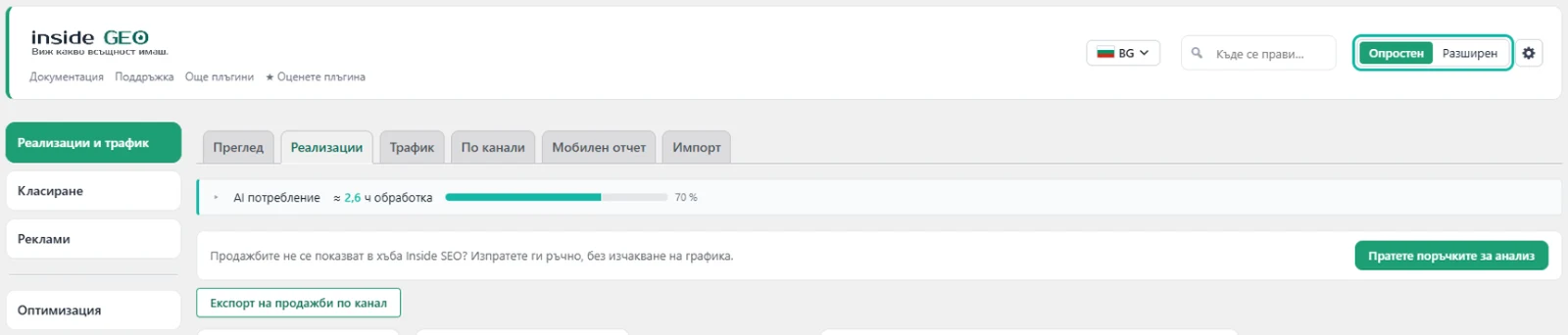
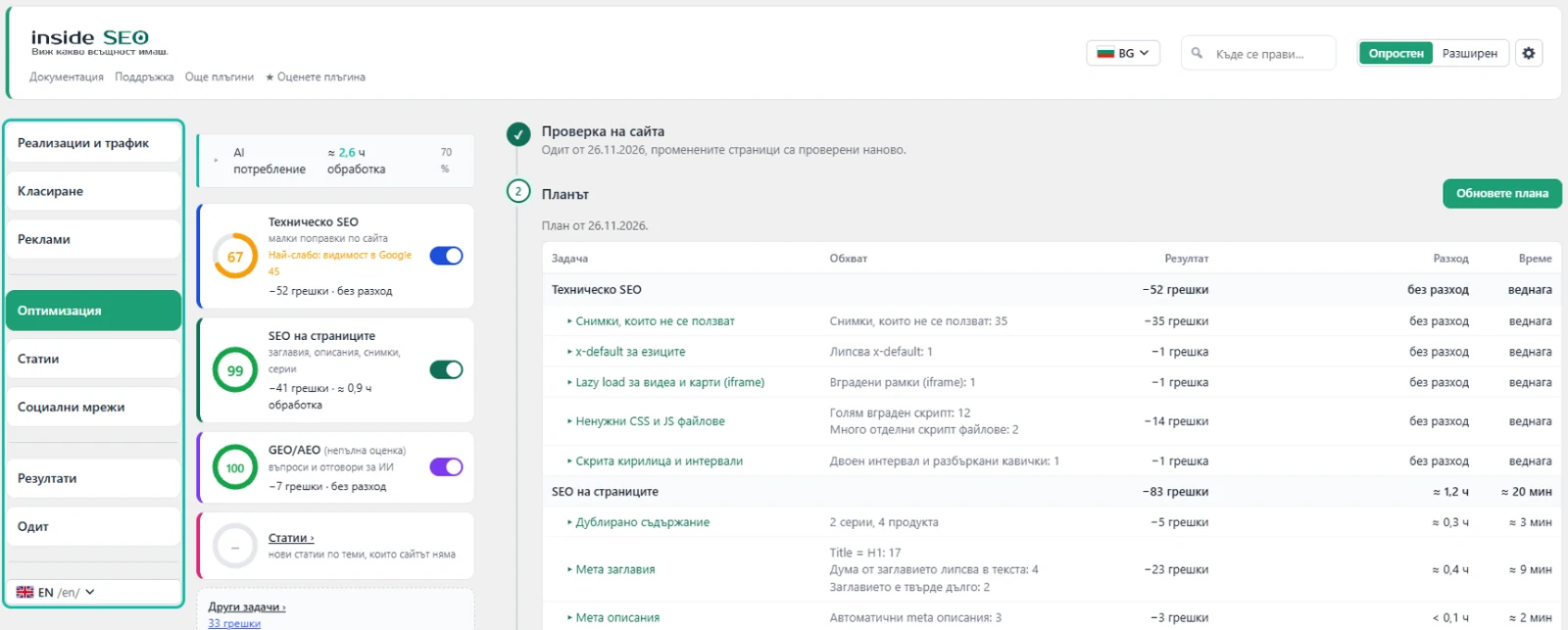
- In the simple view, the main tasks are buttons on the side.
- The “Optimization” button shows how many changes are waiting for approval.
- The “Results” button leads straight to the tracking of changes.
- The choice is saved separately for each user.
Why does this help?
The clearer the path, the more often tasks get done. In the simple view, the owner sees only what drives sales and rankings. The specialist switches to advanced and reaches all checks and analyses.
The main tasks, with one click
inside SEO shows a simple view for the owner and an advanced view for the specialist.
- Buttons for the main tasks
- Full access with one click
- Own view for every user
Switch the view
At the top right is the “Simple | Advanced” switch. Click the view you want. The choice is saved for your user, and the other users of the site have their own. The gear next to the switch leads to the connections with Google and Meta and to the license. Data and settings do not change when you switch the view.
Work with the side buttons
In the simple view, the buttons for the main tasks are on the left: “Conversions and traffic”, “Rankings”, “Ads”, “Optimization”, “Articles”, “Social networks”, “Results” and “Audit”. “Ads” appears if the module is enabled. Without a connection to Google or Meta, the button leads to the connection. “Results” opens the tracking of changes. Below the buttons is the language version selector. When you open a screen without a button, “Back” appears. On a smaller screen, the buttons line up in a row above the content.
Use the advanced view
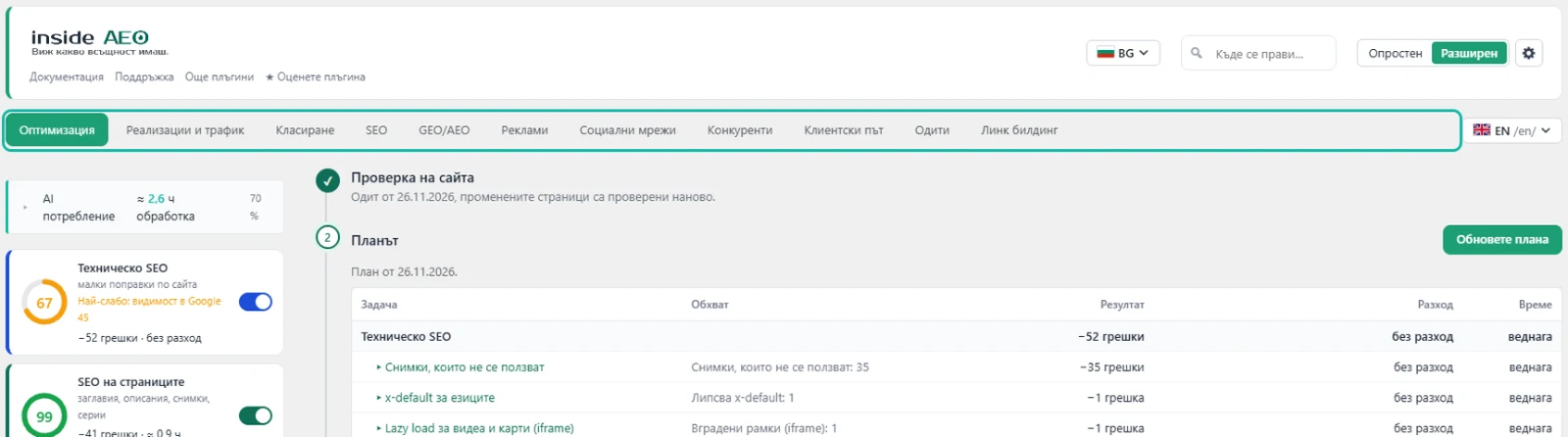
In the advanced view, all tabs are at the top: “Optimization”, “Conversions and traffic”, “Rankings”, “SEO”, “GEO/AEO”, “Ads”, “Social networks”, “Competitors”, “Customer journey”, “Audits” and “Link building”. Each tab has sub-tabs. Some tabs require Pro. Choose the advanced view when you need the detailed checks and analyses.
Pro with a 14-day guarantee
With Pro, the advanced view also shows the competitor analyses, the customer journey and AI visibility.
Start for free →Frequently asked questions
Is data lost when switching the view?
No. Only the look of the screens changes. The data and settings stay the same.
Which view is right for me?
The simple view is for the store owner who wants a quick overview and the monthly tasks. The advanced view is for the specialist who uses all checks.
Can every user have their own view?
Yes. The choice is saved separately for each user of the site.
Why don't I see the “Ads” button?
The button appears when the “Ads” module is enabled in the settings.
Where is the plugin menu in WordPress?
In the simple view, the WordPress menu shows one line, “inside SEO”. All tasks are in the side buttons.
Is the simple view paid?
No. Both views are in the free version. Some tabs in the advanced view require Pro.
Related articles