
FreePro
“Optimization” is the fast track in inside SEO. It is for people who do not want to read reports and hunt for errors in tables. AI checks the site and prepares the plan and the changes for the month. You only approve them. Then the plugin tracks whether they helped in organic search.
How much time does manual optimization take you?
Most store owners have no time to read reports and fix errors one by one.
An audit of one store easily finds hundreds of errors. To fix them yourself, you have to read tables, understand what each error means and write new titles and descriptions. This takes hours every month. That is why errors often stay. And after a fix, rarely anyone checks whether rankings and clicks improved.
The prepared changes wait for your approval. Every saved task has a “Revert” button.
How does inside SEO help?
“Optimization” is optimization with AI. The plugin makes the plan and the changes, and you only approve them.
- No reading reports. One plan with all tasks for the month, prepared by AI.
- Helpers on the side: “Technical SEO”, “On-page SEO”, “GEO/AEO” and “Articles”. Each has a score from 0 to 100 and an on/off switch.
- “Other tasks” leads to the errors that need a specialist.
- The “AI usage” bar shows how much AI processing has been used this month.
- Five steps: site check, plan, preparation, review and approval, tracking.
- For each task you see how many errors it removes, how much the processing will cost you and how long it takes.
- Tracking of clicks, ranking and AI visits after the change, with a “Revert” button.
Why does this help your rankings?
Google evaluates the site as a whole. Many small errors together weigh more than one big one. The plan fixes them in groups, every month. Tracking shows which changes increased clicks. So you know what to repeat on other pages and what to revert.
The fast track to better rankings
inside SEO checks the site, prepares the changes with AI and tracks their result in organic search. You only approve.
- No reading reports and tables
- Nothing is saved without your approval
- Result and “Revert” for every task
Site check
Open the “Optimization” tab. Step 1 shows the date of the last audit. The plugin re-checks the pages that changed after it. If the audit is old, the plan will be old too.
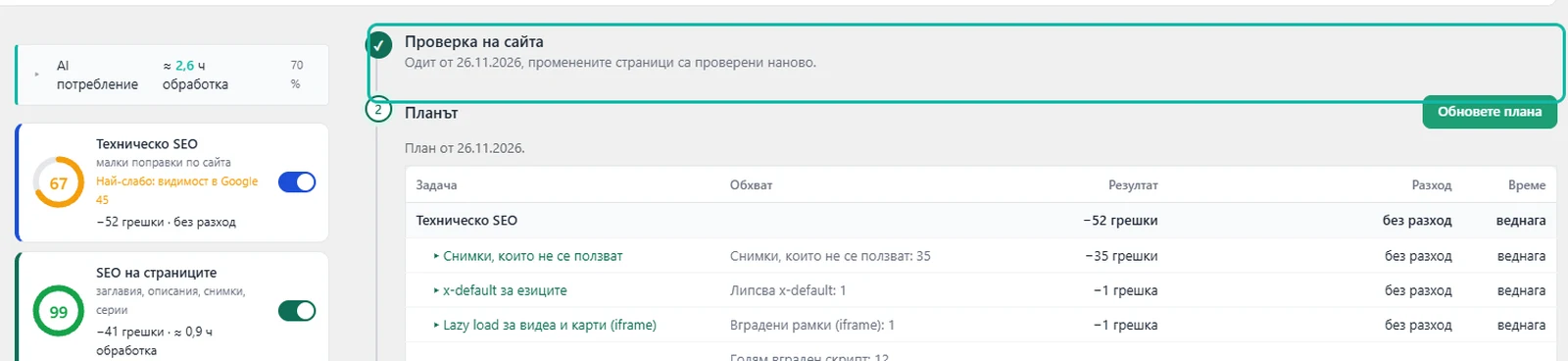
The plan
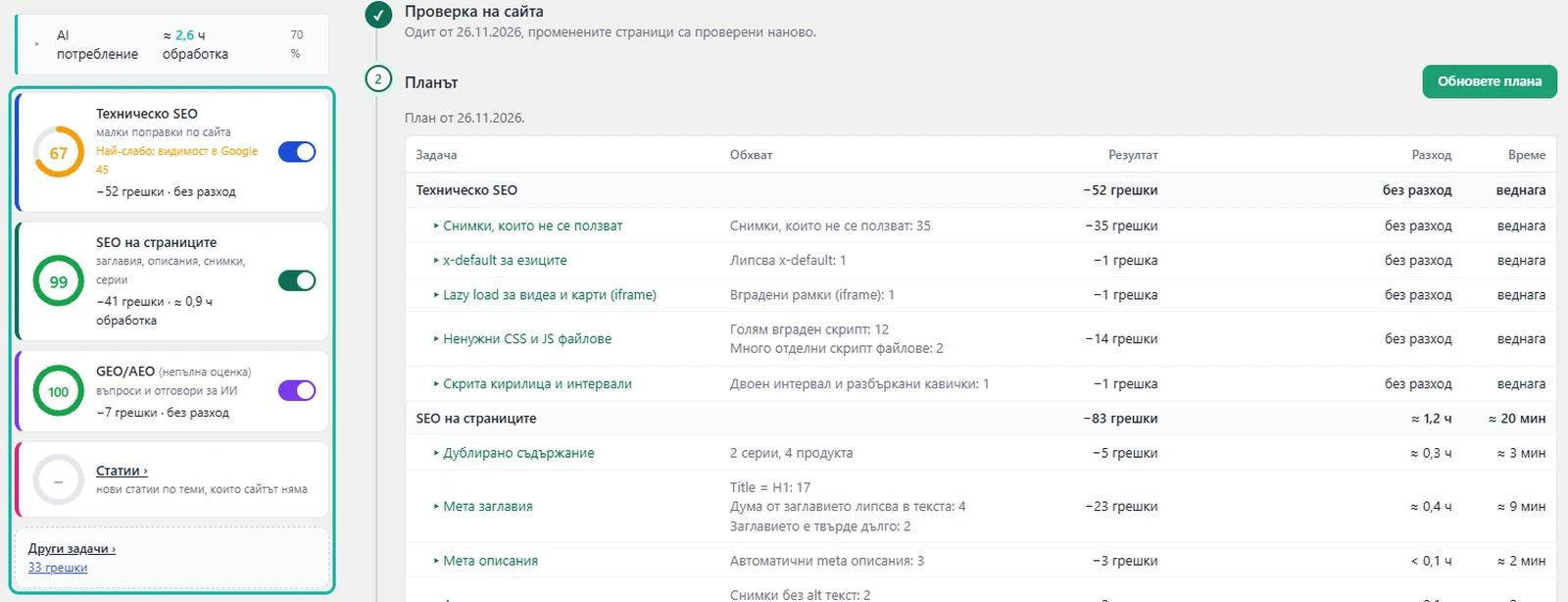
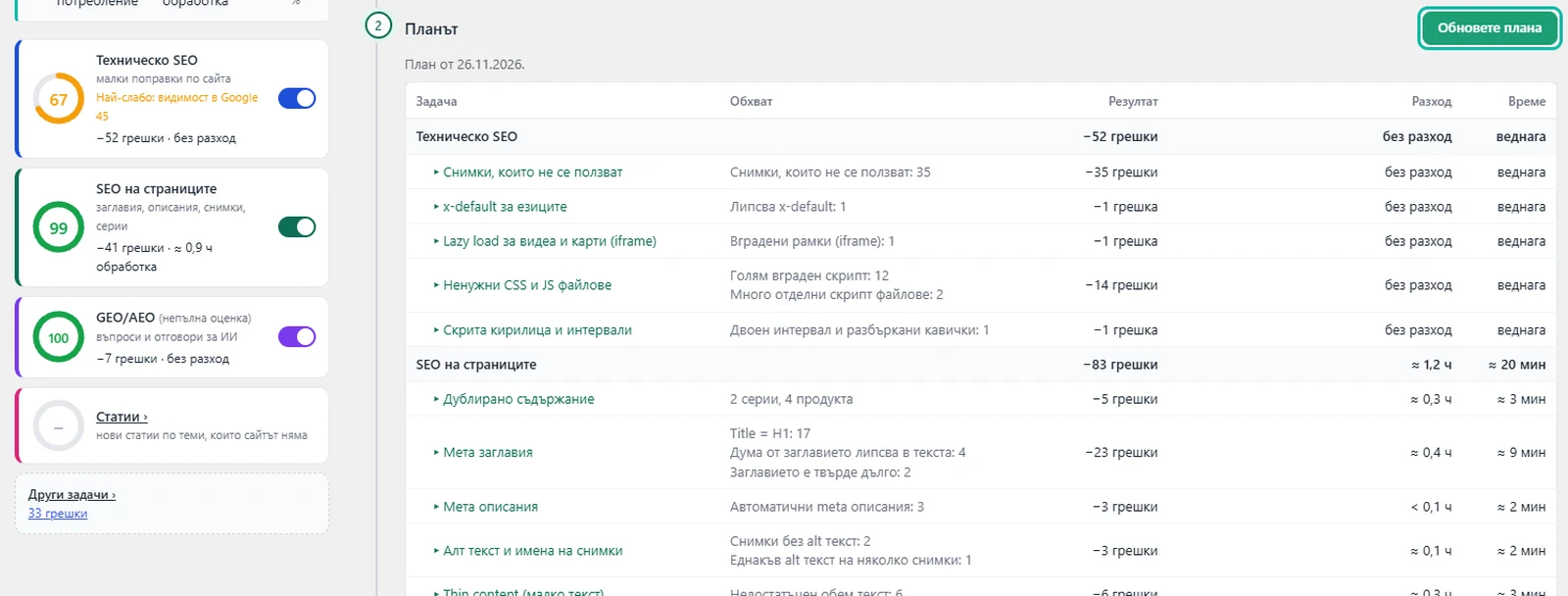
On the left are the helpers: “Technical SEO”, “On-page SEO”, “GEO/AEO” and “Articles”. The number in the circle is the group's score from 0 to 100. “Weakest” shows where the biggest problem is. Below the score you see how many errors the plan will remove and how much the processing will cost you. The switch on the right adds or removes the group from the plan.
Click “Update the plan”. The table shows each task, how many pages it affects, how many errors it removes, how much the processing will cost you and how long it takes. “No cost” tasks are done without AI. The arrow in front of a task opens its pages. Below the table are the manual tasks, for example a check in Search Console. When you have done it, click “Done”.
Preparation
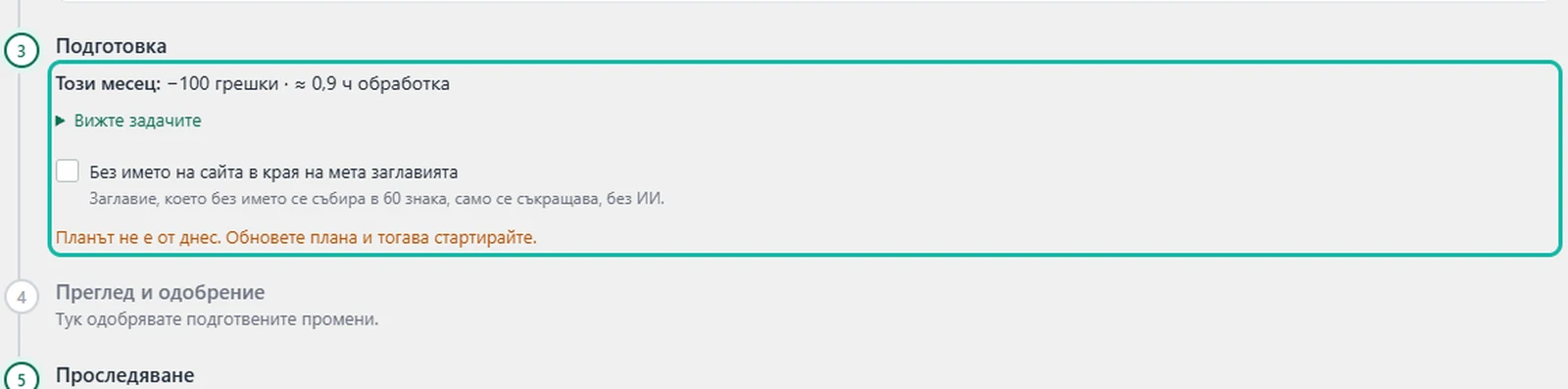
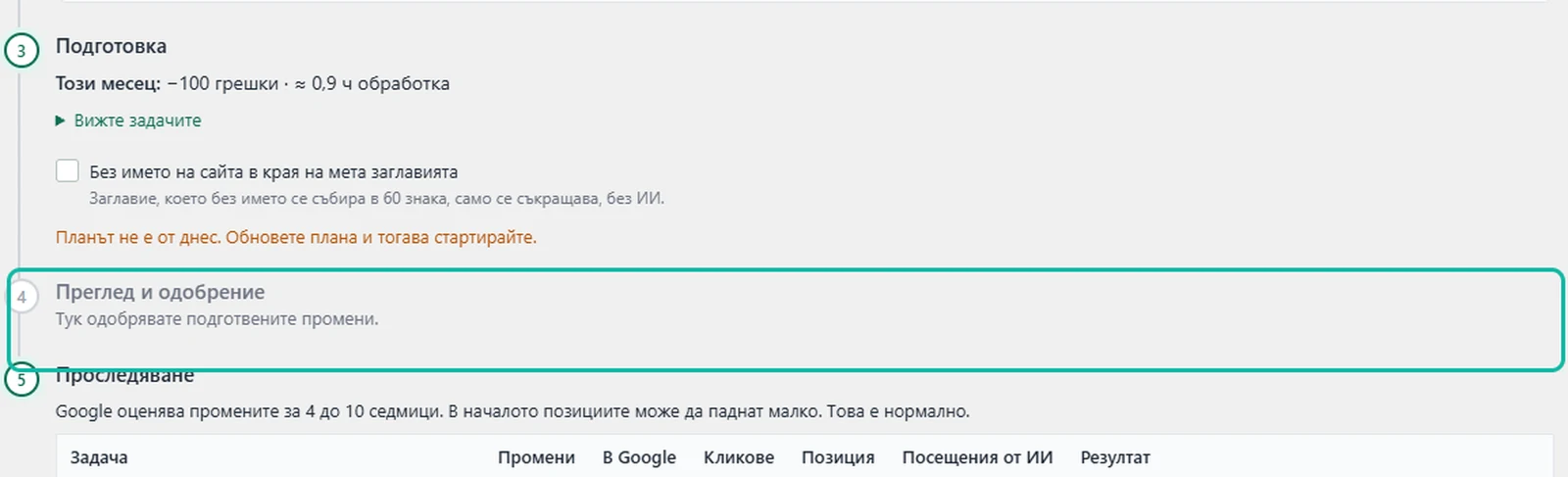
Step 3 shows what will be done this month. “See the tasks” opens the list. The checkbox “Without the site name at the end of meta titles” removes the name from titles that fit in 60 characters without it. This is done without AI. If the plan is not from today, update it first and then start. The plugin prepares the changes in the background. You can close the page.
Review and approval
Here you see the prepared changes. Review them and approve the ones that are fine. Nothing is saved to the site before approval. In the simple view, the “Optimization” button shows how many changes are waiting.
Tracking
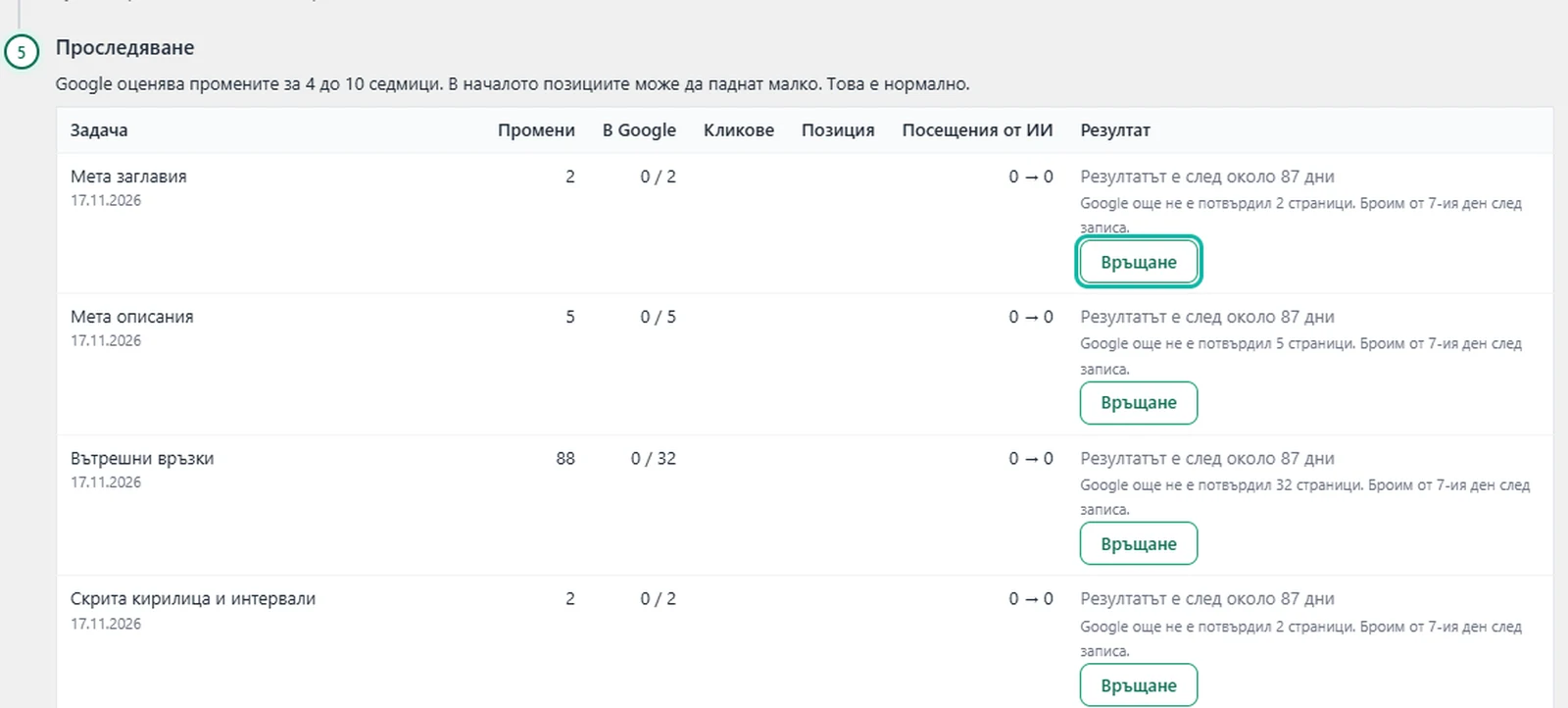
Step 5 shows every saved task. The test starts when Google sees the change. That is a visit from its bot, the last crawl in Search Console or 7 days after saving. The result is from day 61 to day 90 after that. It is compared with unchanged pages of the same type. In the simple view, the “Results” button leads here. If the change did not help, click “Revert”.
Pro with a 14-day guarantee
With Pro, the plan also prepares the texts, and you only approve.
Start for free →Frequently asked questions
Does the plugin save changes without me?
No. The prepared changes wait in the “Review and approval” step. They are saved after you approve them.
What does “AI usage” show?
How much AI processing has been used this month and how much is left. “No cost” tasks are done without AI.
How do I revert a change?
Open step 5 “Tracking”. Click “Revert” on the task row.
Why did rankings drop after the change?
Google evaluates changes over 4 to 10 weeks. At first, rankings may drop a little. This is normal. That is why the result is measured from day 61 to day 90.
Does “Optimization” work in the free version?
The plan and the “no cost” tasks work. Tasks that need AI processing, such as new meta titles, require Pro.
What is in “Other tasks”?
The errors the plugin cannot fix by itself. They need a specialist. The advisor explains each of them.
Related articles