
Free Pro
Sometimes you need the data outside WordPress. For a client report, a spreadsheet or work with a colleague. Inside SEO has download buttons in several tabs. Most give you a CSV file that opens in Excel and Google Sheets. The monthly audit downloads in Word and Excel.
How does this hurt your rankings?
Data that sits on one screen is hard to compare and share with clients or colleagues.
Data that lives on one screen is hard to compare and share. Without a spreadsheet it is hard to see which pages lose rankings, to sort errors by severity or to show a client where orders come from. Copying by hand takes time and brings mistakes. Decisions about the site get delayed, and the problems that hold back rankings stay.
How does Inside SEO help?
Inside SEO exports reports as PDF and CSV, and the monthly audit as Word and Excel.
- “Print / Download” in At a glance opens the browser print window. From there you can also save the report as a PDF.
- “Download CSV” in Traffic downloads sessions and users by channel, device, country, city, language, gender and age, together with the previous period.
- “Export sales by channel” in Conversions gives the channel, orders, revenue and share. The data comes from the shop.
- “Export rankings” and “Export raw data” in Rankings give the keywords or pages with clicks, impressions, CTR and position for the chosen month.
- “Export errors” in SEO → Errors gives every finding with impact, group, problem, severity, URL and description.
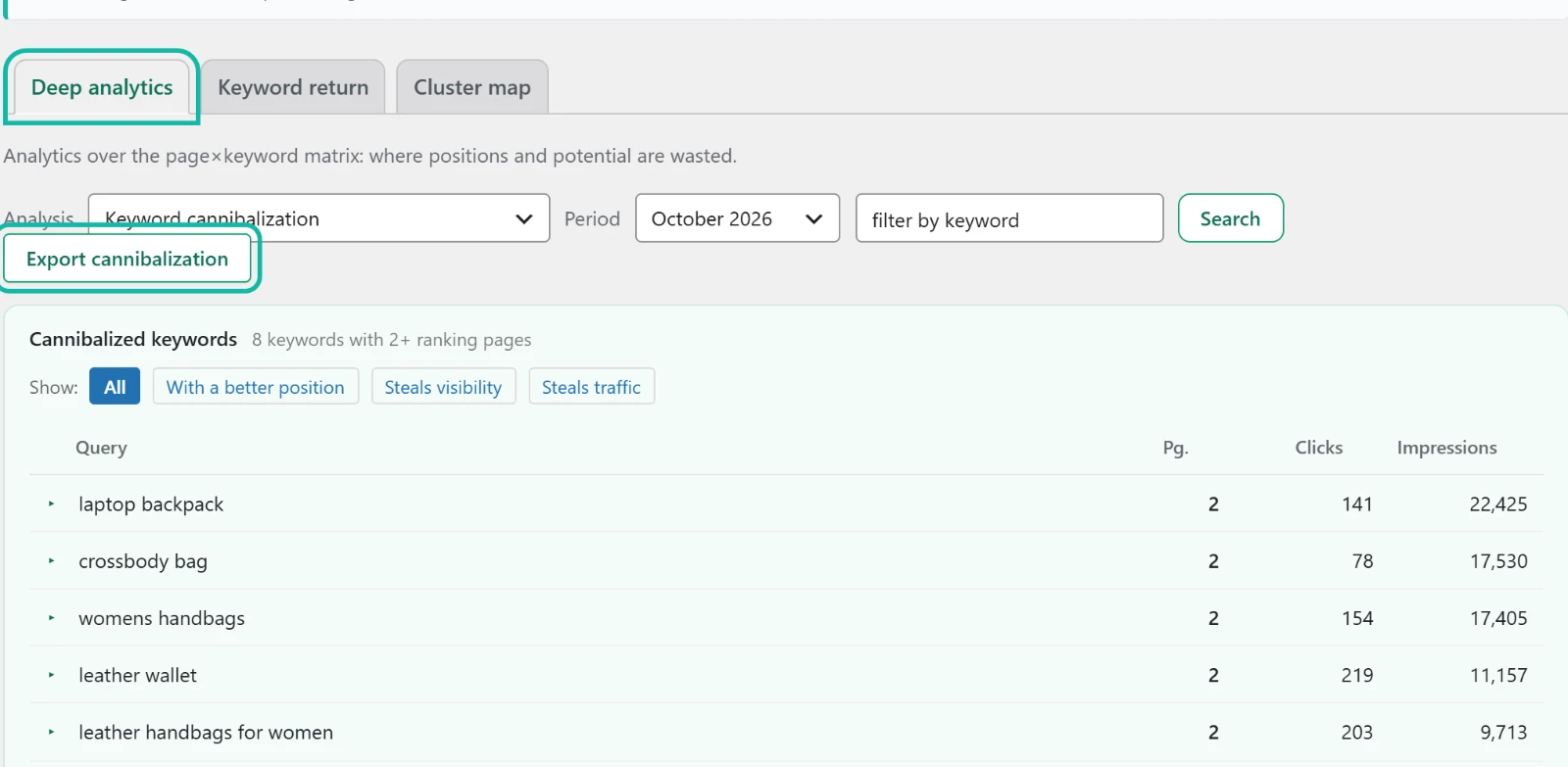
- “Export cannibalization” in Deep analytics gives the keywords with more than one page and the data for each page.
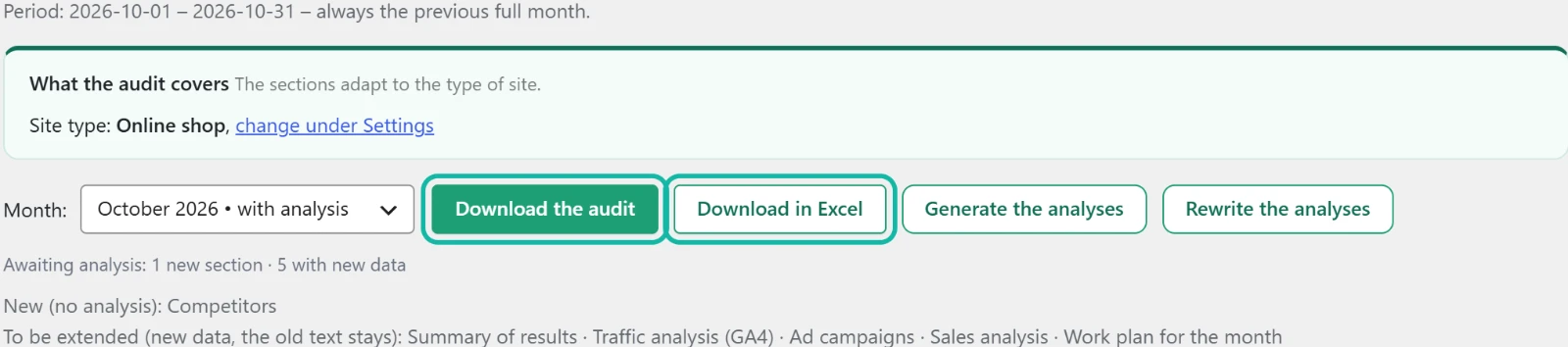
- “Download the audit” and “Download in Excel” in Audits give the monthly audit as a Word document and as a spreadsheet.
- “Download Word document” in GEO/AEO → GEO suggestions gives the plan for the chosen topic.
- “Export CSV” in Import gives the month by month table from Search Console, Analytics or ads.
Why does this help your rankings?
You can sort and filter exported data in Excel the way you need. You see which keywords and pages lose rankings, which errors affect the most pages and which channel brings orders. Work on the site starts with what matters most. A report for the client or the team is ready without copying by hand.
Your SEO data in a file with one click
Inside SEO exports rankings, errors, sales and the monthly audit to CSV, Excel and Word.
- Rankings and errors in CSV
- Sales by channel from the shop
- Monthly audit in Word and Excel
Save the overview
Open Conversions & traffic → At a glance and choose the period. Click “Print / Download”. The browser opens the print window. Choose a printer or save as PDF.

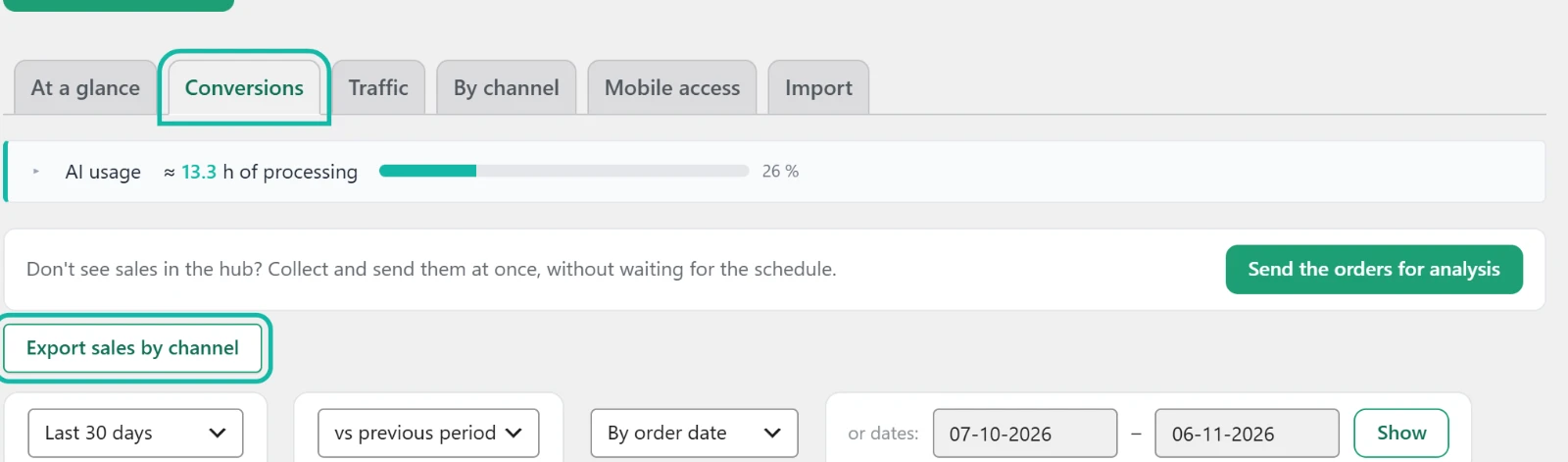
Export sales by channel
Open Conversions. Click “Export sales by channel”. The file contains the channel, orders, revenue and share of revenue for the chosen period.
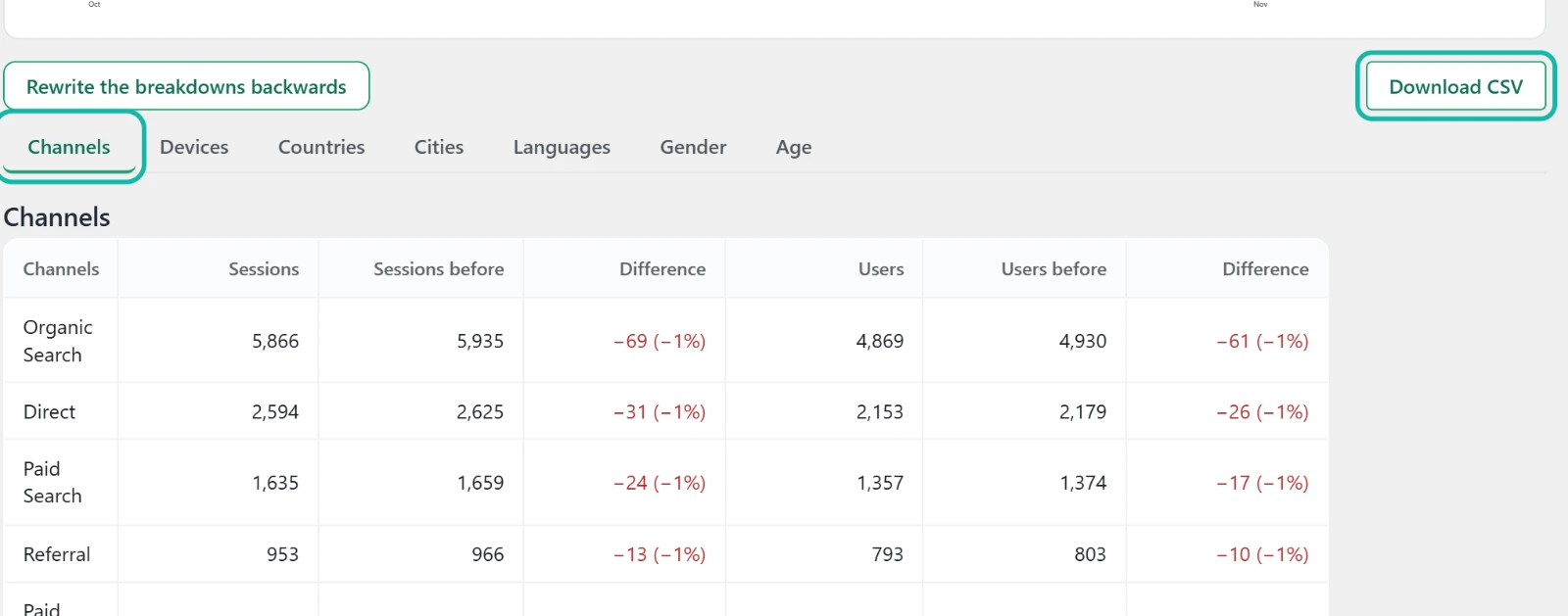
Download the traffic
Open Traffic and choose the period. Below the chart click “Download CSV”. The file contains sessions and users for all breakdowns below the button, compared with the previous period.
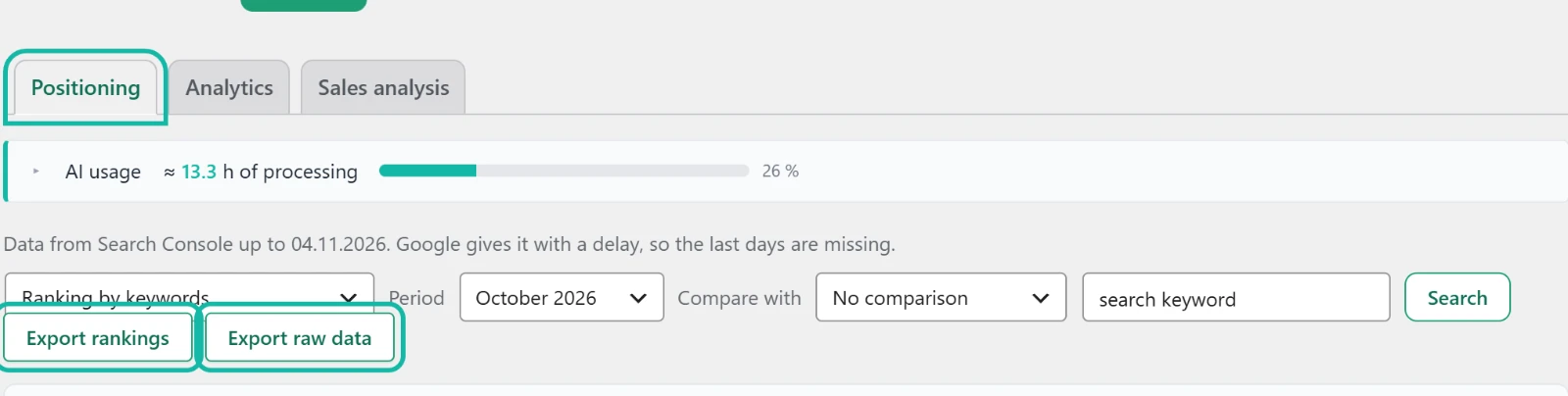
Export the rankings
Open Rankings → Positioning and choose the month. “Export rankings” downloads the rows of the current view, for example keywords with impressions, clicks, CTR, position and number of pages. “Export raw data” downloads every page for the month with the H1, the leading query and the error, if any.
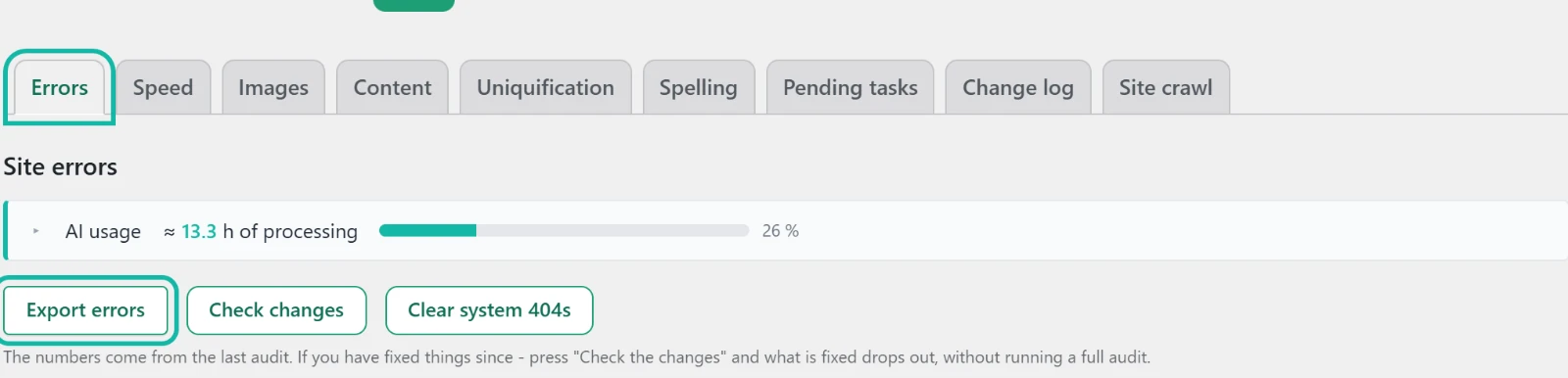
Export the errors
Open SEO → Errors. Click “Export errors”. Each row is one finding with impact, group, problem, severity, URL and description. You can hand the list to a developer or sort it by severity.
Export the cannibalization
Open Rankings → Analytics → Deep analytics and choose “Keyword cannibalization”. Click “Export cannibalization”. The file shows each keyword, the number of pages and the clicks, impressions, CTR and position of each page.
Download the monthly audit
Open Audits and choose the month. “Download the audit” downloads the audit as a Word document. “Download in Excel” downloads the data as a spreadsheet.
What is free and what is in Pro?
Printing and the traffic CSV are free. The other export buttons and the Word and Excel audit are in Pro.
- Free. “Print / Download” in At a glance and “Download CSV” in Traffic.
- Pro. The “Export…” buttons come with the export module in Pro. These are sales by channel, rankings, raw data, errors, cannibalization and “Export CSV” in Import. Without Pro these buttons are not shown.
- Pro. The monthly audit in Word and Excel and the Word document from GEO suggestions.
Frequently asked questions
What format are the files?
The “Export…” buttons and “Download CSV” give a CSV file. The monthly audit downloads in Word and Excel. The plan from GEO suggestions is a Word document.
How do I open the CSV file in Excel?
The file is CSV in UTF-8, so special characters show correctly. If all data lands in one column, use Data → From Text/CSV in Excel and choose comma as the delimiter. Google Sheets opens the file directly.
What data can I export for free?
For free you can download the traffic with “Download CSV” and the overview with “Print / Download”. The other download buttons are in Pro.
Why don’t I see the “Export errors” button?
The “Export…” buttons show only with the Pro version. The free version does not have them.
Which period does the file cover?
The period chosen on the screen. Rankings and raw data cover the chosen month. Sales and traffic cover the chosen dates.
How do I save the overview as a PDF?
Click “Print / Download” in At a glance. In the print window choose save as PDF instead of a printer.
Can I give the audit to a client?
Yes. In Audits choose the month and click “Download the audit” for a Word document or “Download in Excel” for a spreadsheet.
Related articles