
INSIDE SEO
Inside SEO Help
What each tab shows, how it works and how to use it. The menu on the left follows the order in the plugin.
Getting started
How to use this page
This page describes every screen of Inside SEO. Each screen has a screenshot and a short explanation.
The screenshots are from a real online shop. They were taken in the agency version. Product and page names are blurred. Addresses and keywords are blurred too. The client version has the same screens. The only difference is the header at the top. In the agency version, you choose the client there.
Each section has four parts:
- „What it is“;
- „Where the data comes from“;
- „How it works“;
- „How to use it“.
Next to the headings there is a version mark: „free“, „paid“ or „agency“.
Search with the field in the menu on the left. Click a screenshot to see it at full size.
Tabs – free plugin
Mirror free
The Mirror is the first screen of the plugin. It shows the most important things about the site: money, traffic, what to fix and what has moved. You can print it as a monthly report.
Where the data comes from
From the shop orders, Google Analytics, Google Search Console and the plugin’s latest audit. Nothing is pulled again when you open it. The screen reads the daily data that is already downloaded.
Choosing the period

How it works
- At the top you choose the period. There are ready-made periods, for example the last 30 days.
- You can also set your own dates after „or dates:“.
- Next to the period you choose what to compare with: the previous period, last year or no comparison.
- The „Print / Download“ button gives a clean page without menus.
Sales
What it is
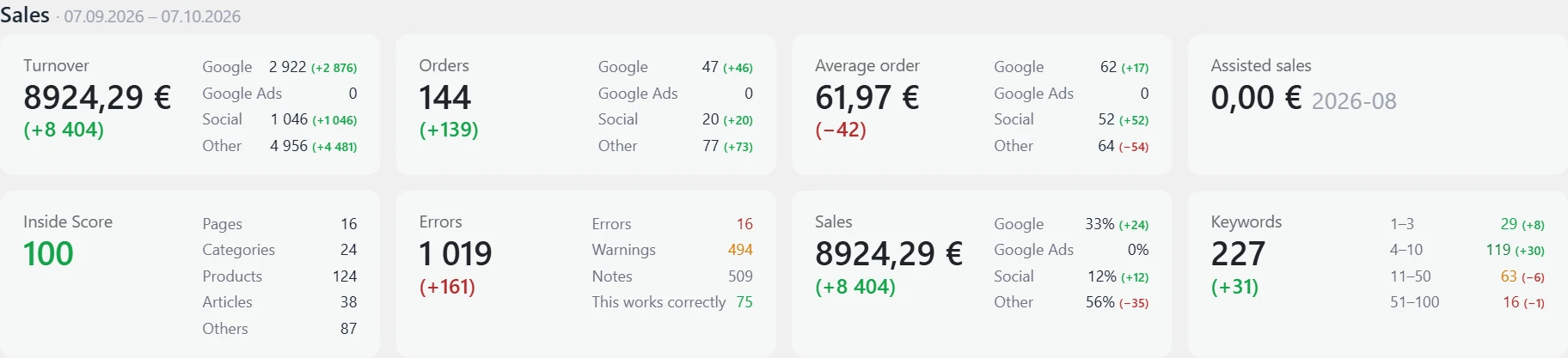
This part is shown only for an online shop. For a site without a shop, the heading is „In short“.
How it works
- The top row is about money: „Turnover“, „Orders“, „Average order“ and „Assisted sales“.
- Each card is split by channel: Google, Google Ads, social networks and others.
- The number in brackets is the difference from the comparison period. Green is growth. Red is a drop.
- „Inside Score“ is the share of pages without a serious error. Above 90 is excellent. Below 50 needs work.
- „Errors“ is the number of findings from the latest audit. Fewer is better.
- „Sales“ shows what share of the turnover each channel brings.
- „Keywords“ counts the keywords by position in Google: 1–3, 4–10, 11–50 and 51–100.
Traffic
How it works
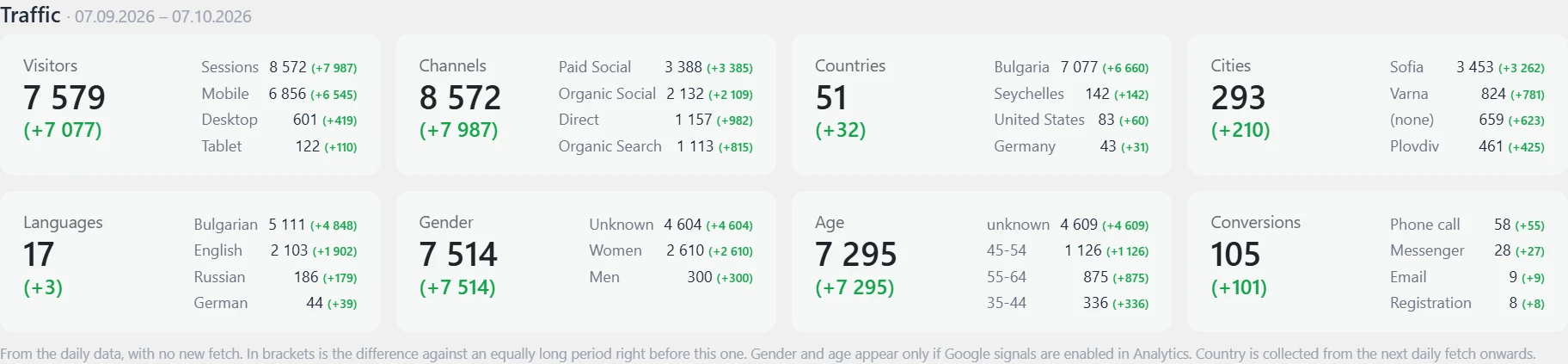
Here you see visitors, sessions, devices, channels, countries, cities, languages, gender and age. The data comes from Google Analytics. The plugin pulls it every day. So the screen opens fast, with no new request to Google.
Fix priorities
How it works
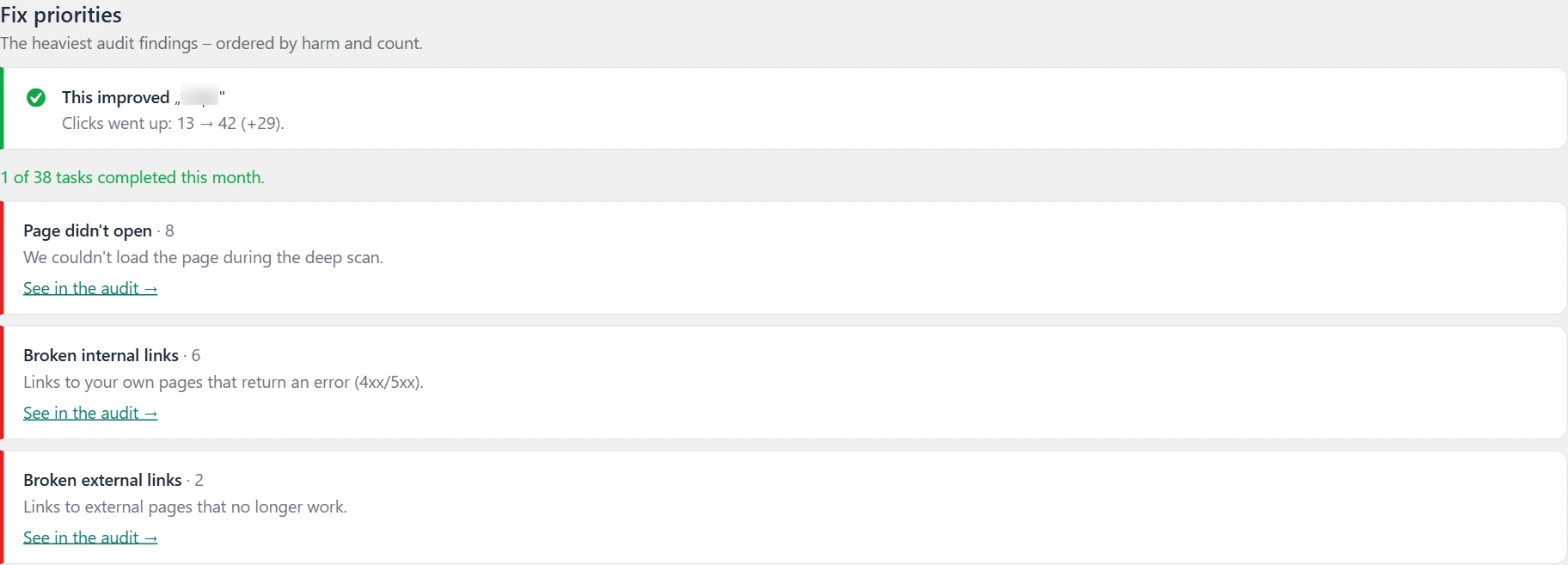
- Praise comes first. This is an error that disappeared after the latest audit, or a task marked as done.
- If there is none, you see the keyword with the biggest growth in clicks.
- Below it is the number of tasks closed this month.
- Then come the three most serious issues from the audit. They are sorted by harm, then by count.
- The „See in the audit →“ button leads to the exact list.
Winners and losers
How it works
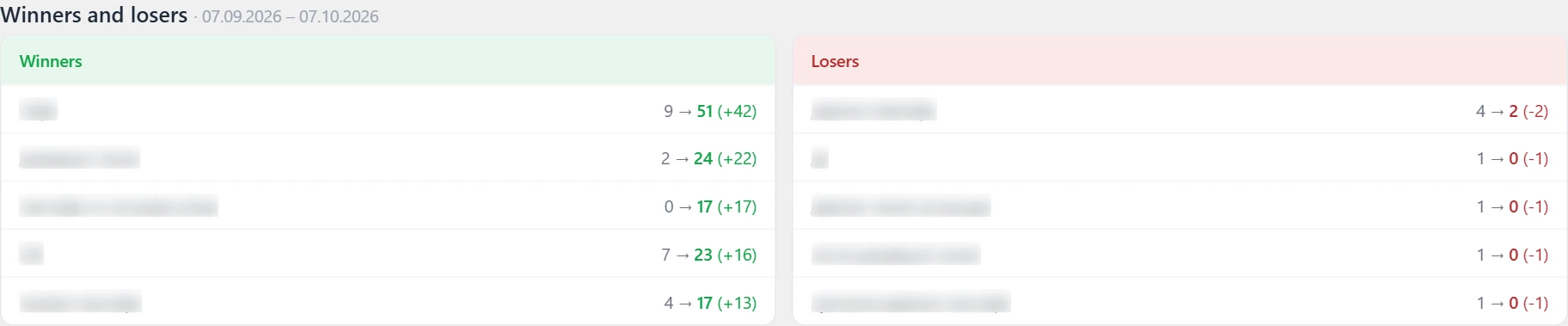
These are the five keywords with the biggest growth in clicks and the five with the biggest drop. The comparison is with the period you chose at the top.
How to use it
Open the Mirror once a week. If there is a red number, go to the matching section. Start with the first priority.
Conversions & traffic free
Conversions
What it is
Here you see the shop’s turnover and orders for a chosen period. For a site without a shop, you see the conversions here: calls, emails, forms, bookings and newsletter sign-ups.
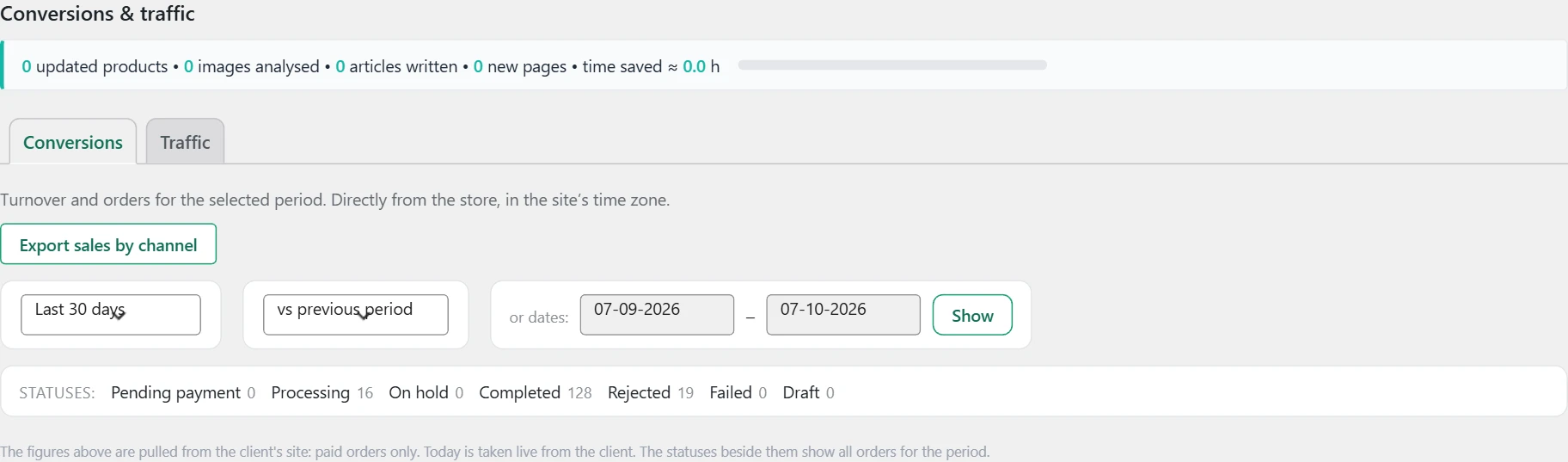
Where the data comes from
Orders come directly from the shop (WooCommerce), in the site’s time zone. Conversions for a site without a shop come from „Customer journey“, which is collected in the plugin itself paid.
How it works
- At the top is the filter bar. The first field picks the period: a quick one („Last 30 days“ and others) or a calendar one („Last month“, „This quarter“ and others).
- The second field picks the comparison: „vs previous period“, „vs last year“ or „No comparison“.
- After „or dates:“ you can set your own start and end date. Press „Show“.
- The „Statuses:“ row shows the order statuses with their counts. The totals count only the ticked ones. By default, completed, processing and on-hold are ticked. After a change, press „Apply“.
- The „Export sales by channel“ button downloads a table paid.
- If you do not see the sales in the Inside SEO hub, press „Collect and send sales now“.
How to use it
Check the totals against the shop orders with the same statuses. If they differ from the built-in WooCommerce report, the reason is the date. The plugin counts by creation date. WooCommerce counts by payment date.
Cards
The cards are a short summary of the period.

Where the data comes from
From the shop orders. The „Assisted sales“ card comes from the Inside SEO hub paid.
How it works
- „Turnover“ is the order total with VAT and delivery.
- „Orders“ is the number of orders.
- „Average order“ is the turnover divided by the number of orders.
- Under each card is the change in percent. The value for the compared period is in brackets. An arrow up is growth. An arrow down is a drop. „new“ means there was nothing before.
- „Assisted sales“ is the revenue from orders where the customer passed through a helper page. The „which pages assist →“ link leads to „Sales analysis“.
How to use it
First look at the direction of turnover and average order together. A drop in average order while orders grow is a sign of cheaper purchases.
Chart
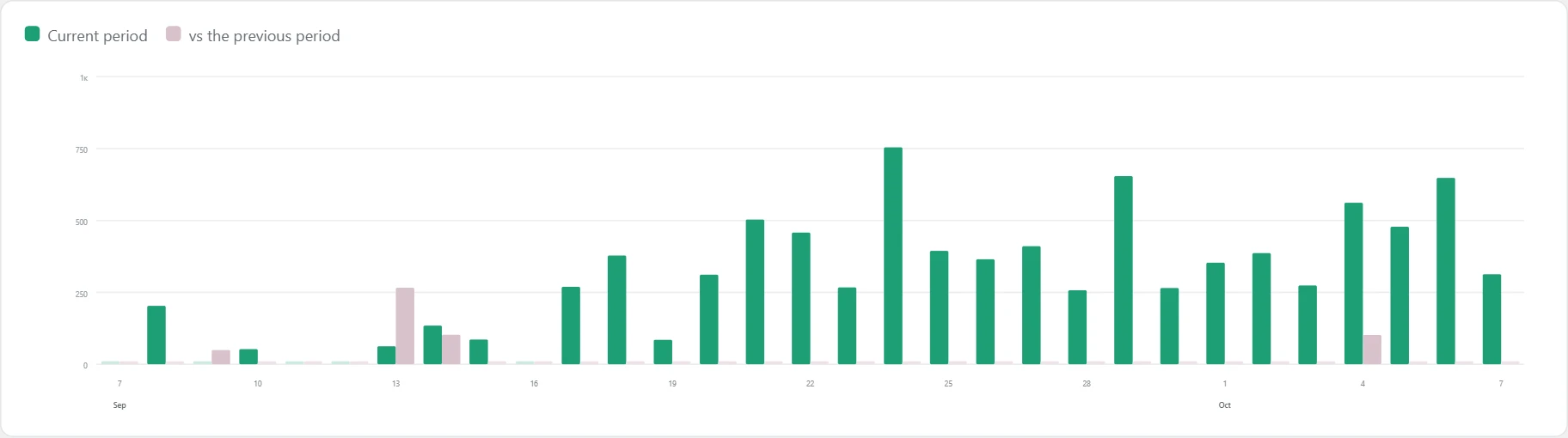
The chart shows turnover over time.
Where the data comes from
From the same orders as the cards.
How it works
- Each pair of bars is one day, one week or one month. Up to 70 days, it is by day. Up to about a year and a half, it is by week. Above that, it is by month.
- The first bar is the current period. The second is the compared one.
- The legend under the chart tells you which is which.
How to use it
Look for days with a sharp drop. Check if there was a problem with the site, the checkout or the ads at that time.
Products
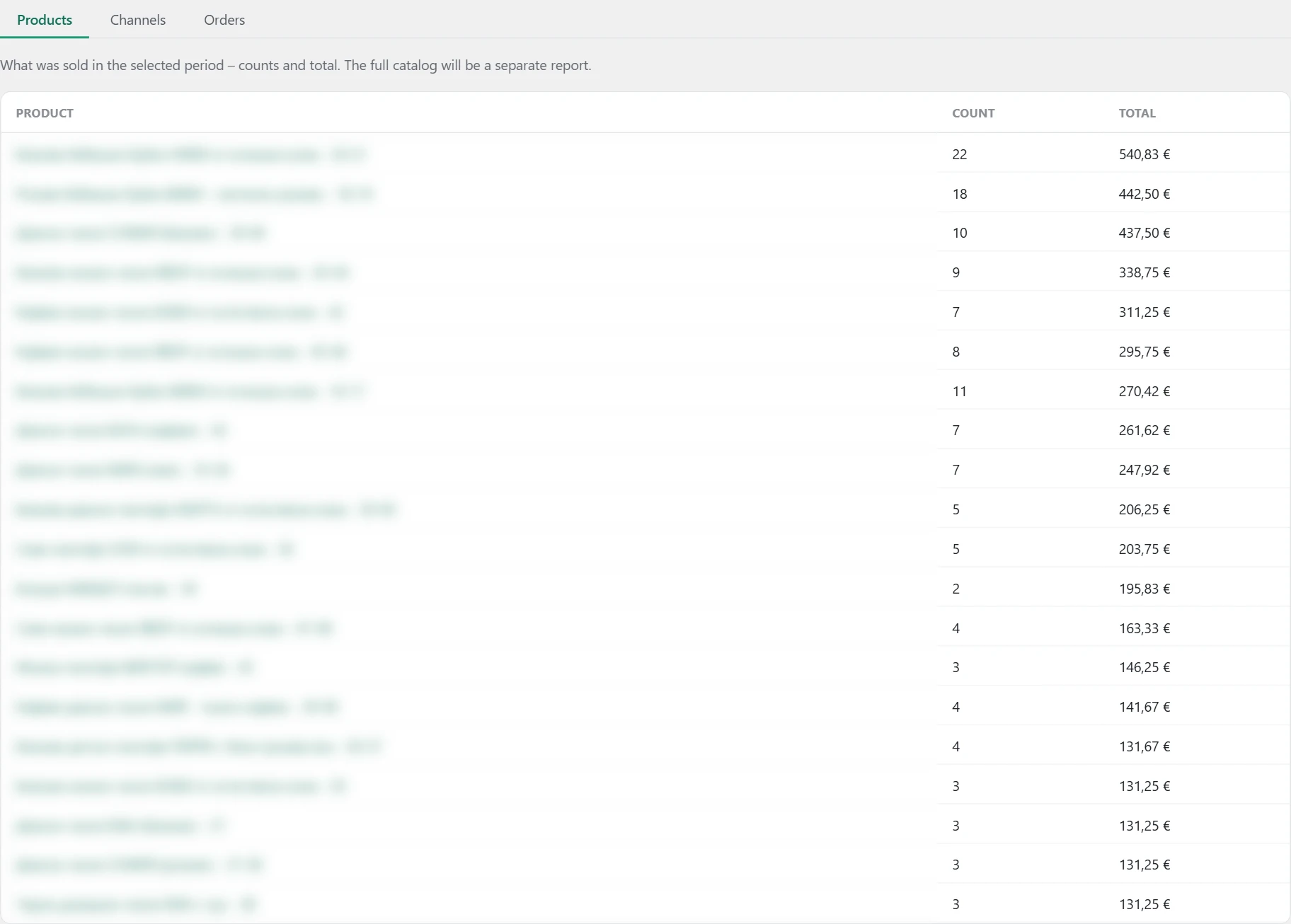
What was sold in the period.
Where the data comes from
From the shop orders.
How it works
The columns are „Product“, „Count“ and „Total“. The product name opens the product for editing.
How to use it
Compare the top products with the ones you are working on for rankings.
Channels
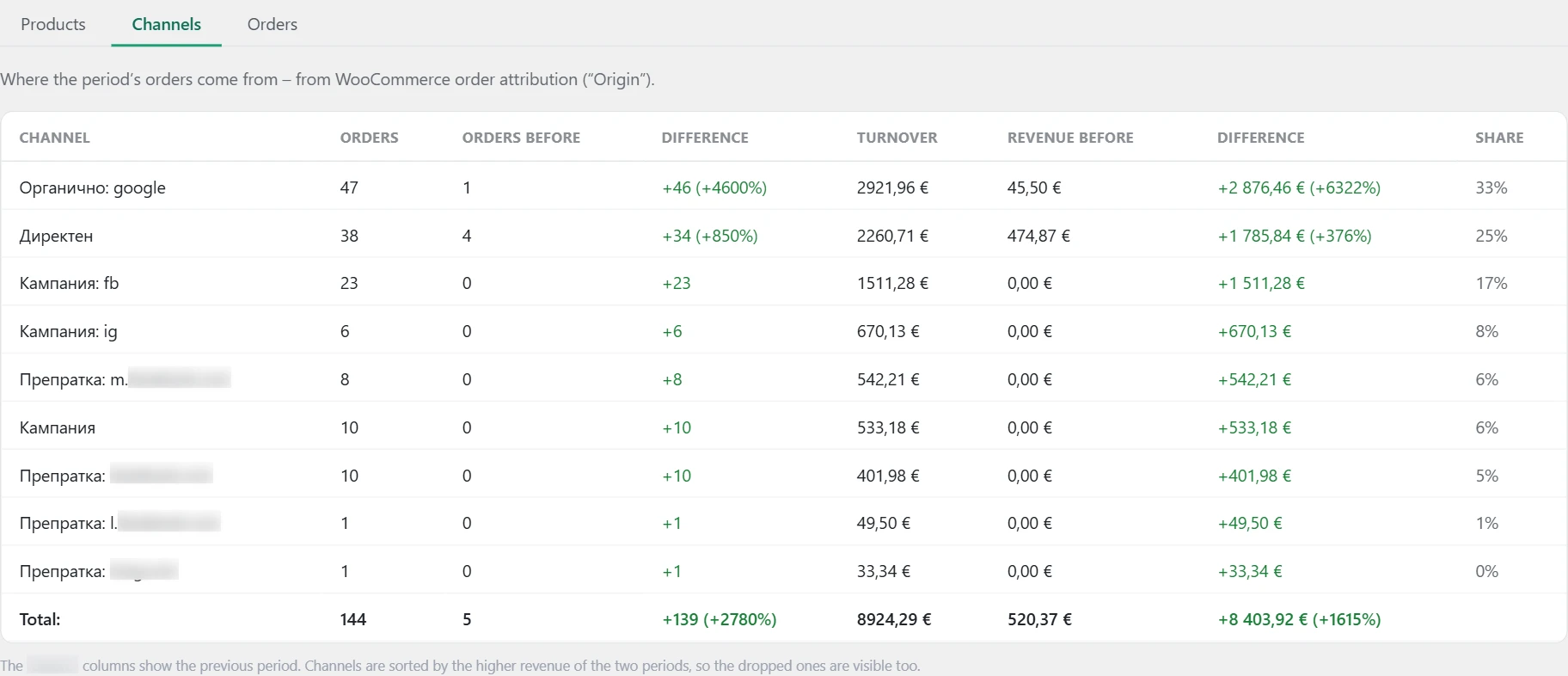
Where the orders come from.
Where the data comes from
From the „Origin“ field of the order in WooCommerce. In new WooCommerce versions, it is on by default.
How it works
- Each channel has „Orders“, „Turnover“ and „Share“ of turnover.
- With a comparison, „Orders before“, „Revenue before“ and „Difference“ are added.
- Channels are sorted by the higher turnover of the two periods. This way you also see channels that stopped bringing orders.
How to use it
If a channel dropped sharply, check what stopped there: ads, newsletter or rankings.
Orders
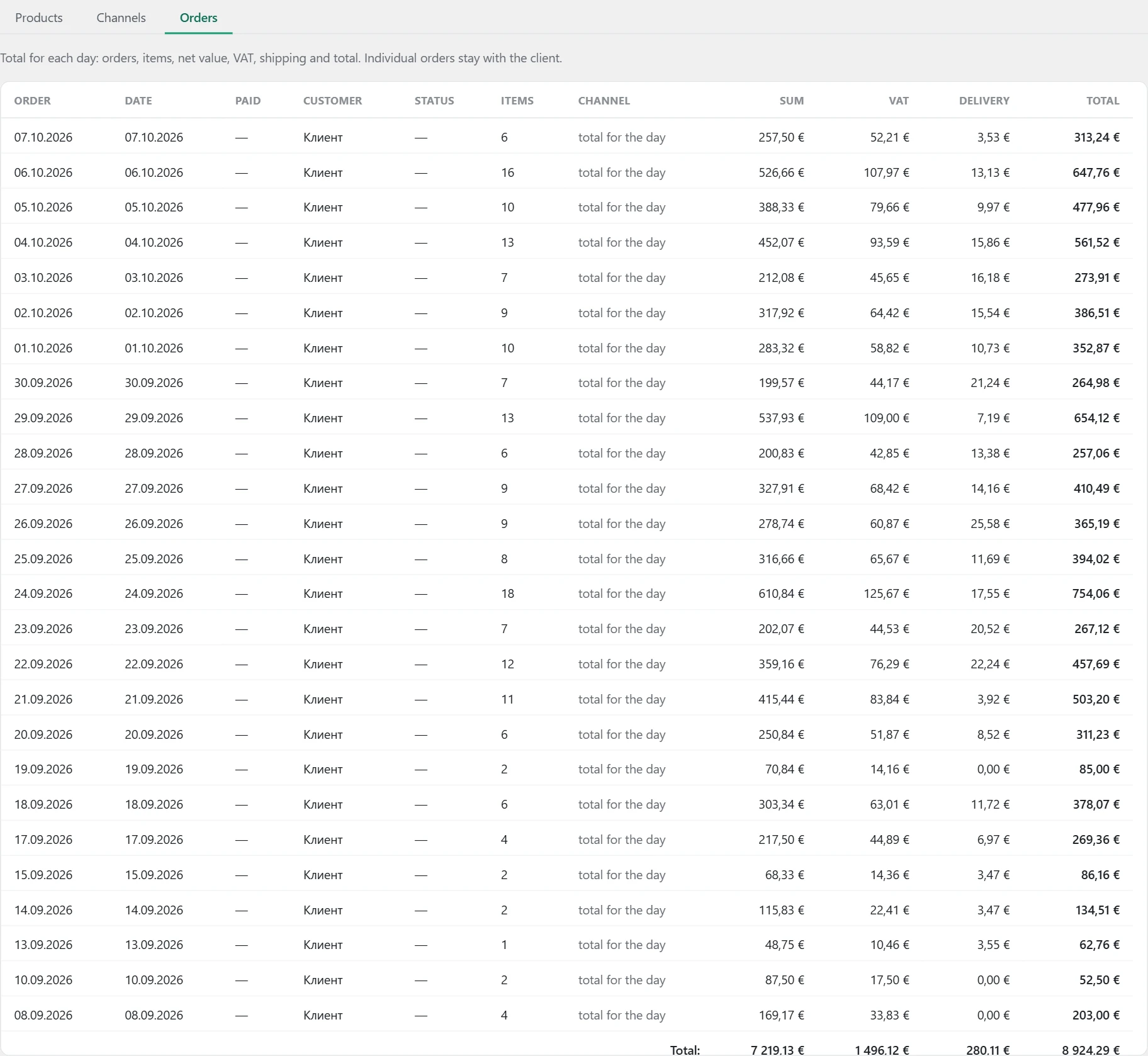
A list of the orders in the period, up to 200.
Where the data comes from
From the shop orders.
How it works
- The number opens the order for editing.
- „Date“ is the creation date. „Paid“ is the payment date.
- „Sum“ is without VAT and delivery. Then come „VAT“, „Delivery“ and „Total“.
- Amounts in leva are converted to euro at the fixed rate 1.95583.
How to use it
Use the list to find an order that skews the totals, for example a very large one or a test order.
Depending on the site type
The note at the end reminds you that the tab’s content depends on the site type.

Where the data comes from
From the site type setting.
How it works
For a shop, the tab shows sales. For services, it shows calls, emails, forms, bookings and newsletter sign-ups. For a mixed site, it shows both. For a site without a shop, the cards are „Total conversions“ and the three most common types. Below is „Conversions by type“.
How to use it
If you see the wrong view, change the site type in „Settings“.
Traffic
What it is
Here you see the site’s visitors and where they come from.



Where the data comes from
From Google Analytics. The plugin pulls the data every day and stores it. The screen reads the stored data and does not ask Google again.
How it works
- The bar at the top is the same as in „Conversions“: period, comparison and your own dates.
- The cards are „Visitors“ and „Sessions“, with the change against the compared period.
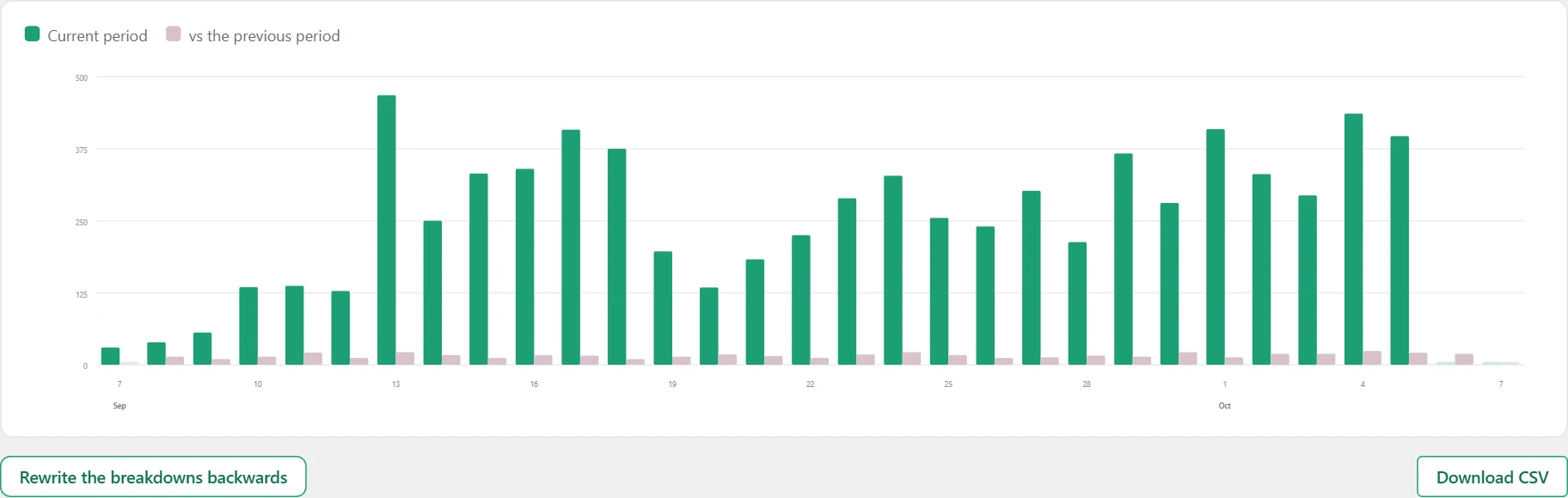
- The chart shows visitors by day, week or month.
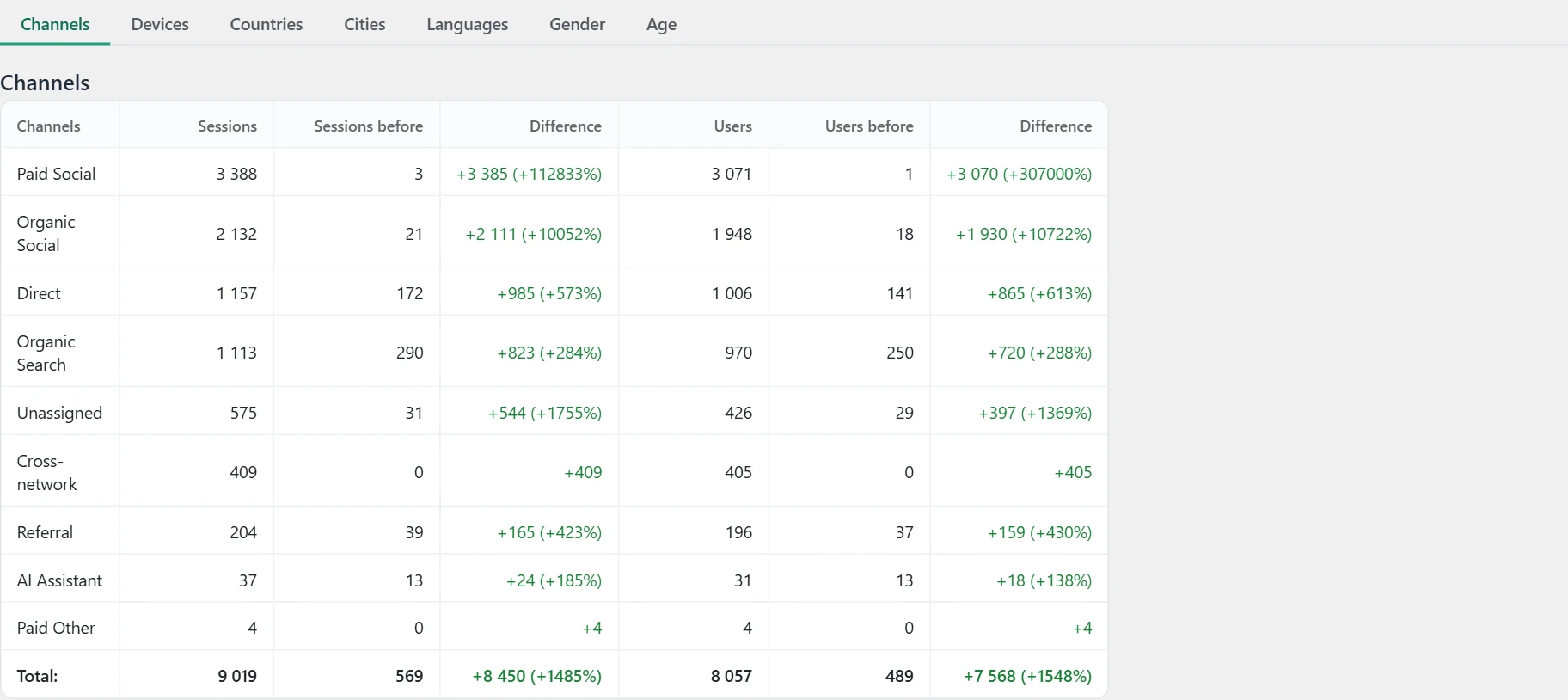
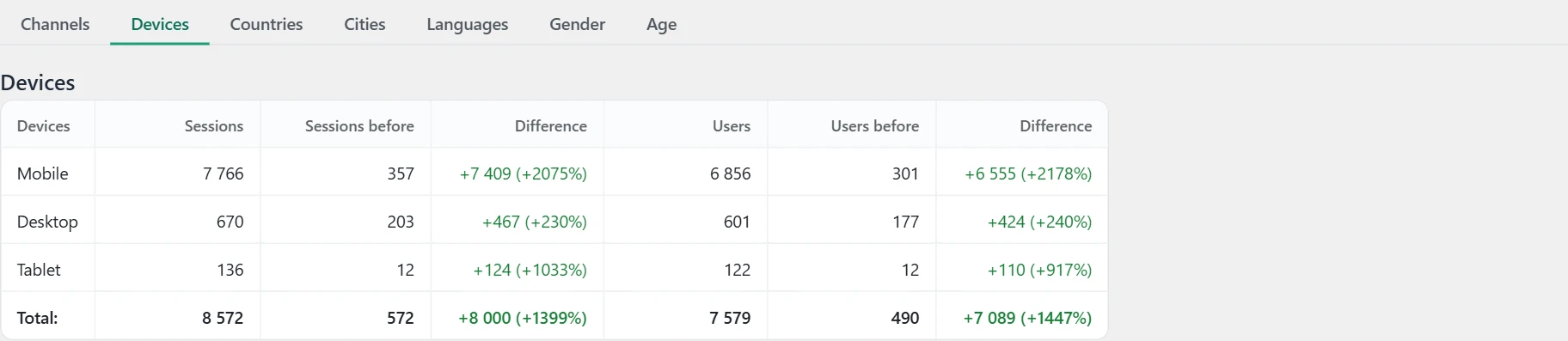
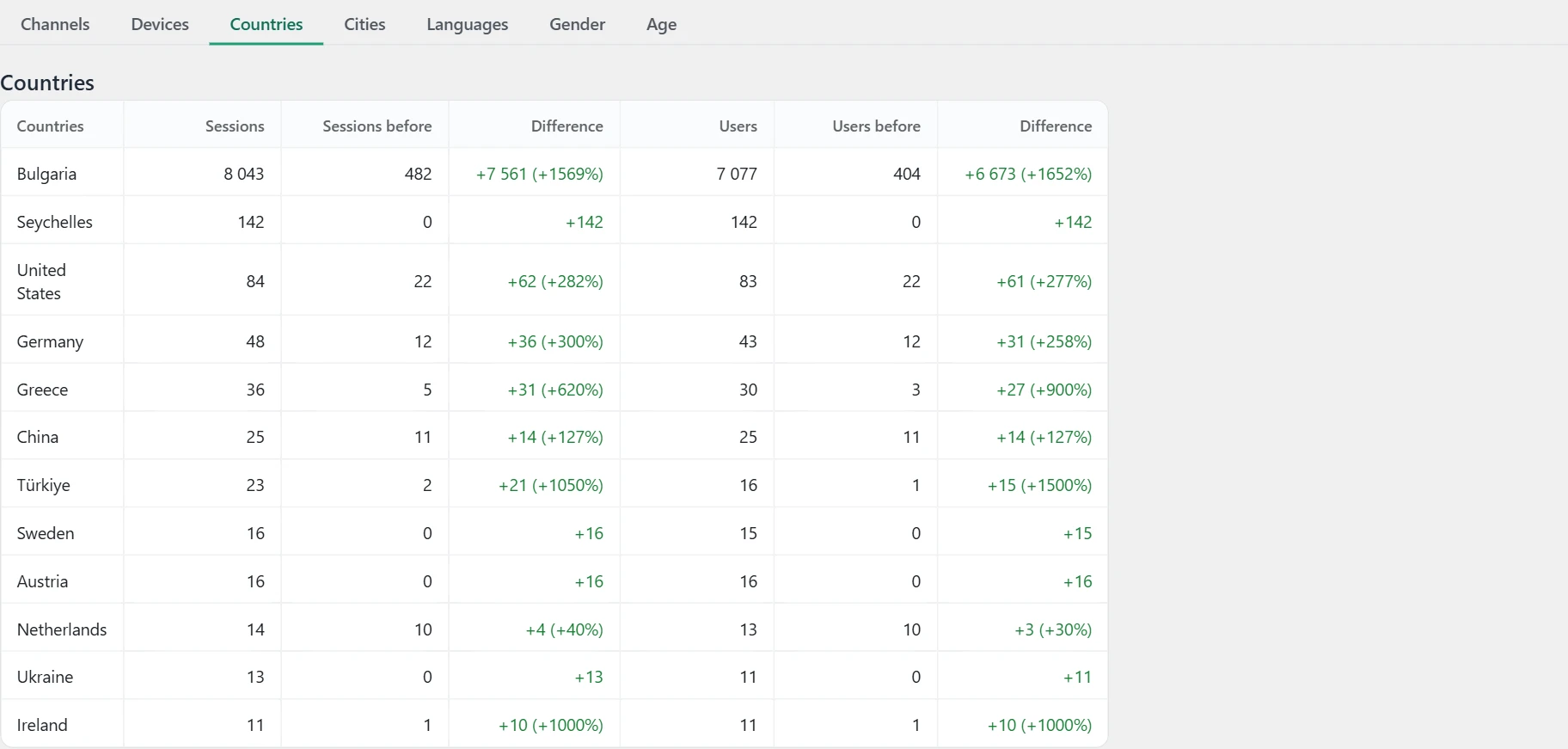
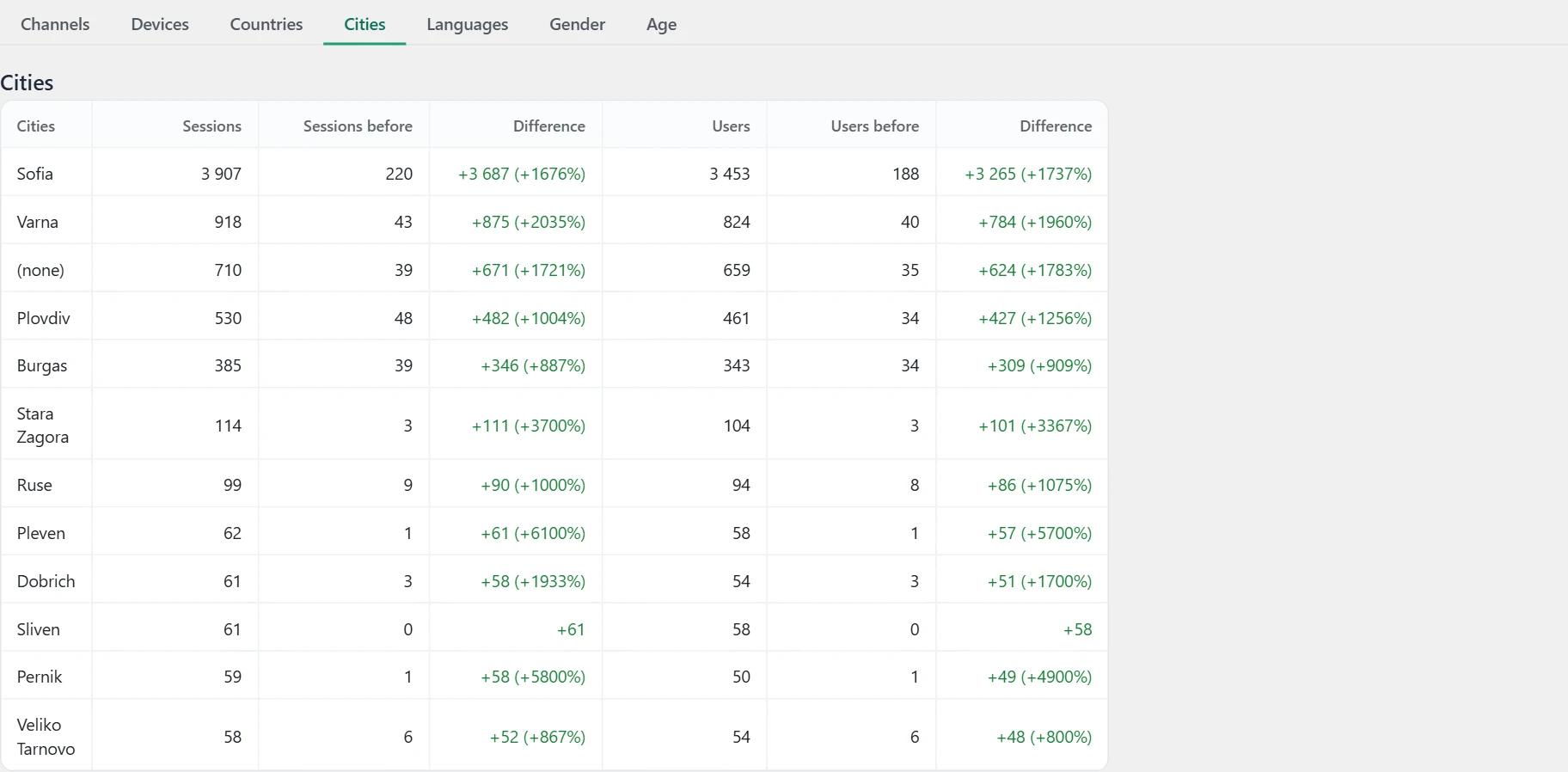
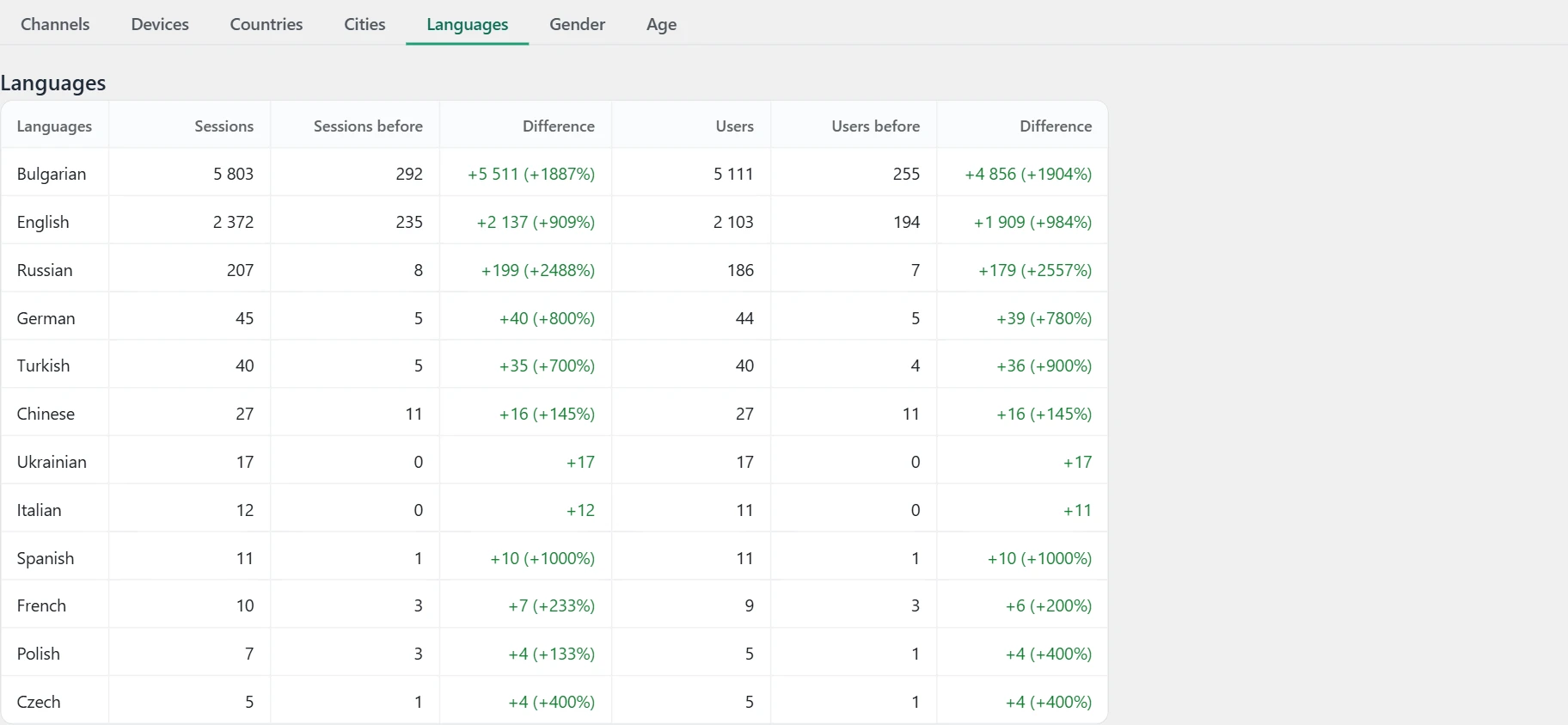
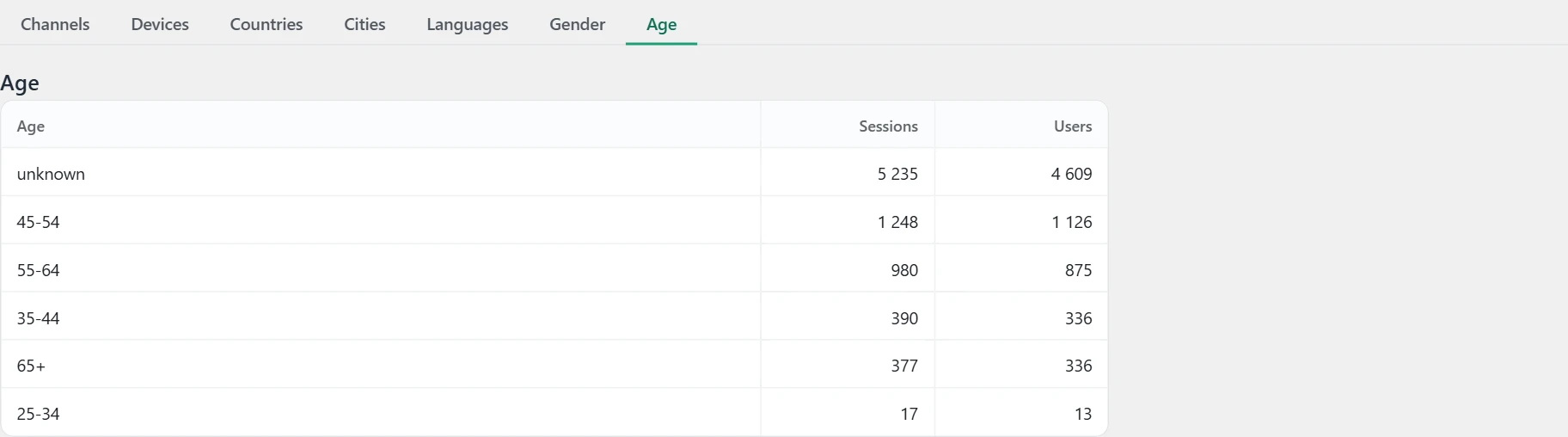
- The subtabs are „Channels“, „Devices“, „Countries“, „Cities“, „Languages“, „Gender“ and „Age“. Each shows „Sessions“ and „Users“.
- With a comparison, the columns „Sessions before“, „Users before“ and „Difference“ are added. Rows are sorted by the higher number of sessions of the two periods.
- „Gender“ and „Age“ are filled only if Google signals are on in Google Analytics. Country is collected from the next daily update onward.
- The tables show up to 50 rows.
How to use it
- If the breakdowns for past days are empty, press „Rewrite the breakdowns backwards“. The plugin pulls the breakdowns again, day by day, in the background. You see the progress next to the button. When it says „Done“, reload the period.
- „Download CSV“ downloads all subtabs in one file.
Rankings free
Positioning
What it is
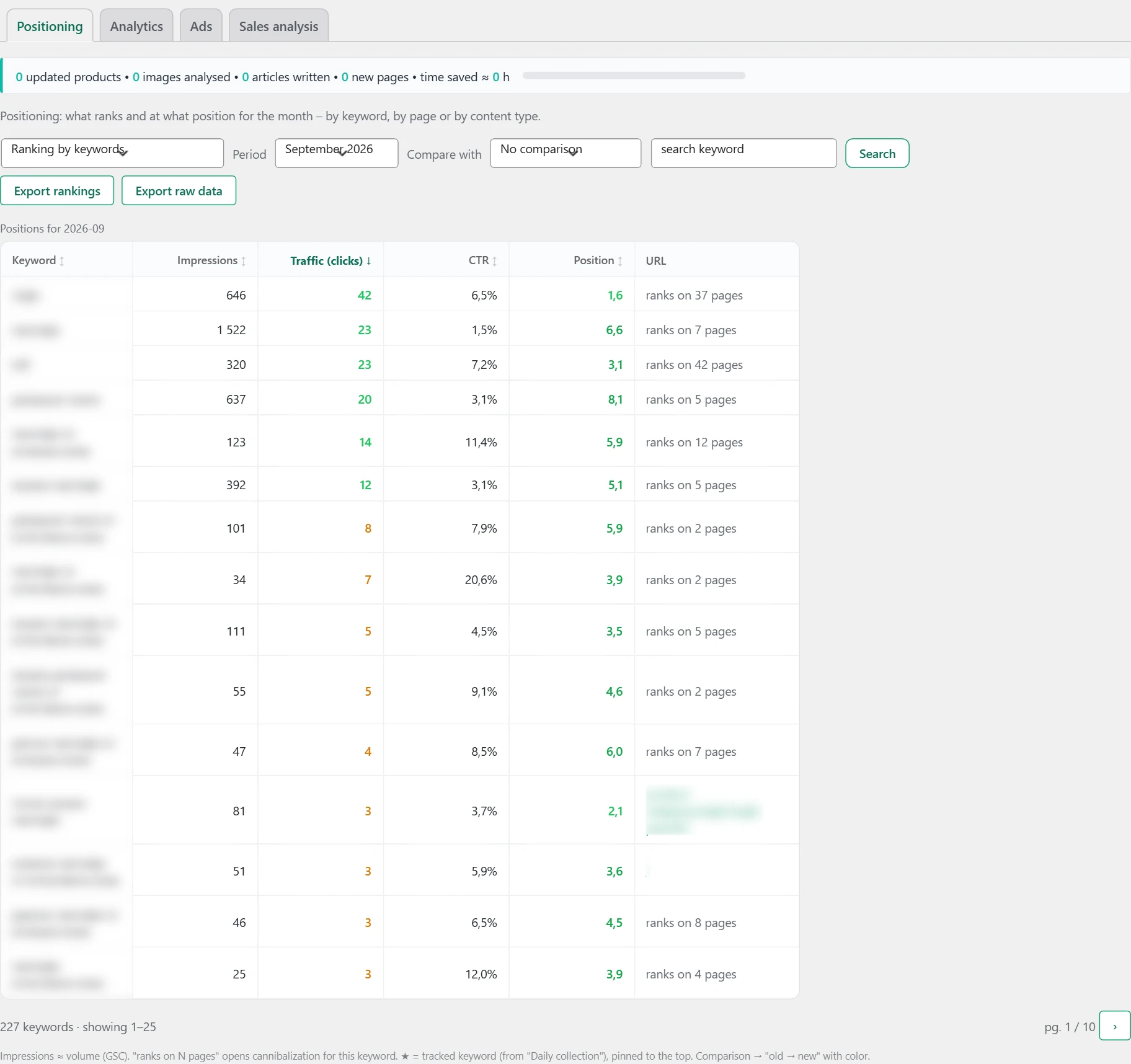
What the site ranks for and at what position, for a chosen month.
Where the data comes from
Positions, impressions and clicks come from Google Search Console. The traffic column for pages comes from Google Analytics.
How it works
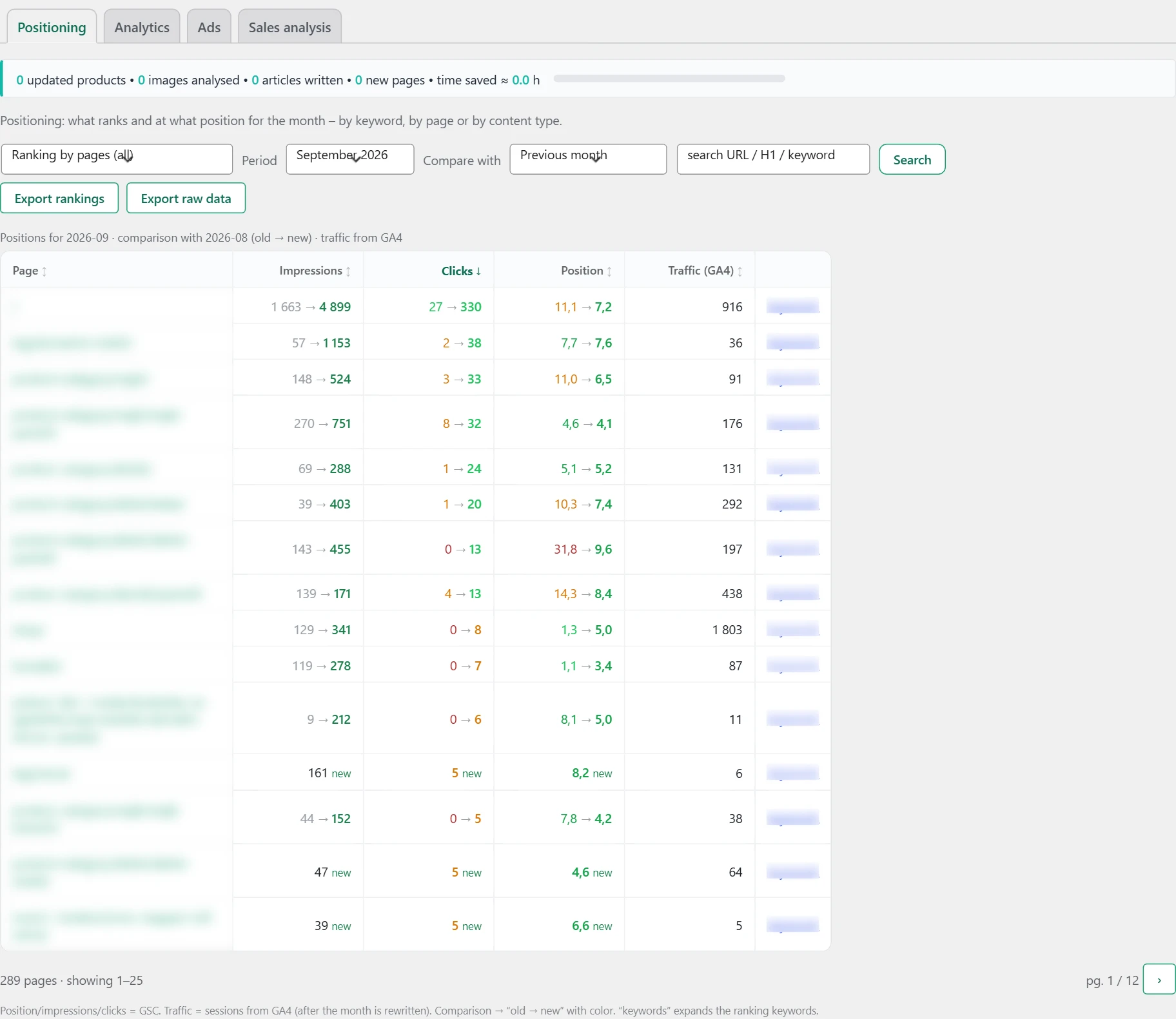
- The first field picks the view. „Ranking by keywords“ shows the keywords. „Ranking by pages (all)“ shows the pages. Then there are separate views by content type, for example „Ranking of products“, „Ranking of articles“, „Ranking of product categories“, „Ranking of blog tags“. Each shows the number of pages. Product attributes are not shown.
- „Period“ picks the month.
- „Compare with“ has „No comparison“, „Previous month“ and „Same month last year“. With a comparison, the cells show „old → new“.
- The search field filters by keyword. For pages, it also searches the URL and the main heading. Press „Search“.
- Click a column heading to sort the table.
Columns for keywords:
- „Keyword“. A star before the keyword means a tracked keyword. These keywords stay at the top of the first page.
- „Impressions“ is how many times the site was shown in search. This is the rough measure of volume.
- „Traffic (clicks)“ is the number of clicks.
- „CTR“ is the share of clicks from impressions.
- „Position“ is the average position.
- „URL“ is the leading page. If the keyword ranks several pages, it says „ranks on N pages“.
Columns for pages:
- „Page“, „Impressions“, „Clicks“, „Position“.
- „Traffic (GA4)“ is the number of sessions from Google Analytics for the month.
- The „keywords“ link opens all keywords the page ranks for.
Position colors: 1 to 3 light green, 4 to 10 green, 11 to 30 orange, above 30 red. Click colors: 0 red, 1 to 9 orange, 10 and more green.
How to use it
Sort the keywords by „Impressions“ and look for keywords at position 11 to 30. They are closest to the first page. You set tracked keywords in „Settings“, „Import from GA4 and Search Console“, panel „Daily collection“.
The „Export rankings“ and „Export raw data“ buttons download the page data for the month paid.
Ads
What it is
Here you enter the ad spend, so the return can be calculated.
Where the data comes from
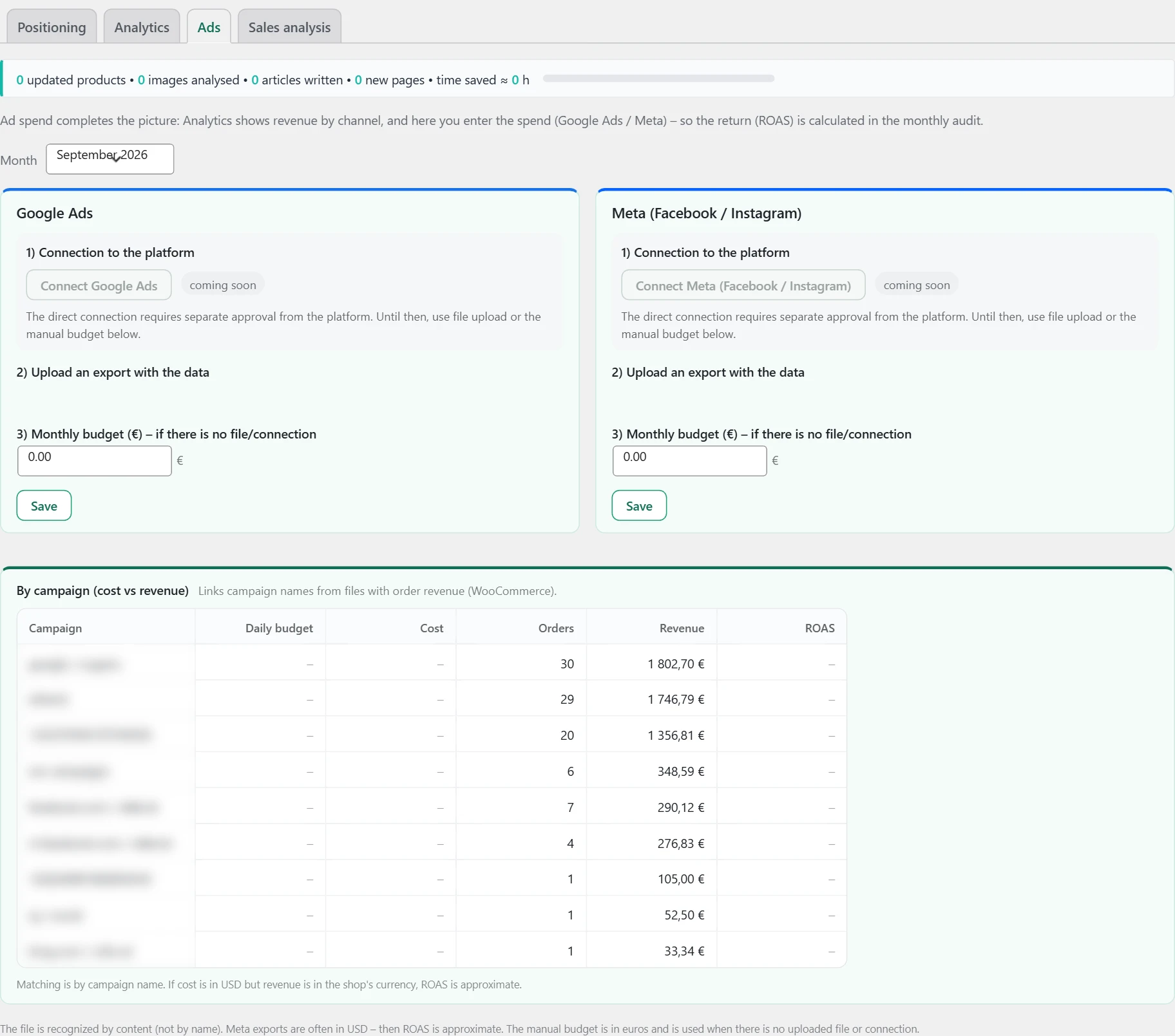
The spend comes from a file you upload from Google Ads or Meta, or from a budget you enter by hand. Revenue per campaign comes from the shop orders. It is matched by the campaign name in the URL the customer came from.
How it works
- „Month“ picks the month you enter data for.
- There are two panels: „Google Ads“ and „Meta (Facebook / Instagram)“.
- „1) Connection to the platform“ does not work yet. For now, use a file or a manual budget.
- „2) Upload an export with the data“ accepts a CSV file up to 8 MB. The platform is recognized by the content, not by the file name. If you upload a file in the wrong panel, it is still saved in the right place.
- After the upload you see the number of campaigns, the spend, the clicks and the impressions. Below them is the daily budget of each campaign.
- „3) Monthly budget (€), if there is no file/connection“ is for a manual amount in euro.
- Press „Save“.
- The „By campaign (cost vs revenue)“ table shows „Campaign“, „Daily budget“, „Cost“, „Orders“, „Revenue“ and „ROAS“. „ROAS“ is the revenue divided by the cost. The table is shown only for a shop.
How to use it
Upload the file every month. Keep the same campaign names in the ads and in the URLs. Otherwise the revenue is not linked. If the Meta file is in dollars, „ROAS“ is only approximate.
Analyses paid
Deep analytics
What it is
You find it in „Rankings“, tab „Analyses“ paid. Five analyses of keywords and pages: where positions and potential are lost.
Where the data comes from
From the Google Search Console data collected in the plugin. Some analyses also use the Inside SEO hub.
How it works
The „Analysis“ field picks the analysis. „Period“ picks the month. Each analysis has its own extra filters.
How to use it
Start with „Keyword cannibalization“. It most often shows quick fixes.
Keyword cannibalization
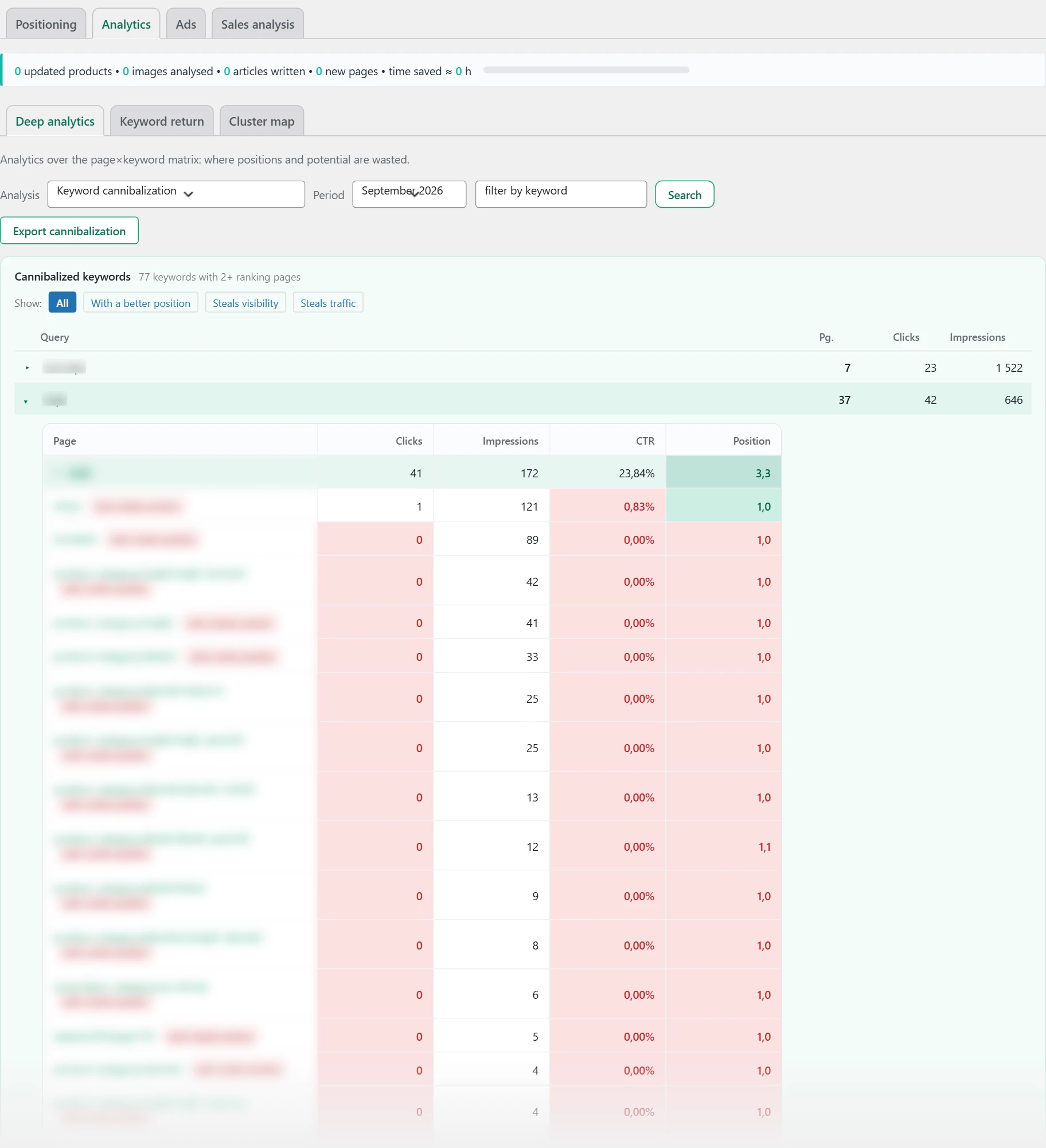
Keywords for which two or more pages of the site rank. This way they split the position.
Where the data comes from
From Google Search Console. The conclusions and the main page come from the Inside SEO hub.
How it works
- Each row is a keyword with the number of pages („Pg.“), clicks and impressions. They are sorted by impressions.
- The arrow expands the pages for the keyword with „Clicks“, „Impressions“, „CTR“ and „Position“.
- „main“ is the page that should carry the keyword.
- „with a better position“ means another page ranks higher than the main one.
- „steals visibility“ means another page is shown more often than the main one.
- „steals traffic“ means another page gets more clicks than the main one.
- „search overlap“ means an article beats the product page for the same keyword.
- „shares sales“ means sales go through the weaker page.
- The buttons after „Show:“ filter by these three signals. Then the first 500 keywords are reviewed.
- „Export cannibalization“ downloads the list.
How to use it
Read „Conclusion:“ under the pages. If there is no conclusion, merge the pages or redirect the weaker one to the main one with a 301 redirect.
Page cannibalization
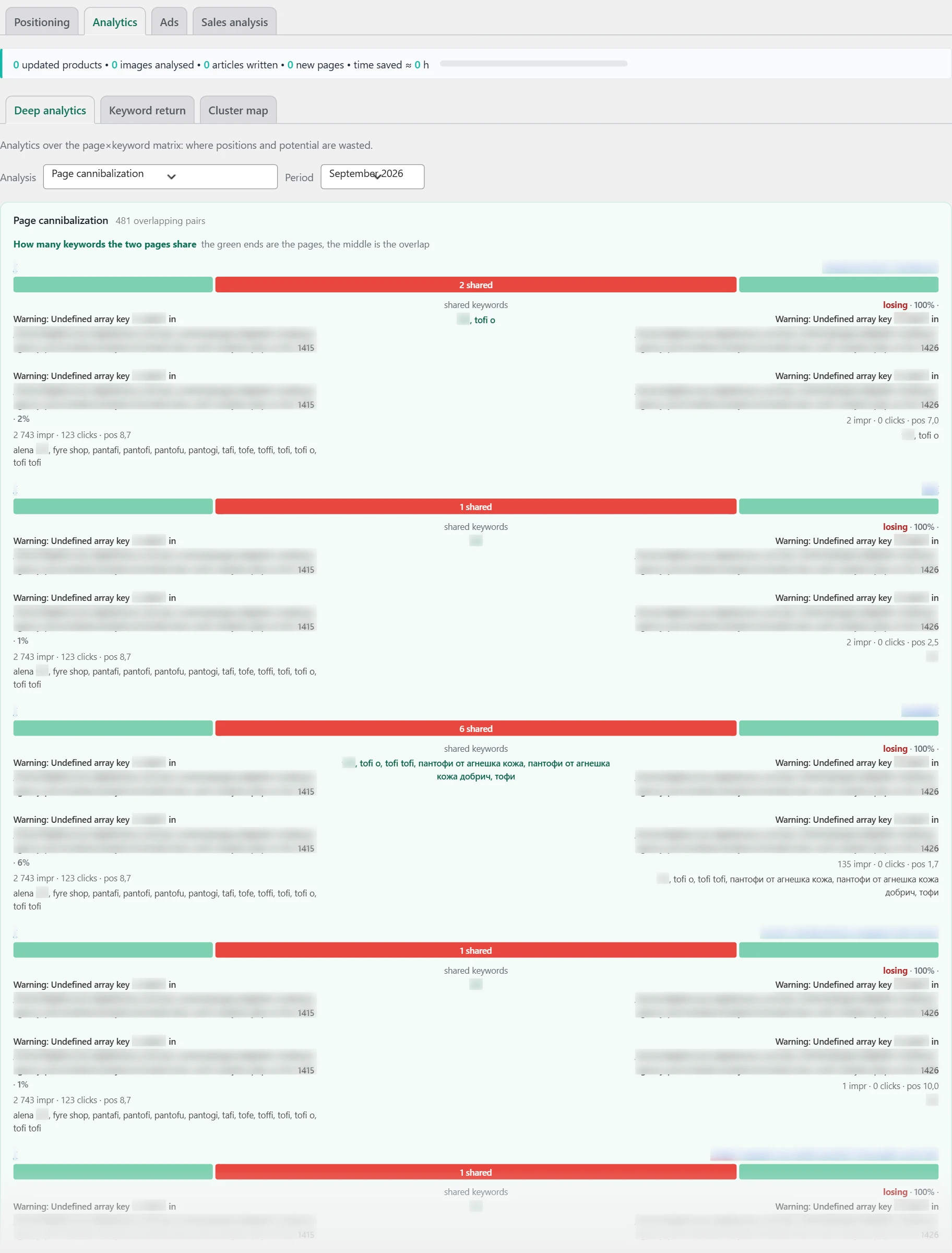
Pairs of pages that share a large part of their keywords.
Where the data comes from
From the Inside SEO hub. Without a connection to the hub, the analysis is empty.
How it works
- The bar shows the two pages at the ends and the number of shared keywords in the middle.
- Under each page is the percent of keywords it shares with the other, the impressions, the clicks and the position.
- „losing“ stands next to the weaker page.
- The shared keywords are listed in the middle.
- Over 50% shared keywords, strong dominance of one page, or search overlap means the pages get in each other’s way.
- The first pairs are the most serious. The rest are under „N more pairs“.
How to use it
For each serious pair, decide which page is the main one. Merge the other with it or point it at a different keyword.
Winners / losers
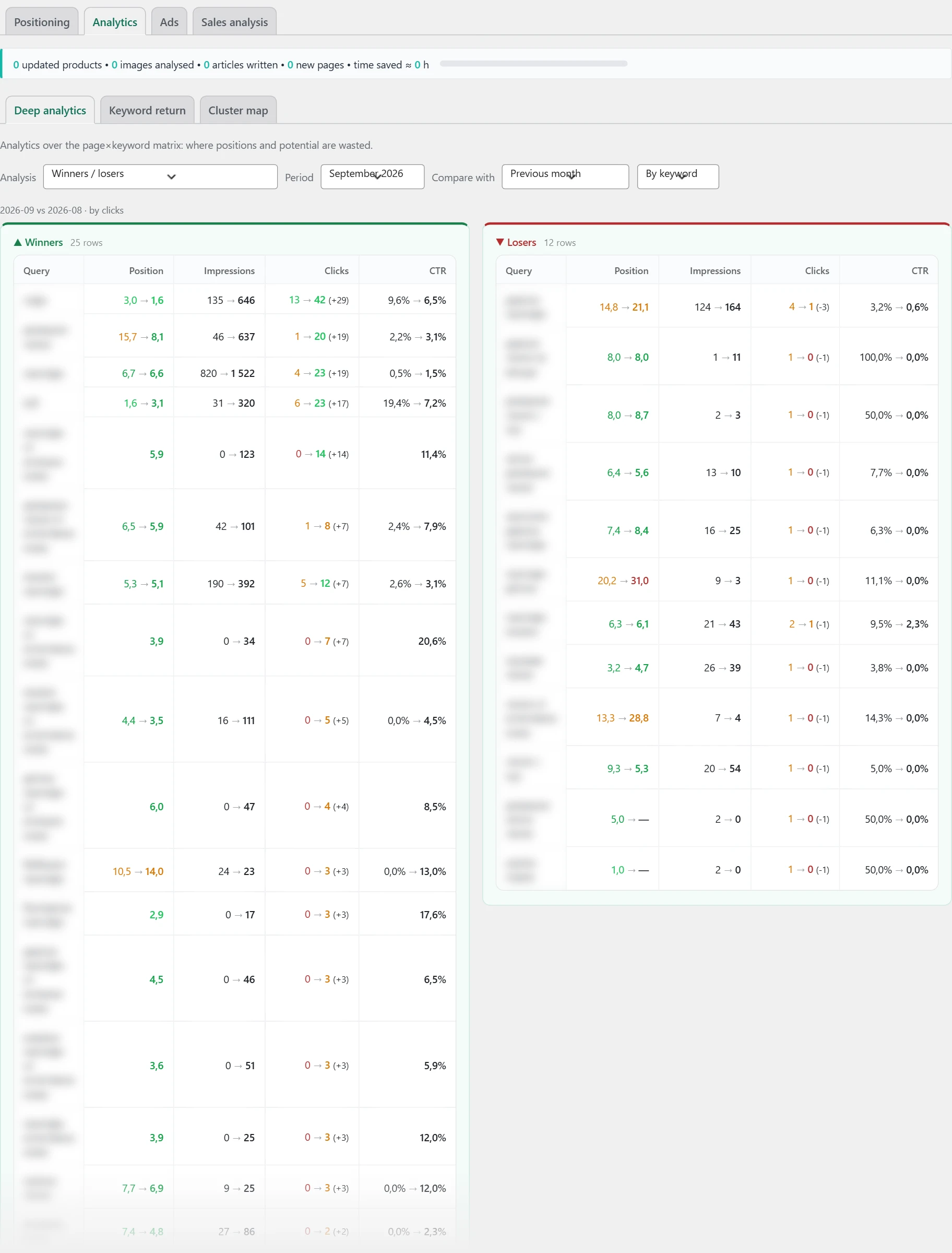
Which keywords or pages gained or lost clicks.
Where the data comes from
From Google Search Console, for two months.
How it works
- „Compare with“ picks „Previous month“ or „Same month last year“.
- The second field picks „By keyword“ or „By page“.
- „▲ Winners“ have more clicks. „▼ Losers“ have fewer. Up to 25 are shown in each column, with the biggest change at the top.
- The columns are „Position“, „Impressions“, „Clicks“ and „CTR“, shown as „was → now“. The difference is in brackets next to the clicks.
How to use it
For the losers, check if the position dropped or only the search demand. A lower position needs work on the page. Fewer impressions at the same position means weaker interest.
Ranking chain (all signals → one keyword)
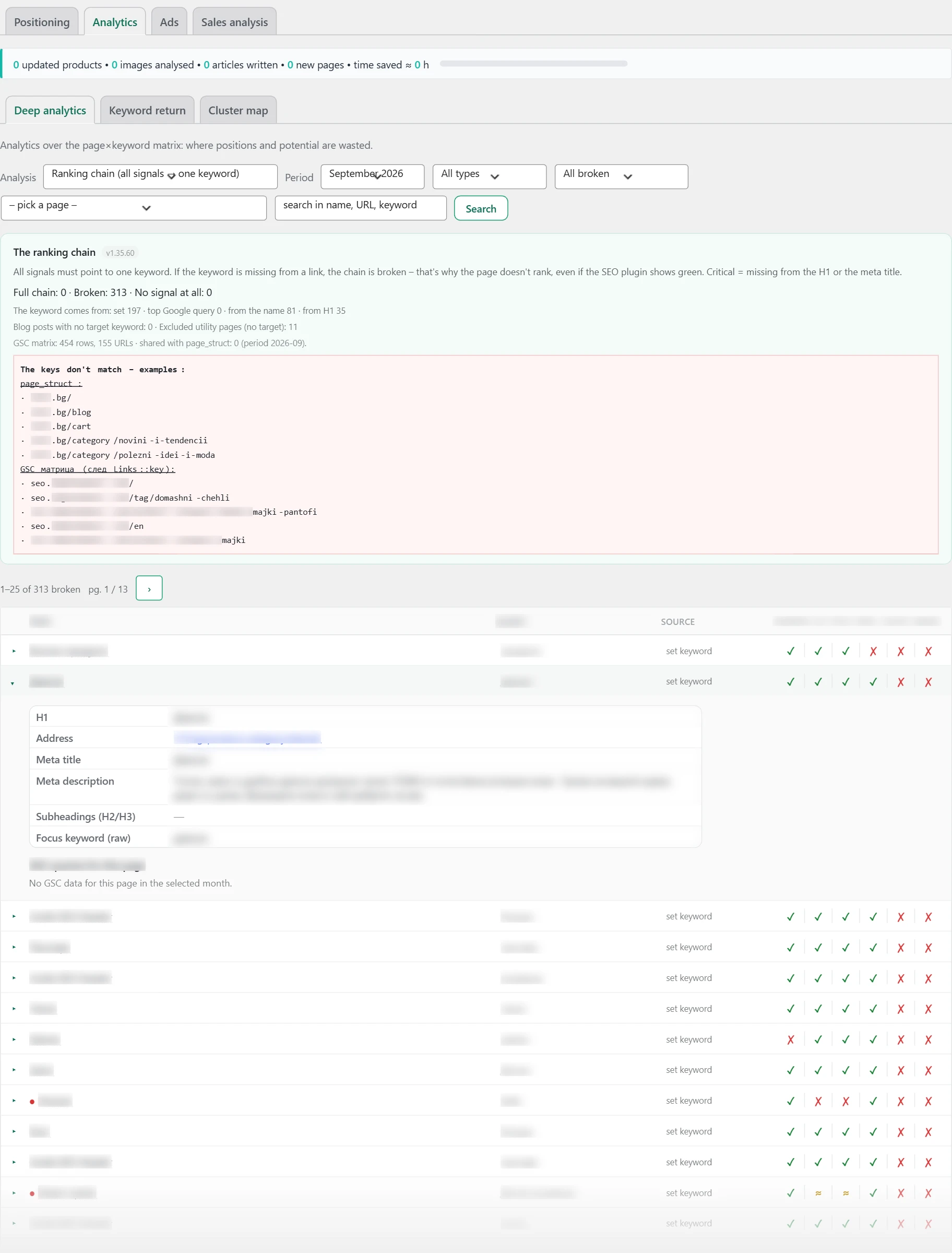
It checks if the page’s keyword is in all the important places.
Where the data comes from
From the site crawl and from Google Search Console. The keyword is the one set in the SEO plugin. If there is none, it is the top query in Google, the page name or the main heading.
How it works
- The chain links are „Address“, „H1“, „Title“ (meta title), „Desc.“ (meta description), „H2/H3“ and „Image“.
- ✓ means the keyword is there. ≈ means partly. ✗ means it is missing. ◎ means the keyword comes from this chain link.
- If the keyword is missing from a chain link, the chain is broken. A red dot means critical: it is missing from the main heading or the meta title.
- At the top is the summary: how many chains are whole, how many are broken and how many have no signal.
- The filters pick content type, issue type and a specific page. There is also search by name, URL and keyword.
- The expanded row shows the page data and its keywords from Google Search Console.
- An old year in the title and keywords with mixed Cyrillic and Latin letters are marked separately.
How to use it
Start with the critical ones. Press „Fix in the editor ↗“ and put the keyword in the main heading and in the meta title.
Old URLs to redirect (console vs structure)
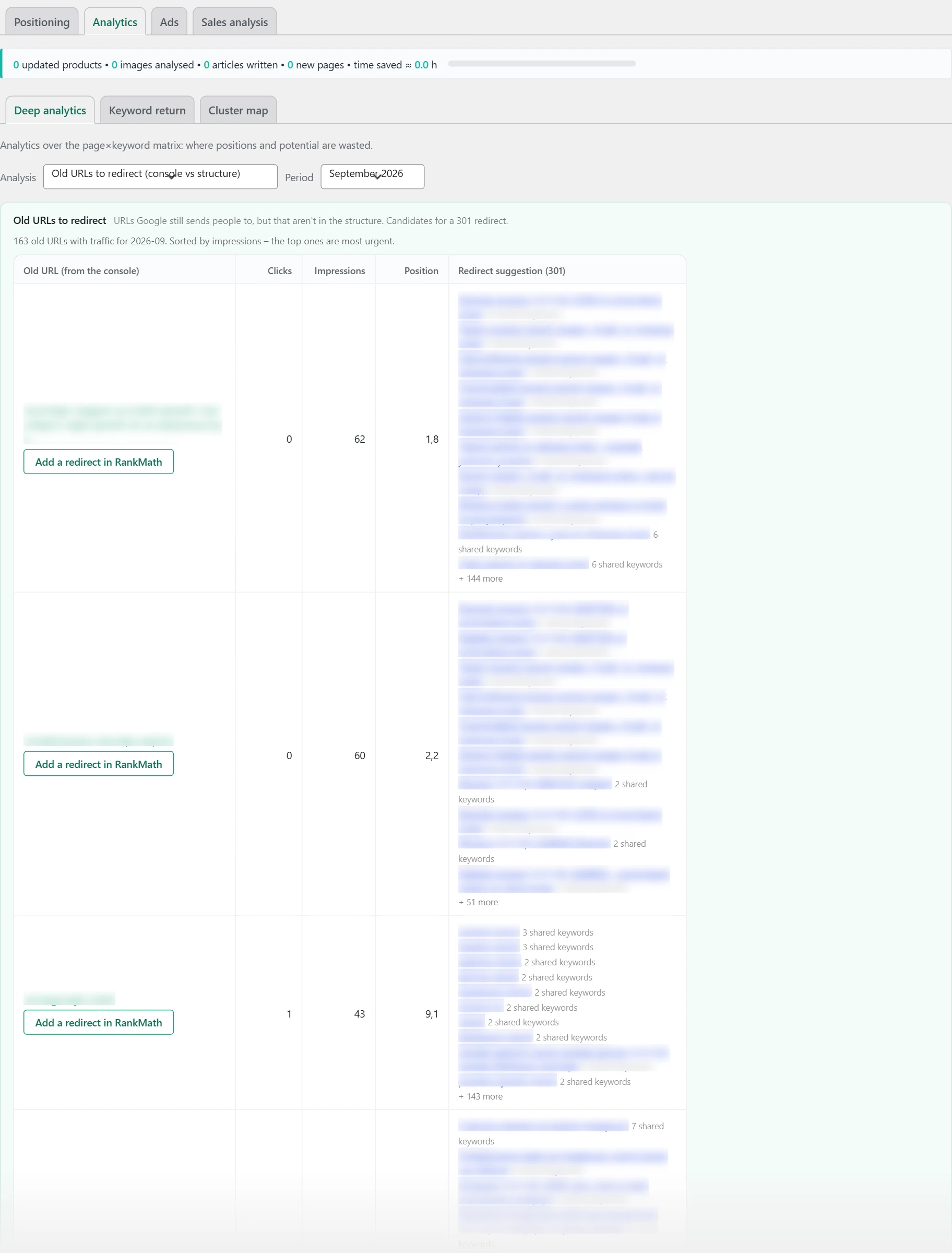
URLs for which Google still shows the site, but which are no longer in the structure.
Where the data comes from
The analysis asks Google Search Console for all pages for the month. Then it compares them with the site’s pages. You need a connection to Google Search Console.
How it works
- The „Old URL (from the console)“ column is the old URL. Under it is a button to the redirects plugin. If there is none, the button offers to install one.
- „Clicks“, „Impressions“ and „Position“ are from Google for the month. They are sorted by impressions.
- „Redirect suggestion (301)“ gives up to 10 possible targets. The first is the parent page by URL. Then come the pages with the most shared words in the URL.
- URLs that an SEO plugin already redirects are not shown. Their number is noted.
- Only the path is compared, without the domain.
How to use it
Pick the right target and add a 301 redirect in the redirects plugin. Start from the top rows.
Keyword return
What it is
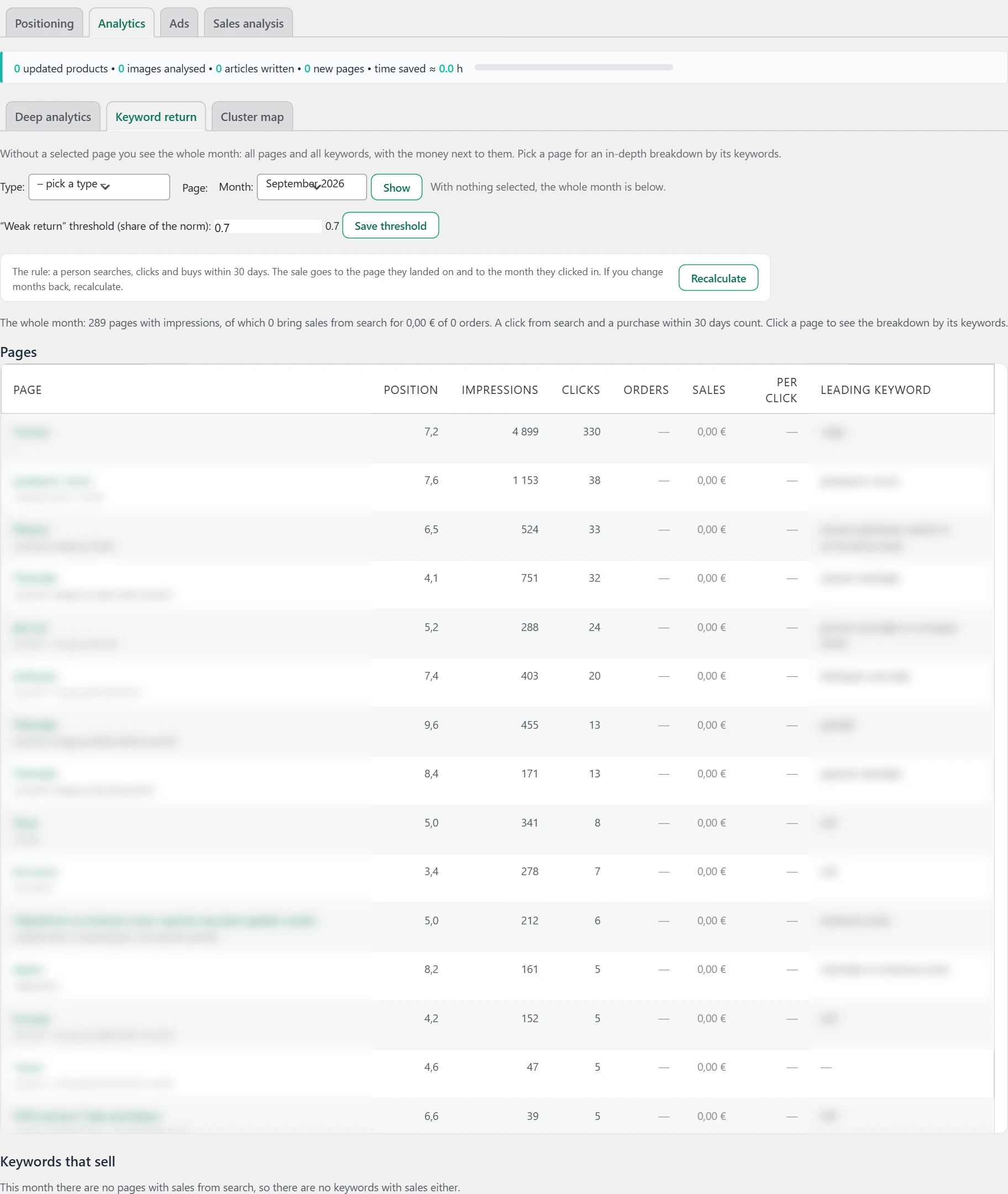
How much money search brings by page and by keyword, and which step is broken for each keyword.
Where the data comes from
Positions and clicks are from Google Search Console. The money is from the shop orders. The normal click share for each position comes from the Inside SEO hub.
How it works
- With no page selected, you see the whole month. The „Pages“ table shows position, impressions, clicks, orders, sales and amount per click. Pages with money are at the top.
- „Keywords that sell“ splits the page’s money by the click share of each of its keywords. Google does not give revenue per keyword. So this is a split, not a measured value.
- A sale counts if the customer bought within 30 days of the click from search. It goes to the landing page and to the month of the click.
- To review one page, choose „Type:“, then „Page:“ and „Month:“. Press „Show“.
- With a page selected, each keyword has a „What this means“ column. It holds ratings for position, interest, click rate against the norm, and return.
- The last row is a recommendation: improve the position, rewrite the title and description, or the keyword has low interest.
- The „Weak return“ threshold (share of the norm) field sets below which level the click rate is weak. The value is from 0.5 to 0.9. Press „Save threshold“.
How to use it
If you change data for past months, press „Recalculate“. For keywords with a title and description recommendation, rewrite those first. That is the quickest win.
Cluster map
What it is
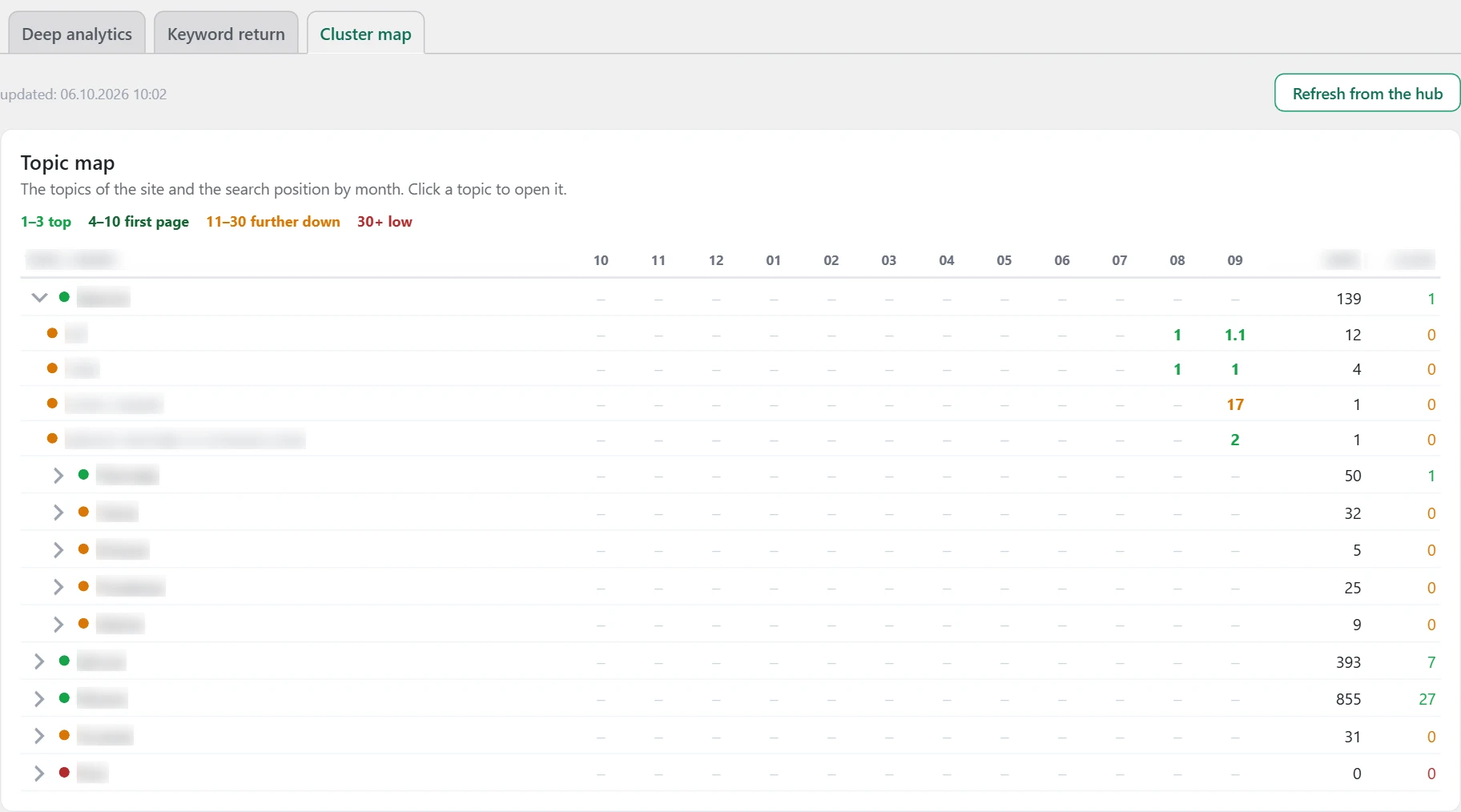
On the screen the heading is „Topic map“. It shows the site’s topics and their positions by month.
Where the data comes from
From the Inside SEO hub. The topics follow the menu and the category tree. Positions are from Google Search Console.
How it works
- Each row is a topic or a keyword. Click a topic to see its subtopics and keywords.
- The month columns show the position. The color follows the legend: 1 to 3 „top“, 4 to 10 „first page“, 11 to 30 „further down“, above 30 „low“. A dash means there is no position.
- The last columns are impressions and clicks.
- The dot before the name is green with impressions and clicks, orange with impressions only, red with nothing.
- The „Refresh from the hub“ button pulls the map again. The date of the last refresh is above it.
How to use it
Look for topics with an orange dot. Google shows the site there, but nobody clicks. Work on the titles and content of these pages.
Sales analysis
What it is
Only the pages worth your attention. The tab is after „Ads“ paid.

Where the data comes from
From the Inside SEO hub. It collects the orders, the customer journey and the Google Search Console data. Service pages such as cart, checkout and contacts are left out.
How it works
Each block opens with the arrow. The number of rows is next to the heading. Zero rows is not always good. The columns are „Position“, „Impressions“, „Clicks“ and „Sales“. „Sales“ is the direct sale from the page. The first two rows are visible right away. The rest are under „N more →“.
How to use it
Press „Refresh from the hub“ if the data is old. Start with „Sleeping capital“.
Hidden helpers
Block „Opportunities for more sales“.
Pages that lead to sales without selling themselves.

Where the data comes from
From the customer journey in the Inside SEO hub.
How it works
Here are the pages with assisted revenue higher than direct revenue. They are sorted by assisted revenue.
How to use it
Do not remove or shorten these pages. Add links in them to the products they lead to.
Assisted sales by page
The rows behind the „Assisted sales“ card in „Conversions“.

Where the data comes from
From the Inside SEO hub.
How it works
- For each order, one assisted sale goes to the first page on the path that is not a product page, not the landing page and not a service page.
- The columns are „Assisting page“, „Orders“, „Assisted revenue“ and „Led to“. The last one lists the products.
- Under the table is the check against the card. Green text means the total matches.
How to use it
If the total does not match, press „Refresh from the hub“.
Sleeping capital
Pages with a good position and many impressions, but not a single sale.

Where the data comes from
From the Inside SEO hub, for the last month with data.
How it works
This includes pages in the top 10 positions, with at least 20 impressions for the month and zero direct sales. They are sorted by impressions.
How to use it
Check the price, the images, the trust signals and the call to buy on each page.
Zero conversions (6 months)
Pages with impressions in search that have sold nothing in the last six months.

Where the data comes from
From the Inside SEO hub.
How it works
Only direct sales count. They are sorted by impressions for the six months, up to 20 rows.
How to use it
Rework the page, merge it with another page or remove it. If you remove it, add a redirect.
Close to the top
Block „Opportunities for more traffic“. Pages just outside the top 10 positions.

Where the data comes from
From the Inside SEO hub, based on Google Search Console data.
How it works
This includes pages with an average position from 11 to 20 and at least one impression. They are sorted by impressions.
How to use it
Improve the content and add internal links to these pages. A little work can bring them into the top 10.
SEO free
The „SEO“ tab gathers the checks of the site itself. The subtabs are: „Errors“, „Speed“, „Images“, „Content“, „Uniquification“, „Spelling“, „Pending tasks“, „Change log“ and „Site crawl“. „Spelling“ and „Pending tasks“ are visible only in the paid version.
In the paid version, a bar above the tabs shows the counter of AI requests for the month.
Errors
What it is
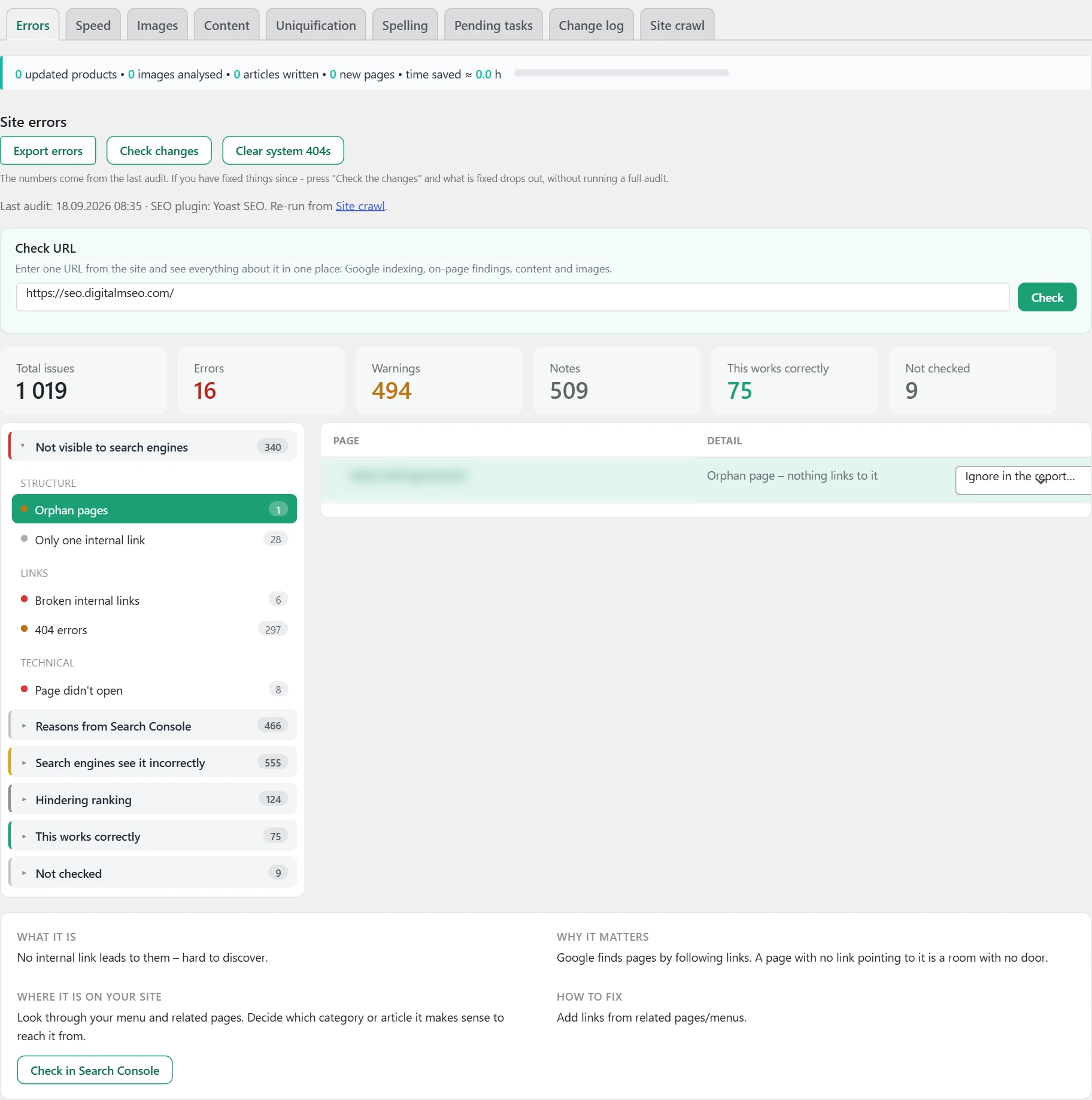
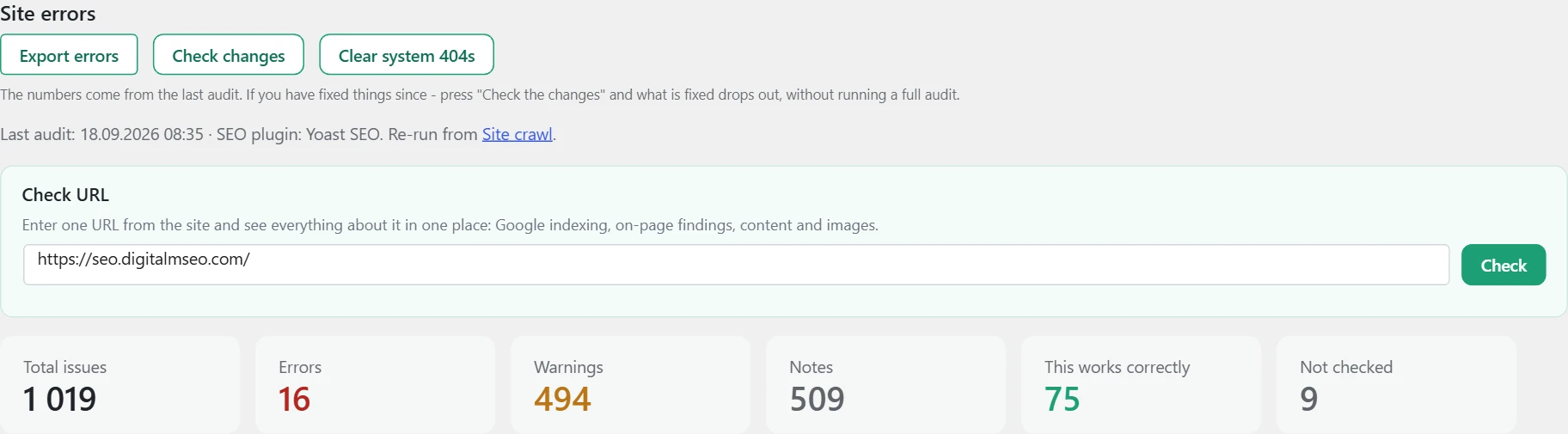
Here are all issues found by the latest audit. The screen heading is „Site errors“.
Where the data comes from
From the plugin’s audit, which you run from the „Site crawl“ tab. The „Reasons from Search Console“ group comes from Google Search Console. The „Check URL“ field asks Search Console and reads the monthly keyword data.
How to use it
Start with „Not visible to search engines“. Then move to „Search engines see it incorrectly“. After each fix, press „Check changes“.
The heading and the cards at the top
- Under the heading you see when the latest audit ran.
- Next to the date you see which SEO plugin was found on the site.
- „Total issues“ is the sum of all findings.
- „Errors“ are the most serious. They stop Google from showing the page.
- „Warnings“ are milder. They do harm, but they do not block the page.
- „Notes“ are small improvements.
- „This works correctly“ counts the passed checks.
- „Not checked“ counts the checks that have not been run yet.
The tree on the left
- The top level says what the issue does to the site.
- „Not visible to search engines“: Google does not reach the page or does not show it.
- „Search engines see it incorrectly“: Google shows the page, but with the wrong title, text or language.
- „Hindering ranking“: the page shows, but lower than it could.
- „Reasons from Search Console“ is a separate group. This is Google’s opinion, not the plugin’s check.
- Under each level are the groups. Under the groups are the checks themselves. The full list is below.
Severity and numbers
- The dot before a check shows its severity: red is an error, orange is a warning, grey is a note.
- The number next to a check is how many pages are left to fix.
- A number with a minus in front is the number fixed.
- A number with a tick is the number of pages you marked as not to be fixed.
The list on the right
- Click a check in the tree.
- The affected pages appear on the right.
- Under them is the panel with details about the check.
The error groups
The tree on the left has three main levels. Each level is split into groups. Under each group are the checks that belong to it. The severity is in brackets.
Not visible to search engines
Indexing
- Whole site hidden (Discourage) (error). The „Discourage search engines“ setting is on. The whole site tells Google not to index it.
- Important pages hidden (noindex) (error). Pages that should rank are marked noindex, and Google leaves them out.
- Canonical points elsewhere (warning). The canonical tag points to another URL. It tells Google „the real version is elsewhere“.
- Canonical points to a broken URL (error). The canonical leads to a page that returns an error (4xx). You point Google to a dead URL.
Structure
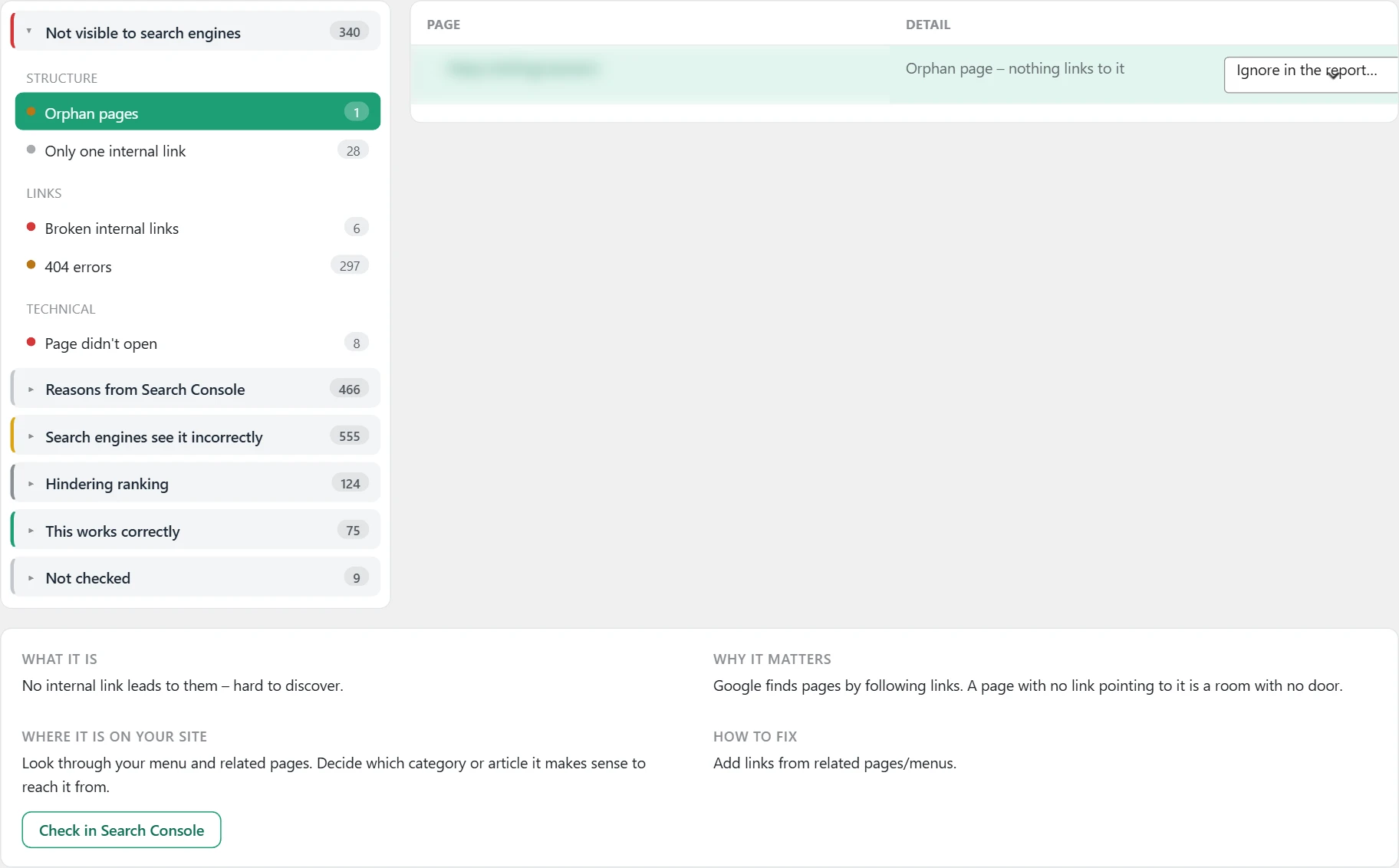
- Orphan pages (warning). No internal link leads to them. They are hard to find.
- Filtered URLs in Google (warning). URLs from filters (color, size, price, sorting) already get impressions in Google. This means Google crawls them. They are thousands of near-identical pages. They eat the crawl budget and weaken the signal of your real categories.
- Page hard to reach (note). It takes more than 4 internal links from the homepage to reach this page. Google rarely crawls that deep.
- Only one internal link (note). The page is barely linked to the rest of the site.
Links
- Broken internal links (error). Links to your own pages that return an error (4xx/5xx).
- 404 errors (warning). Real visitors land on URLs that no longer exist. They come from old links, bookmarks or referrers.
Files (sitemap/robots)
- Invalid sitemap (warning). The sitemap is missing or is not valid XML.
- Sitemap over 50MB (warning). One sitemap file is too big.
- Sitemap over 50,000 URLs (warning). One sitemap has more URLs than the limit.
- http:// URLs in sitemap (warning). The sitemap of an https site lists http:// URLs.
- robots.txt issue (warning). robots.txt does not open or has no valid directives.
- robots blocks a URL from sitemap (warning). A URL is in the sitemap, but robots.txt blocks it. This is a contradiction.
Technical
- Page didn’t open (error). The page could not be loaded during the deep scan.
Search engines see it incorrectly
Indexing
- Missing canonical (warning). The page has no canonical tag. Google decides on its own which URL is „the real one“.
- Multiple canonical tags (warning). There is more than one canonical tag. Google does not know which one to follow.
- Invalid hreflang codes (warning). hreflang codes outside the xx / xx-YY format.
- hreflang doesn’t match the language (warning). The hreflang of the page is different from the language of.
- Incomplete language link (warning). The page points to a language version, but that version does not point back. Google needs links both ways. Otherwise it ignores the whole pair.
- Missing hreflang (warning). The site has several languages, but the page has no hreflang. The language versions are not linked.
- Language markup doesn’t include the page itself (warning). The page lists language versions, but not itself. Google needs every page to list itself too.
- hreflang conflict (warning). Two elements with the same code point to different URLs.
- Missing x-default (note). There is no x-default hreflang for regions without an exact language version.
Content
- Not enough text (warning). The real text is below the limit for this page type. Google struggles to understand what the page is about. The limit differs: blog post 900 words, regular page 500, product 250.
- Little text relative to code (warning). The page is mostly code with little visible text. This is a weak content signal.
- Images from another address (warning). The page loads images from another domain. They are not in the site library. You cannot add alt text to them, they do not work in image search, and they disappear if the other address goes down.
- Images without alt text (warning). Images without an alt attribute. You lose image search and accessibility.
- Image filename doesn’t contain the color (warning). The visual analysis sees a color in the image, but the filename (slug) does not include it. Google uses the filename as a signal for image SEO.
- Image with generic/meaningless name (warning). The filename is generic (IMG_2024.jpg, DSC_5678.jpg, screenshot.png). It tells nothing to Google or to people who use screen readers.
- Alt text = filename (warning). The alt text is almost the same as the filename. It carries no real information. It only repeats the slug.
- Orphan images and files (note). Images and documents (pdf and others) in the media library that are not used anywhere. They take up space for nothing. They are not counted in the other image checks (no alt, bad name). The first question is whether they should exist at all.
- Near-duplicate products (warning). A series of products with almost identical descriptions. They steal rankings from each other (cannibalization).
- Dead product (note). A published product that is out of stock and has no sale and no click from search in the whole collected history. The page exists and works, but brings nothing. It only weakens the site.
- Empty categories and tags (warning). A category or tag with zero or one item and no click from search. It creates a thin page that repeats content and weakens the site without bringing traffic.
- No H2 (note). The page has no H2. The structure is weak for readers and for Google.
- Title = H1 (note). The title and the H1 are the same. This is a missed chance for more context.
- Skipped heading hierarchy (warning). The heading levels skip a step (for example H2 → H4 without H3). This hinders screen readers.
- Duplicate content (warning). The same content on several URLs.
Titles and descriptions
- Missing title (error). The page has no title tag. Google shows something random in the results.
- The title is too long (note). Over about 60 characters. Google cuts it off in the results.
- Title too short (note). Under about 20 characters. You miss keywords.
- Duplicate meta titles (warning). The same meta title on several pages. Google cannot tell which one to rank.
- No meta description (note). The page has no meta description of its own. Google writes its own snippet.
- Auto-generated meta descriptions (note). The page has no description of its own, but the SEO plugin adds one from a general template. Something shows in the results, but it was not written for this page.
- The description is too long (note). Over about 160 characters. It gets cut off.
- Description too short (note). Too short. You miss keywords and a call to action.
- Duplicate meta descriptions (warning). The same meta description on several pages. This is a weak signal.
- No H1 (warning). The page has no H1 heading. A main signal for the topic is missing.
- Multiple H1s (note). More than one H1. This blurs the main topic.
- Empty H1 tag (warning). The H1 tag exists, but there is no text inside.
- H1 too short (note). The H1 is under 10 characters. It is too short to explain the topic.
- H1 too long (note). The H1 is over 70 characters. It is too long and vague.
URL hygiene
- Inconsistent trailing slash (note). The site mixes URLs with and without „/“ at the end. These are possible duplicates.
- www / non-www duplicates (warning). Both www and non-www return 200 without a redirect. Google sees two sites.
Schema / AEO
- No schema (JSON-LD) (error). There is no structured data. You lose rich results and AI understanding.
- Product without Product schema (warning). A product page without Product schema. No price or stars in Google.
- No Breadcrumb schema (note). There is no BreadcrumbList. No breadcrumbs in the results.
- Reviews without a rating in Google (warning). The product has real reviews, but the rating (stars) does not show in Google results. aggregateRating is missing from the schema. Stars bring more clicks, and here they are lost.
- Invalid JSON-LD (error). The structured data has a syntax error. Google cannot read it and ignores it.
Cyr/Lat mix
- Mixed alphabets in main fields (error). Words with Latin letters inside Cyrillic ones (or the other way round). „матраci“ looks like „матраци“, but for Google it is a different word. The page stops being found for it.
- Mixed alphabets in content (warning). Words with mixed alphabets in the text, the alt descriptions or the menu. The eye does not see it, but for Google these are different words.
- Hidden characters in text (error). Invisible characters (zero width, soft hyphen) inside words. „мат•рак“ looks like „матрак“, but for Google the word is cut in two.
Hindering ranking
Content
- Old year in title (note). The title has a past year (for example 2025 while it is 2026). The content is probably outdated. It loses trust and clicks, especially for seasonal and „yearly“ topics.
URL hygiene
- URL too long (note). The URL is over 200 characters. It is hard to share and index.
- Underscores in URL (note). Google treats the underscore as joining words. Hyphens are recommended.
- Uppercase letters in URL (note). Capital letters in a URL can create duplicate URLs.
- The address differs from the title (note). The title says one thing and the address says another. It looks like a changed title with an old address. The buyer sees the old color or the old model in the address.
- Too many parameters (note). 4 or more parameters in the URL. To Google it looks like a duplicate or a filter.
Links
- Too many outgoing links (note). Over 150 links on a page. They spread the link value too thin.
- Links without descriptive text (note). Links without visible text. Google does not understand what they point to.
- Internal links with nofollow (note). You mark your own pages as „nofollow“. Google does not pass link value through them.
- Invalid links (warning). URLs with a broken format. They cannot be followed.
- Broken external links (warning). Links to other sites’ pages that no longer work.
- Links to a redirect (note). Internal links go through a 3xx redirect. They are slower and lose some link value.
- Redirect chain (warning). The URL goes through several redirects in a row.
Technical
- Email visible in text (note). An email address as visible text. It is easy prey for spam bots.
- Slow server response (warning). The page responds slowly. Visitors wait before loading even starts.
- Missing HSTS (note). There is no Strict-Transport-Security. The browser does not have to use https only.
- Missing Content Security Policy (CSP) (note). There is no Content-Security-Policy. Protection against injected malicious code is weaker.
- Missing embedding protection (note). The site can be embedded invisibly in another page. The visitor thinks they click one thing, but they click another.
- No cache headers (note). Cache-Control/Expires are missing. Browsers reload everything.
- No compression (warning). The HTML is not sent compressed (gzip/br). Loading is slower.
- Insecure resources (http on https) (warning). An https page loads http resources. Browsers block them or show a warning.
- Form over insecure connection (error). A form on a secure page sends data over http://. This is critical for privacy.
- Outdated TLS (warning). The server uses an old TLS version. Browsers show a warning.
- Certificate expiring (warning). The HTTPS certificate expires soon or has expired.
- Missing charset (warning). No charset is declared. Cyrillic text may break.
- Missing viewport (warning). There is no viewport. Mobile browsers show the desktop view.
- Missing DOCTYPE (warning). There is no . The browser switches to quirks mode.
- Missing lang attribute (warning). There is no language on. Google and screen readers do not know the language.
- Missing favicon (note). There is no icon for the browser tabs.
- Missing apple-touch-icon (note). There is no home screen icon for iOS.
- Missing Open Graph tags (warning). There are no og tags. Shares on Facebook and other sites look bad.
- Missing Twitter Card (note). There is no twitter:card. Shares on X look weak.
- Multiple meta refresh tags (note). Several meta refresh tags. They confuse the browser and SEO.
- Analytics deletes history too early (note). By default, Google Analytics keeps data for only two months and then deletes it. Search Console has a longer history than Analytics for this site. This means retention is on the default. Lost history cannot be recovered.
- Heavy page (warning). The HTML code is over 2MB. The page loads slowly, especially on phones.
- Too many separate style files (note). The browser makes many separate requests for styles. This slows the first load.
- Too many separate script files (note). The browser makes many separate requests for scripts. This slows loading.
- Large inline script (note). A large script inside the HTML slows the display of the page.
- iframes (note). iframes can slow the page and hinder indexing.
- Images larger than needed (warning). Some images on the page are downloaded much larger than the space where they are shown. The difference is downloaded on every visit and thrown away by the browser right away.
- Fonts from a third-party server (warning). The font styles load from a Google server. This is a separate connection to another domain before the first letter appears. The visitor’s data also goes there.
- The text disappears while the font loads (warning). The browser has no instruction for what to do while it waits for the font. The text stays invisible for up to three seconds.
- Preconnect is missing (note). The page loads from several third-party domains. For each one, the browser builds a full connection from zero: address lookup, connection, security. On a phone this takes hundreds of milliseconds.
- Tracking before consent (error). The tracking script starts in the page head before the visitor answers the banner. Two problems at once: the law and speed.
- The main image is lazy loaded (warning). The first large image on the page is set to load later. It is the first thing the visitor sees. Google uses exactly this image to measure when the page appeared. Delaying it slows that number for no benefit.
- The main image is larger than needed (warning). The file is much wider than the space where it is shown. The difference is downloaded on every visit and thrown away by the browser.
- The main image is in an old format (note). A large image in an old format weighs about three times more than the same image in a modern format.
- Missing pagination tags (note). The page is part of a series (page 2, page 3…), but Google does not know it. Google may index it as a separate page or skip it.
- HTML can’t be parsed (error). The page code is so broken that it cannot be read correctly.
Files (sitemap/robots)
- Sitemap not in robots.txt (note). robots.txt does not point to the sitemap. Google finds it harder.
- Missing llms.txt (AEO) (note). A new standard that guides AI assistants (ChatGPT, Perplexity) to the key content.
- Invalid llms.txt (AEO) (note). llms.txt exists, but it is not valid Markdown.
Speed
- Slow main content loading (LCP) (warning). Real visitors wait more than 4 seconds for the main content. Google counts this in rankings.
- Slow tap response (INP) (warning). After a click or tap, the page reacts after more than half a second. It annoys visitors and lowers rankings.
- Layout shift on loading (CLS) (warning). The content jumps while the page loads. Visitors click the wrong things.
- Low speed score (mobile) (warning). Google’s lab test gives under 50 out of 100 on mobile. The page is clearly slow.
- No real-user data (note). The site has too little traffic, so Google does not publish field data. Only a simulation is available.
Cyr/Lat mix
- Too many em dashes (note). The text is full of long dashes. This is a typical sign of machine-written text. Readers and Google notice it.
- Too many icons in text (note). An icon before every line (✅, ➡, 🟢). This is a sign of copied or machine-written text. It distracts and lowers trust.
Google verdicts in Search Console
Here are Google’s verdicts from Search Console. They show why a page is not in search. The possible verdicts are:
- Submitted and indexed. Everything is fine.
- Indexed, not submitted in sitemap. The page is in Google, but it is missing from the sitemap.
- Crawled – currently not indexed. Google has seen the page, but has not included it.
- Discovered – currently not indexed. Google knows the URL, but has not visited it yet.
- Duplicate without user-selected canonical. Google sees the page as a copy of another one.
- Duplicate, Google chose different canonical than user. Google picked another page as the main one.
- Page with redirect. The URL leads to another URL.
- Excluded by ‘noindex’ tag. The page itself tells Google not to show it.
- Blocked by robots.txt. The robots.txt file blocks access.
- Not found (404). The URL does not exist.
- Soft 404. The page is empty or looks like it is missing.
- Blocked due to unauthorized request (401). The page asks for a login.
- URL is unknown to Google. The URL has not been found yet.
This works correctly and Not checked
„This works correctly“ lists the checks that the site passes. „Not checked“ lists the checks that have not been run yet. For example, data from Google is missing or a full audit has not been run.
The buttons at the top
- „Check changes“ checks again only what was found. Fixed items drop off without a full audit.
- „Clear system 404s“ removes service noise from the log of missing URLs. These are technical URLs, attempts to access files and visits from the admin area itself.
- „Export errors“ downloads all findings as a table for Excel paid. The columns are: effect, group, issue, type, severity, URL and description.
Deleted pages
The „Deleted pages / products“ card appears when something has been removed from the site. It lists the URLs that no longer exist.
Where the data comes from
The plugin records every deletion. Clicks and impressions for 3 months are from Google Search Console.
How it works
For each URL you see what it was, when and why it was removed, and what happens with it now. A URL with clicks and no redirect loses visits.
How to use it
Redirect the URL to the closest page with „Redirect“. If the URL must disappear, press „Leave 410“.
Check URL
The field gathers everything about one URL of the site in one place.
Where the data comes from
Indexing comes from Google Search Console. The findings are from the plugin’s audit. The keywords are from the latest monthly import of Search Console data.
How it works
- „Indexing (Search Console)“ shows Google’s verdict, the status and the last crawl.
- It also shows the canonical URL according to Google and the site’s canonical URL. If they differ, Google has picked another page as the main one.
- „Errors“, „Images“ and „Content“ list the findings for this page.
- „Keywords and rankings“ shows up to 20 keywords with clicks, impressions and position.
How to use it
Type the URL and press „Check“. Use the field when a page does not show in Google.
The details panel
It opens under the list when you select a finding.
How it works
- „What it is“ explains the issue.
- „Why it matters“ says how it hurts rankings.
- „Where it is on your site“ says where to look for it on the site.
- „How to fix“ gives the steps.
- For „Not checked“, the fields are „Why it was not checked“ and „What to do“.
For some findings, you can fix them from the row itself. Examples are „Fix the address“, „Remove the hiding“, „Replace the long dashes“, „Clear the hidden characters“ and „Switch to https“. You type the meta title, meta description and alt text in the field and save them with „Save“. The fix in the SEO plugin through the „Fix in …“ button is in the paid version.
A fixed row is marked with a tick. A row that was changed but still does not meet the requirement has a round arrow.
Reasons from Search Console
Where the data comes from
From Google Search Console. The group is filled monthly or with a full audit from „Site crawl“.
How it works
Each Google reason is a separate row in the tree. Service pages with a noindex rule, such as cart and checkout, have a tick. There the rule is correct.
How to use it
Depending on the reason, use the buttons under it. They are „Remove the block“, „Find where it should lead“, „Why is it not indexed“, „Open in the Console“ and „Notify Bing and Yandex“. If Search Console is not connected, connect Google from „Settings“.
Findings that will not be fixed
How it works
The „Ignore in the report…“ dropdown on the row marks a finding as reviewed. The reasons are „Acceptable“, „At the client’s request“, „By design“, „Not technically possible“, „Postponed until a date“, „External reason“ and „False alarm“. You can add a short comment.
Such a finding drops out of the counts and the work plan. It stays at the bottom in „Reviewed and clarified issues“, with the reason, the note, the person and the date. „Postponed until a date“ comes back on its own after the date.
How to use it
Use the menu only for things that are truly intentional. To bring a finding back to the list, press the button on the row itself.
Pending tasks from Errors
In the paid version, you can tick rows and send them to „Pending tasks“. The buttons are „Add to the queue“ under the finding and „Add the ticked ones to the queue“ above the list.
Speed
What it is
The tab shows how fast the site loads and what slows it down. It has five inner subtabs: „Status“, „Issues“, „Breakdown“, „File optimization“ and „Trend“.
The numbers in „Issues“ and „Breakdown“ are for loading without cache. For a cached page, the server serves a ready file. They still matter for the admin area, for the first visitor after the cache is cleared, for cart, checkout and search, and for search engine bots.
Status
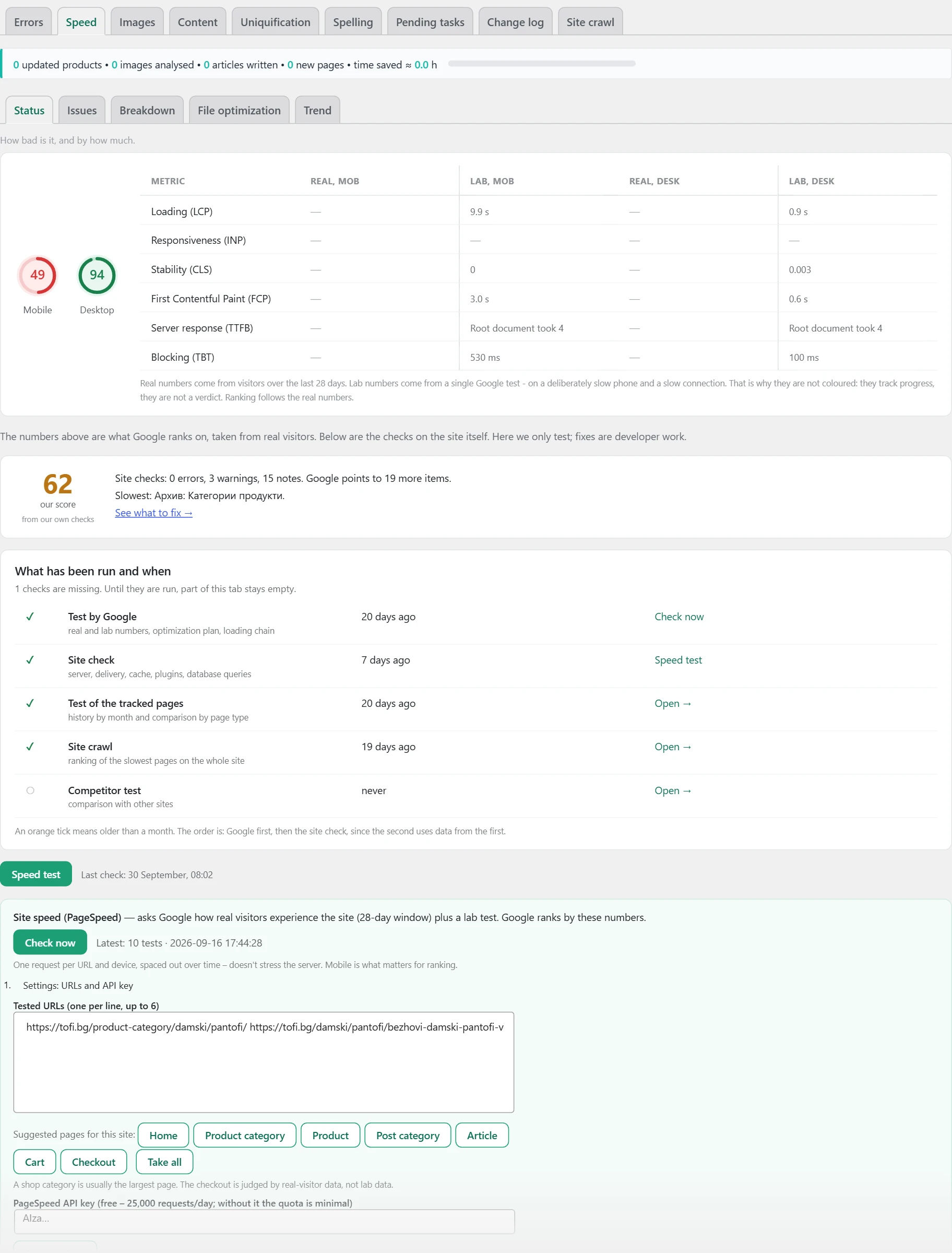
Here is the overall speed picture.
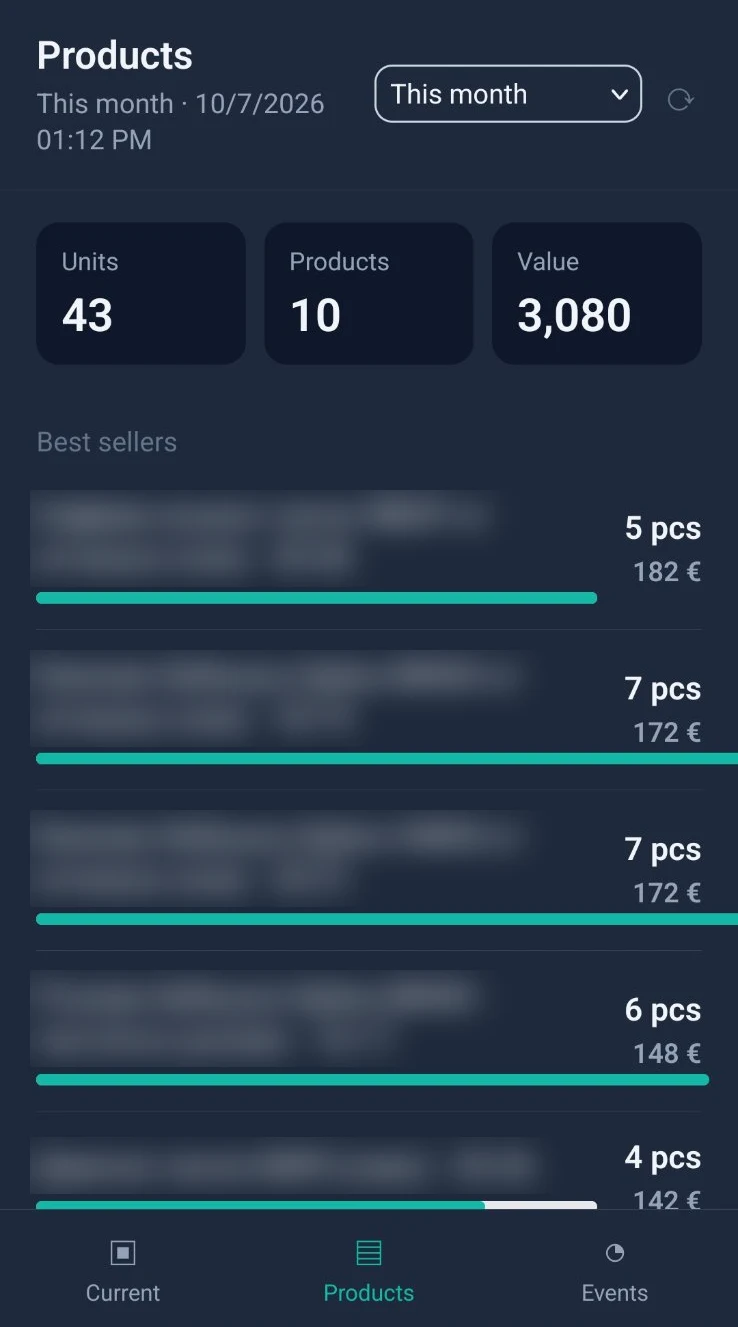
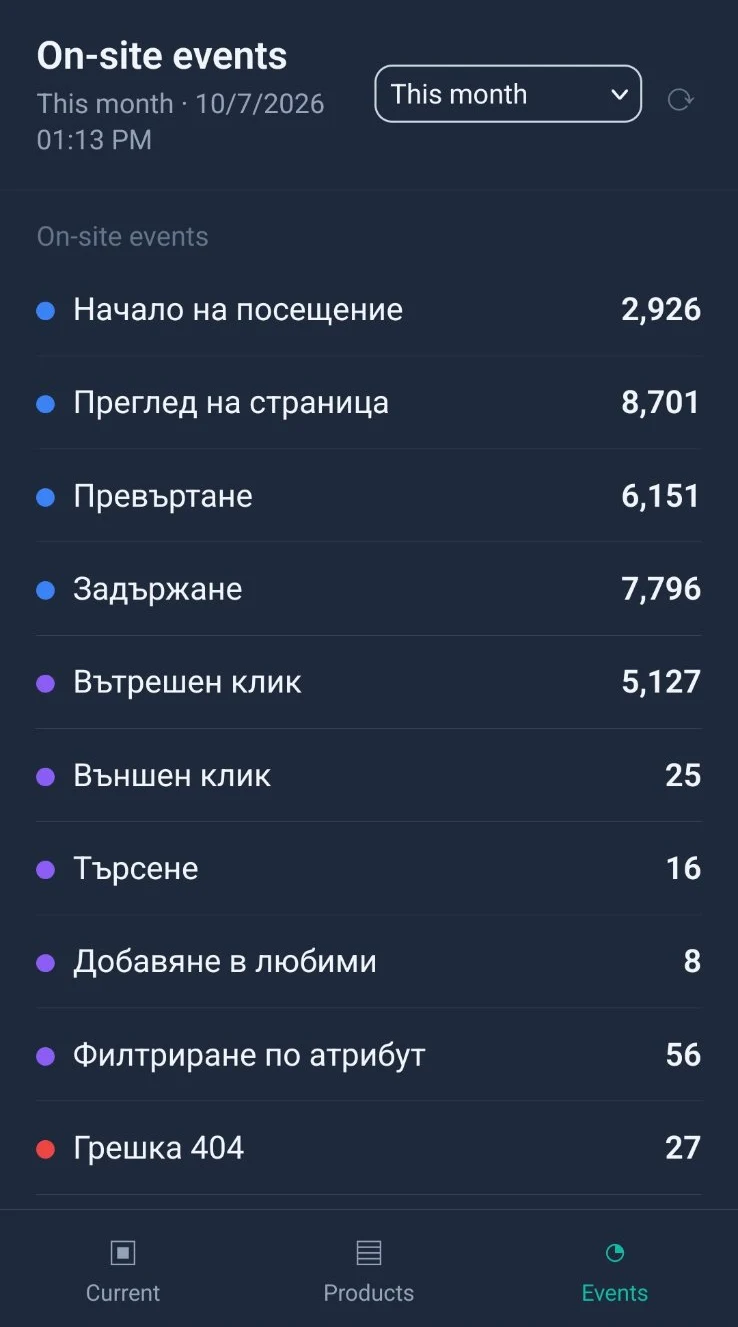
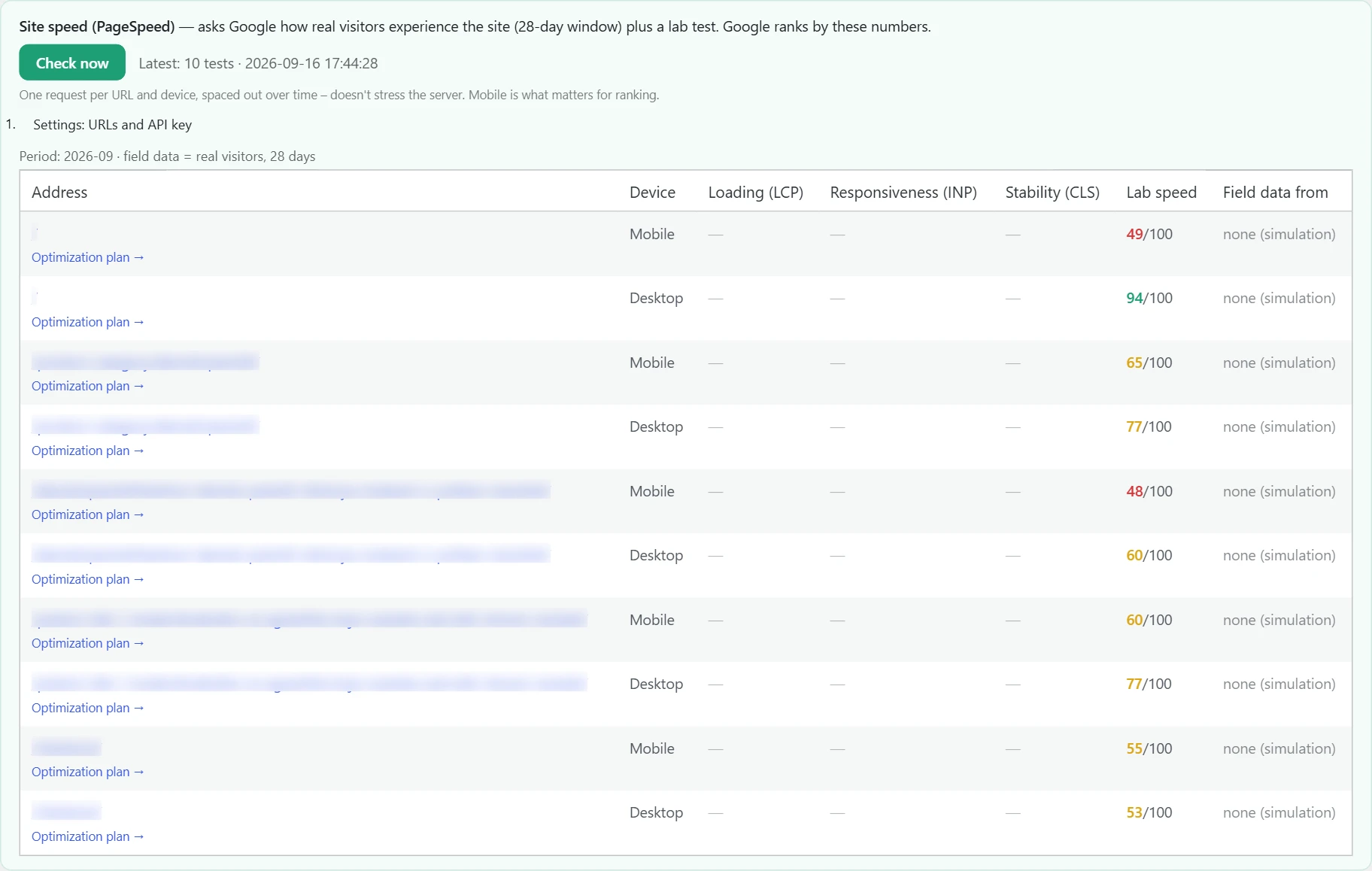
Where the data comes from
From Google’s test („Site speed (PageSpeed)“). The real numbers are from visitors over the last 28 days. The lab numbers are from a single Google test. The site checks come from the „Speed test“ button.
How it works
- The two circles are the „Mobile“ and „Desktop“ scores from 0 to 100. Green is 90 and above, orange is 50 to 89, red is below 50.
- The table shows the metrics: „Loading (LCP)“, „Responsiveness (INP)“, „Stability (CLS)“, „First Contentful Paint (FCP)“, „Server response (TTFB)“ and „Blocking (TBT)“.
- The „Real“ columns are colored by Google’s thresholds. The „Lab“ columns are not colored. They measure progress. They are not a verdict.
- Rankings follow the real numbers. Mobile is what counts.
- „our score“ is the score based on the plugin’s checks.
- „What speeding up is worth“ is shown for a shop. It estimates how many orders and how much turnover per month faster loading brings. This is an order of magnitude, not a promise.
- „What has been run and when“ shows which checks have been run. An orange tick means older than a month.
- Under the test card is a table by URL and device. „Causes of slowdown“ expands Google’s findings for each row.
How to use it
Press „Check now“ for Google’s test and „Speed test“ for the site check. In „Settings: URLs and API key“, set up to 6 URLs and add a free key from Google. Without a key, the quota is minimal.
Issues
Here is exactly what slows the site down and in what order to fix it.
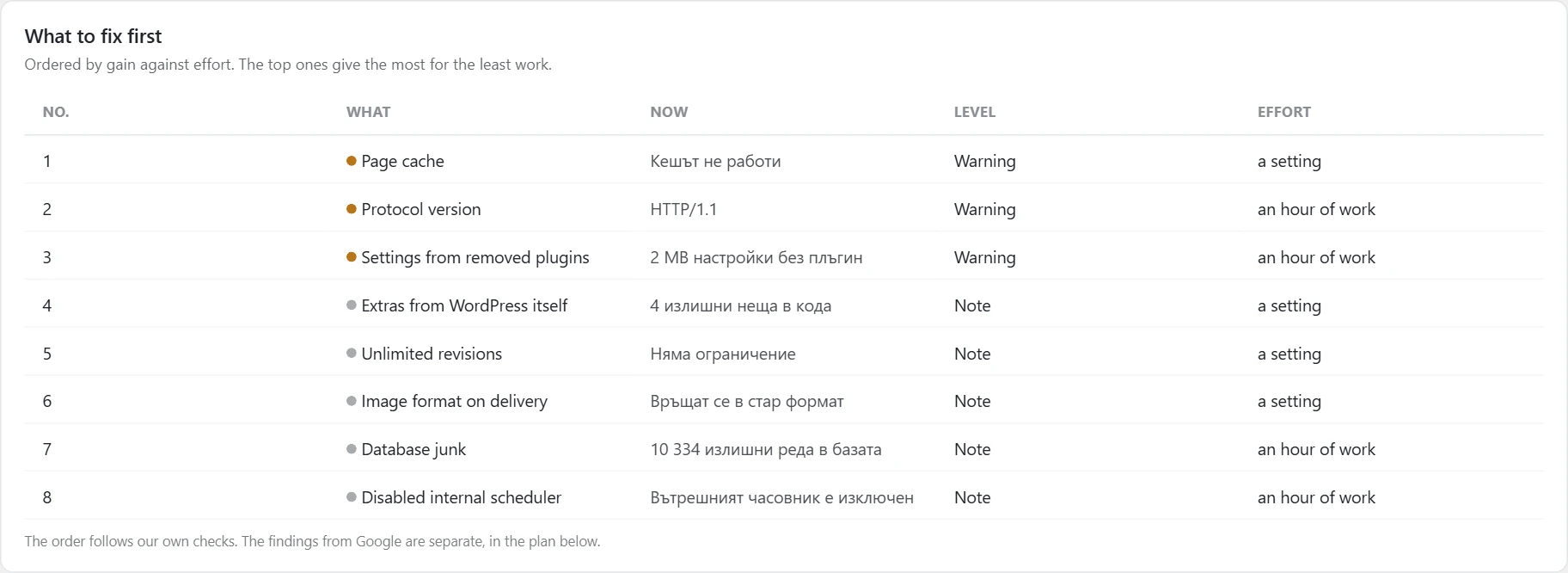
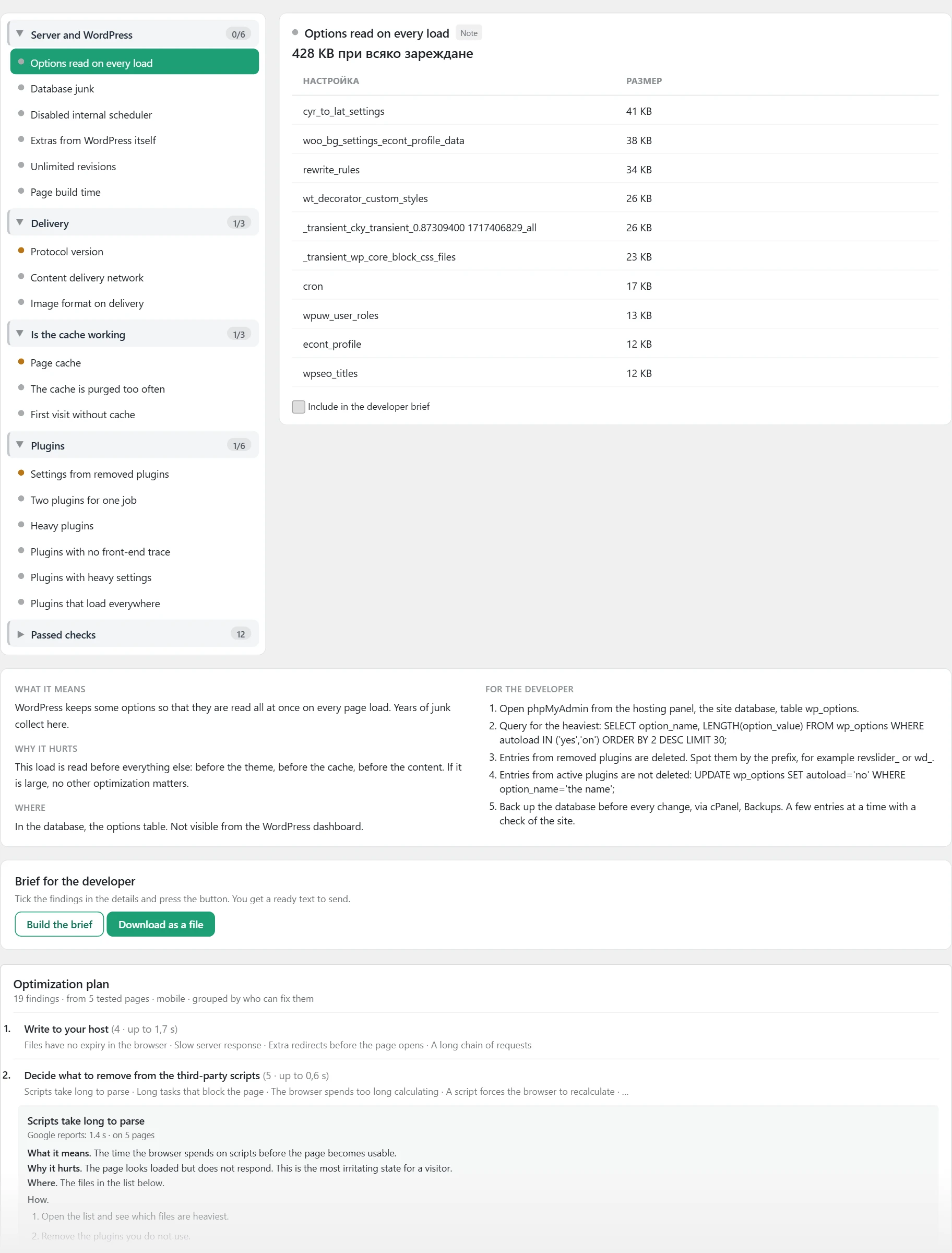
Where the data comes from
From the site checks in „Speed test“. The „Optimization plan“ part is from Google’s test.
How it works
- „What to fix first“ sorts the findings by gain against effort. The top ones give the most for the least work.
- The „Effort“ column is „a setting“, „an hour of work“ or „major work“.
- The tree splits the checks into groups: „Server and WordPress“, „Delivery“, „Is the cache working“, „What the page loads“, „Plugins“ and „Passed checks“. Next to each group you see how many of its checks are a problem.
- The selected check shows its value and severity. Below are „What it means“, „Why it hurts“, „Where“ and „For the developer“.
- Some checks have a button for a setting in the WordPress configuration file. A backup is made before the change. If there is a problem, the backup is restored at once.
- „Brief for the developer“ gathers the ticked findings into a ready text. You can download it as a file.
- „Optimization plan“ splits Google’s findings by who can fix them, for example „Write to your host“ or „Fix the images“.
How to use it
Start from the first row in „What to fix first“. Tick the findings, press „Build the brief“ and send the text to the developer.
Breakdown
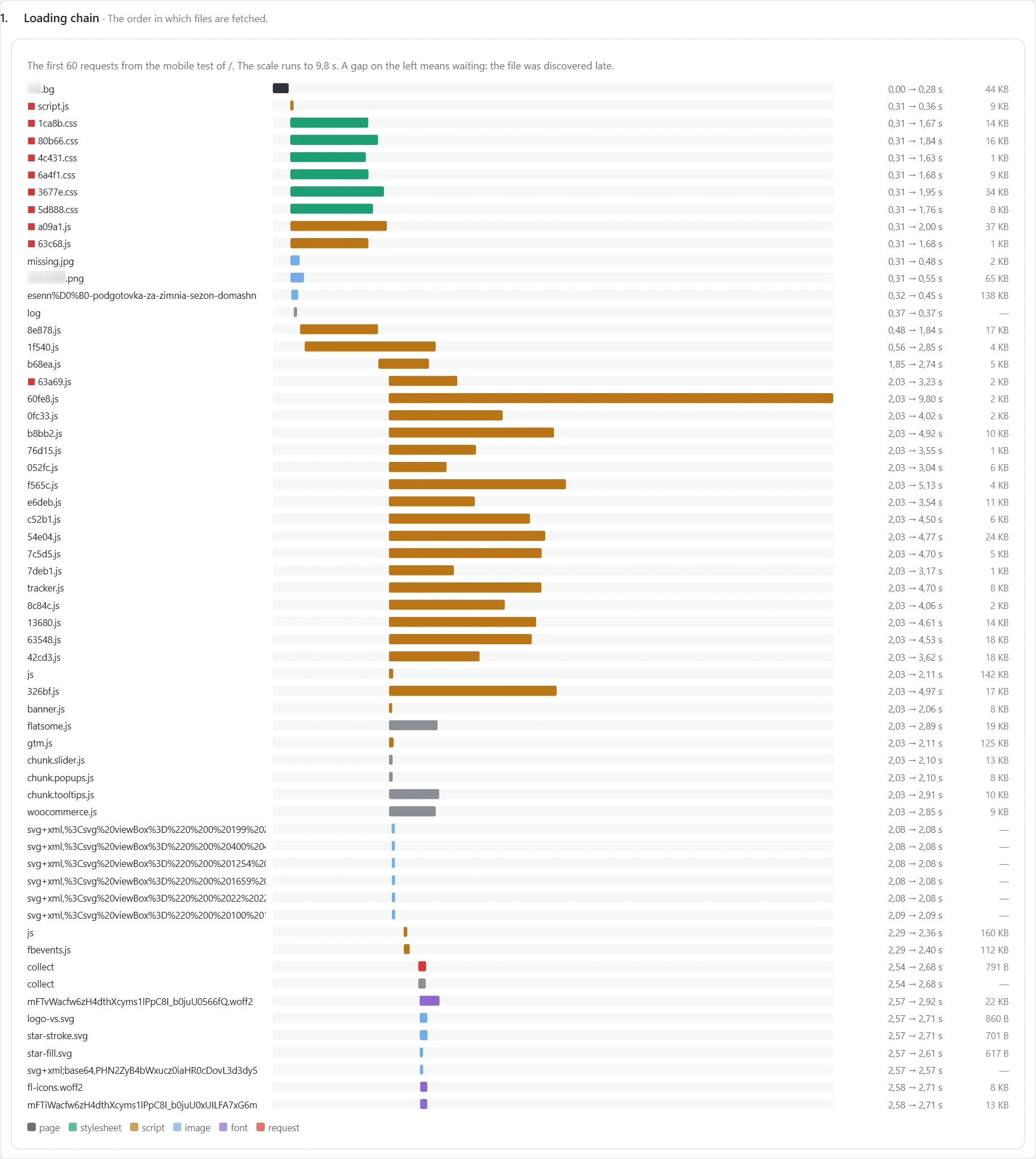
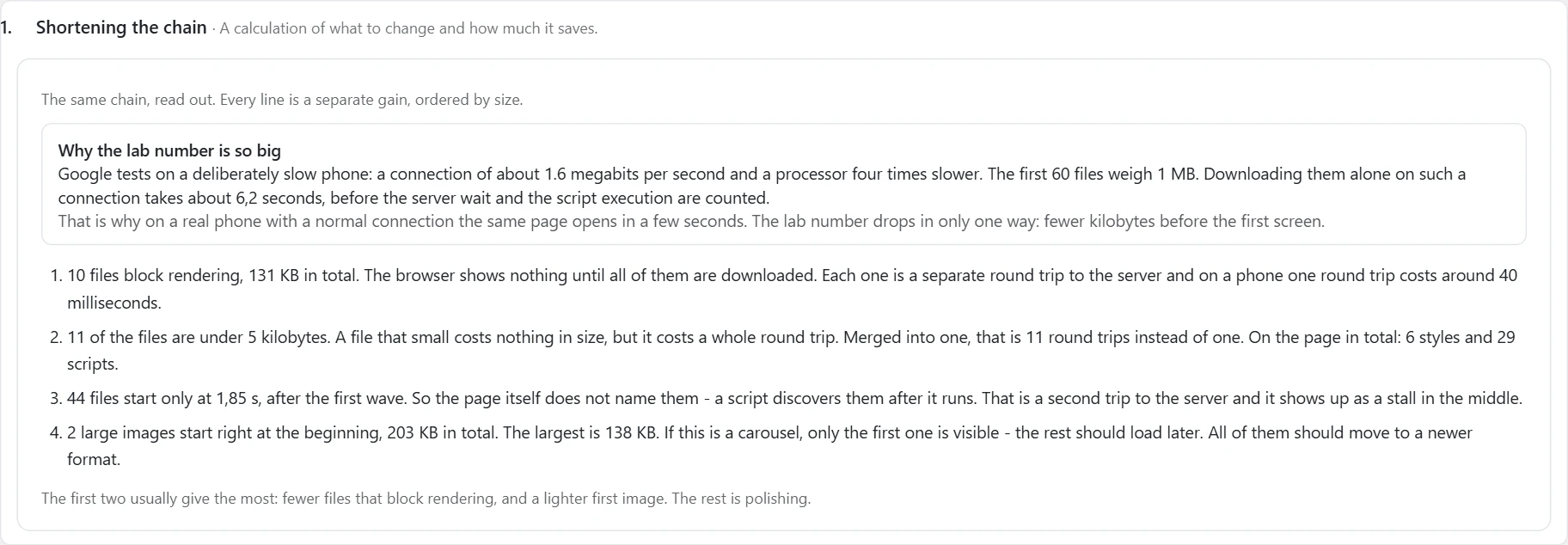
Here you see what one page load is made of and where the time goes. The five parts are collapsed and open one by one.
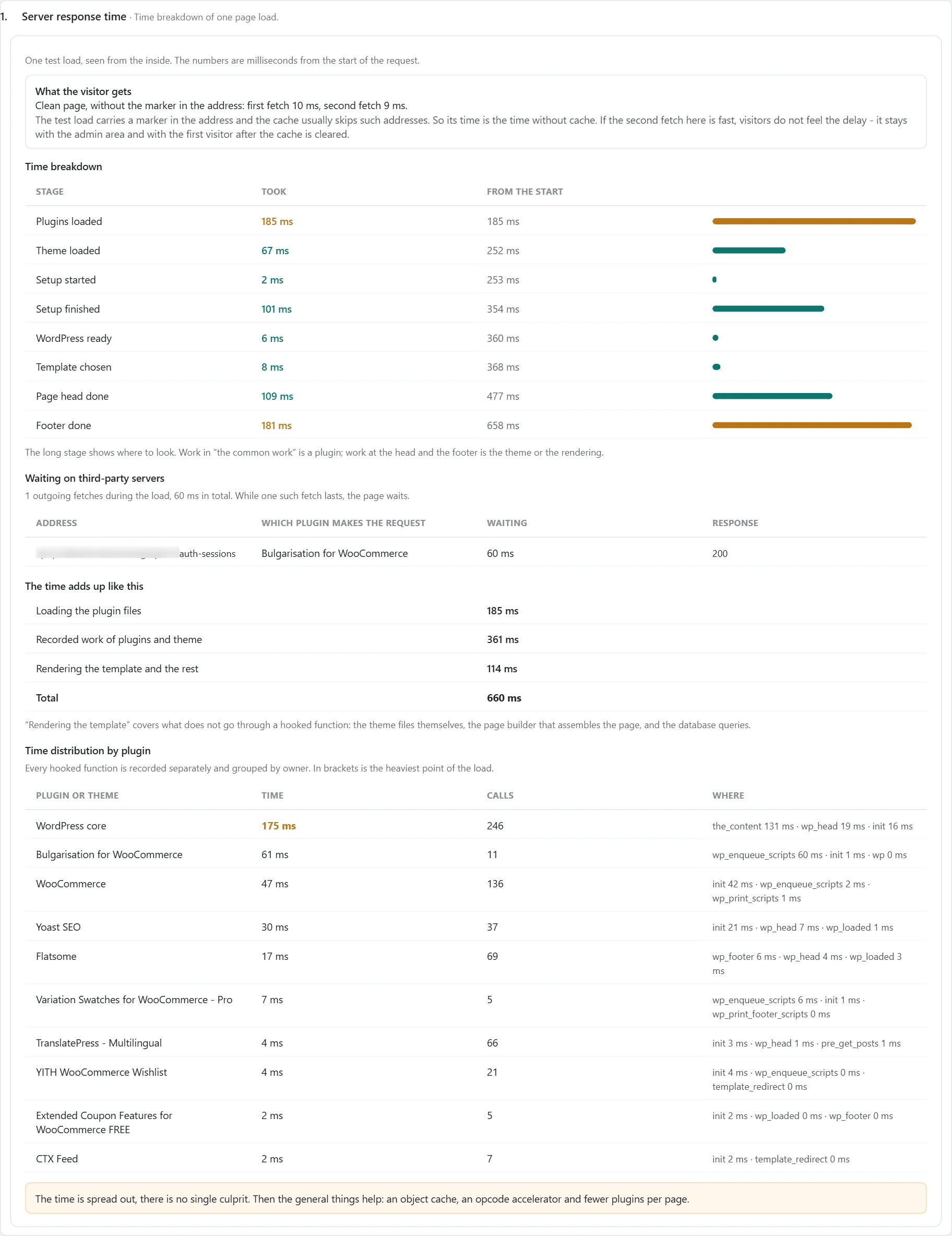
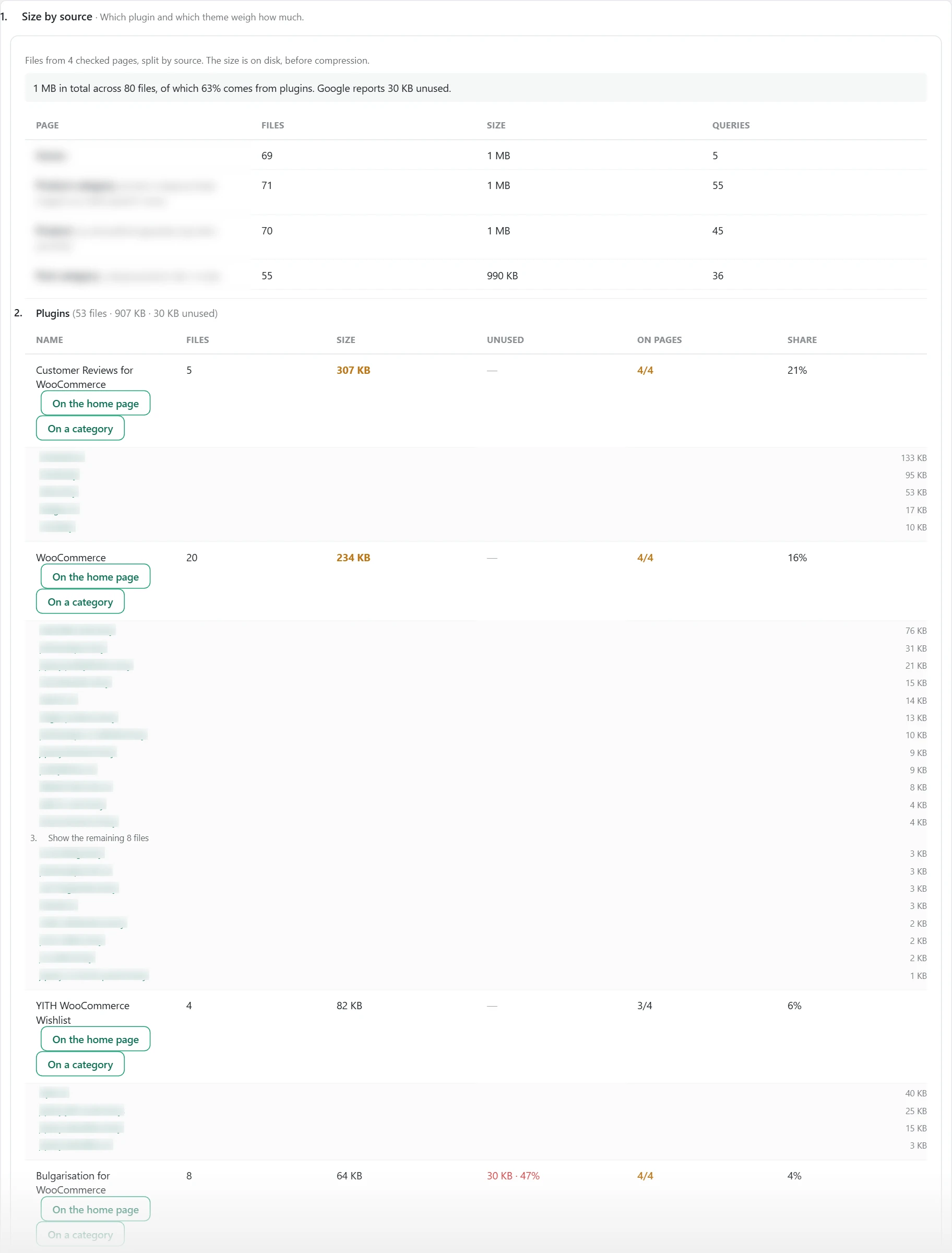
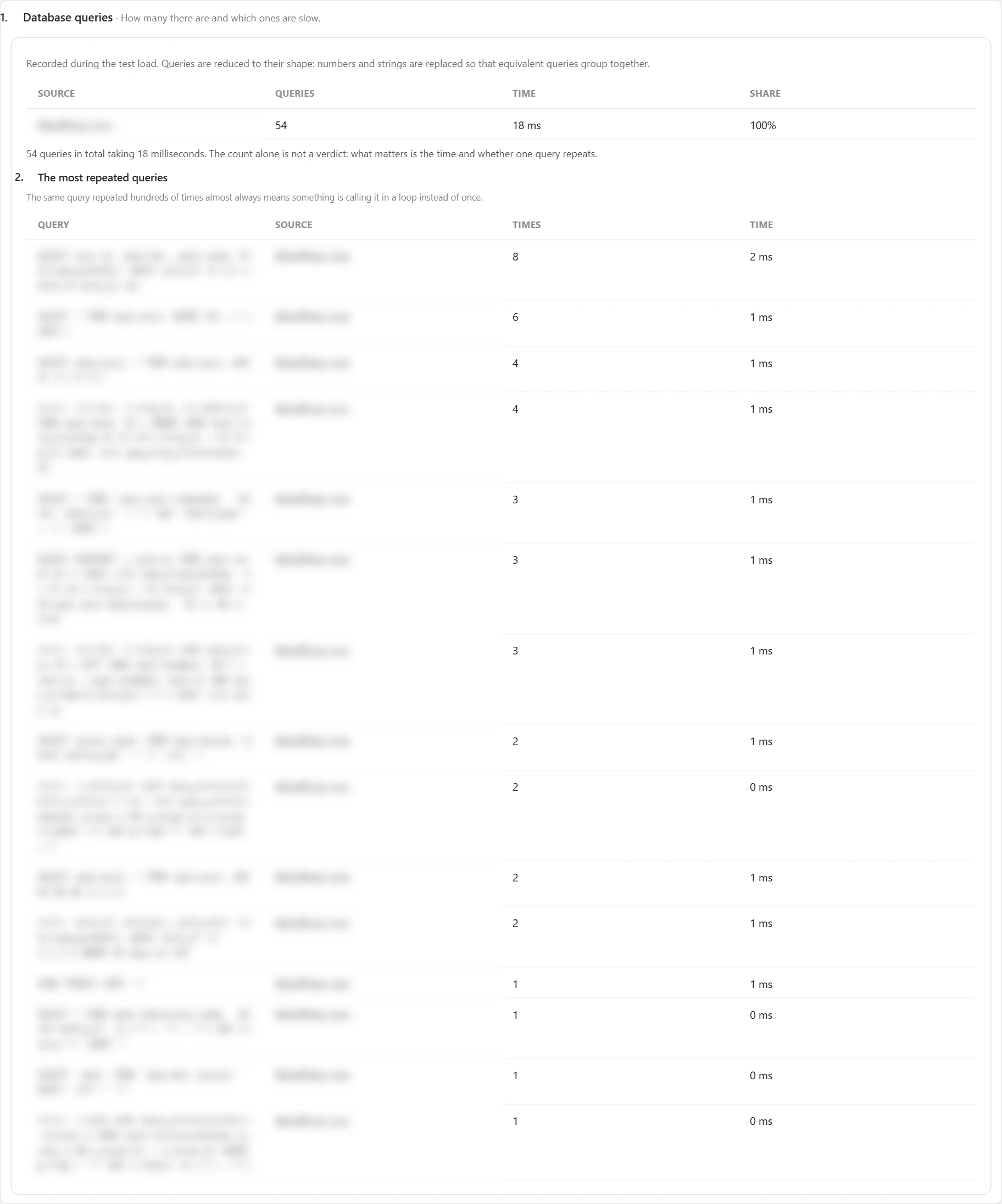
Where the data comes from
„Server response time“, „Size by source“ and „Database queries“ are from the test load in „Speed test“. „Loading chain“ and „Shortening the chain“ are from Google’s mobile test.
How it works
- „Server response time“ splits the time into stages in milliseconds. The „Time distribution by plugin“ table shows how much each plugin and the theme work. Below, you see which part takes the most time.
- „Size by source“ shows how heavy the files of each plugin and of the theme are. The „Unused“ column is from the latest Google test.
- „Database queries“ gives the number and time of the queries. „The most repeated queries“ shows which query is called many times.
- „Loading chain“ shows the order in which the files are loaded. A gap on the left means the file was found late.
- „Shortening the chain“ reads the chain. Each row is a separate gain, sorted by size.
How to use it
See which stage is the longest. If it is a plugin, look for a solution in its settings. If it is the server, write to your host.
File optimization
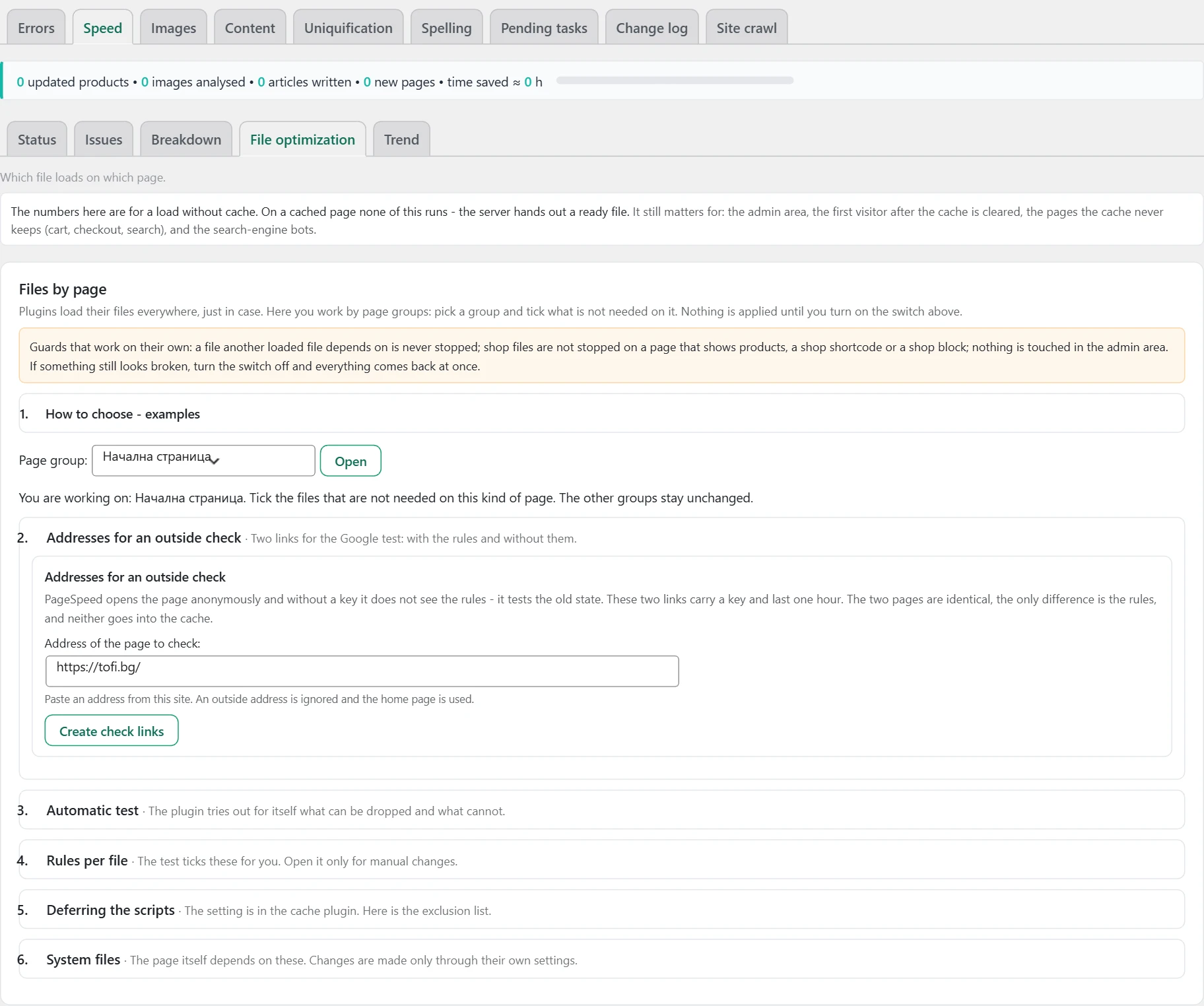
Plugins load their files everywhere. Here you choose which file should not load on which group of pages. The screen heading is „Files by page“.
Where the data comes from
From the test load of the site’s pages.
How it works
- „Page group“ picks the type of pages, for example „Home page“, product, article or category.
- „Rules per file“ holds the list by plugin. For each file, you choose whether it should not load on the group or should stay only on selected pages.
- „System files“ are files the page depends on. You cannot stop them from here.
- „Ready-made rule: the shop only in the shop“ ticks the shop files for the selected group in one go.
- „Deferring the scripts“ shows which scripts can be deferred and which must stay immediate.
- „Addresses for an outside check“ makes two links for Google’s test, with the rules and without them.
- „Automatic test“ tries on its own which file can be dropped paid.
- If another plugin for the same job is active, a red warning appears at the top.
How to use it
Choose a group, tick the files and press „Save the rules“. Open the preview and see if the page works. Only then turn on „Apply the rules on the live site“ and clear the cache. If something breaks, turn the switch off.
Trend
Here you see whether speed improves over time.


Where the data comes from
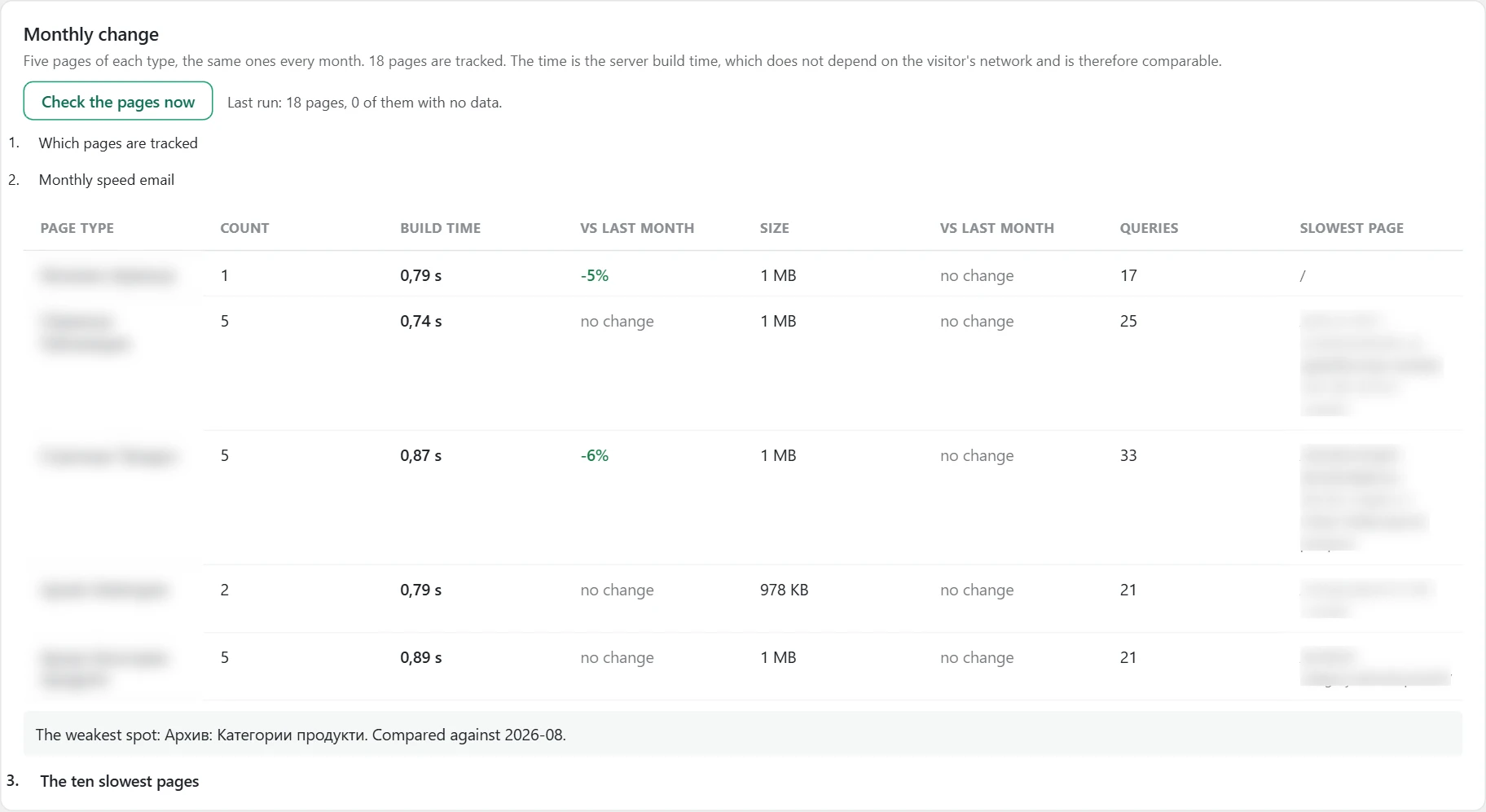
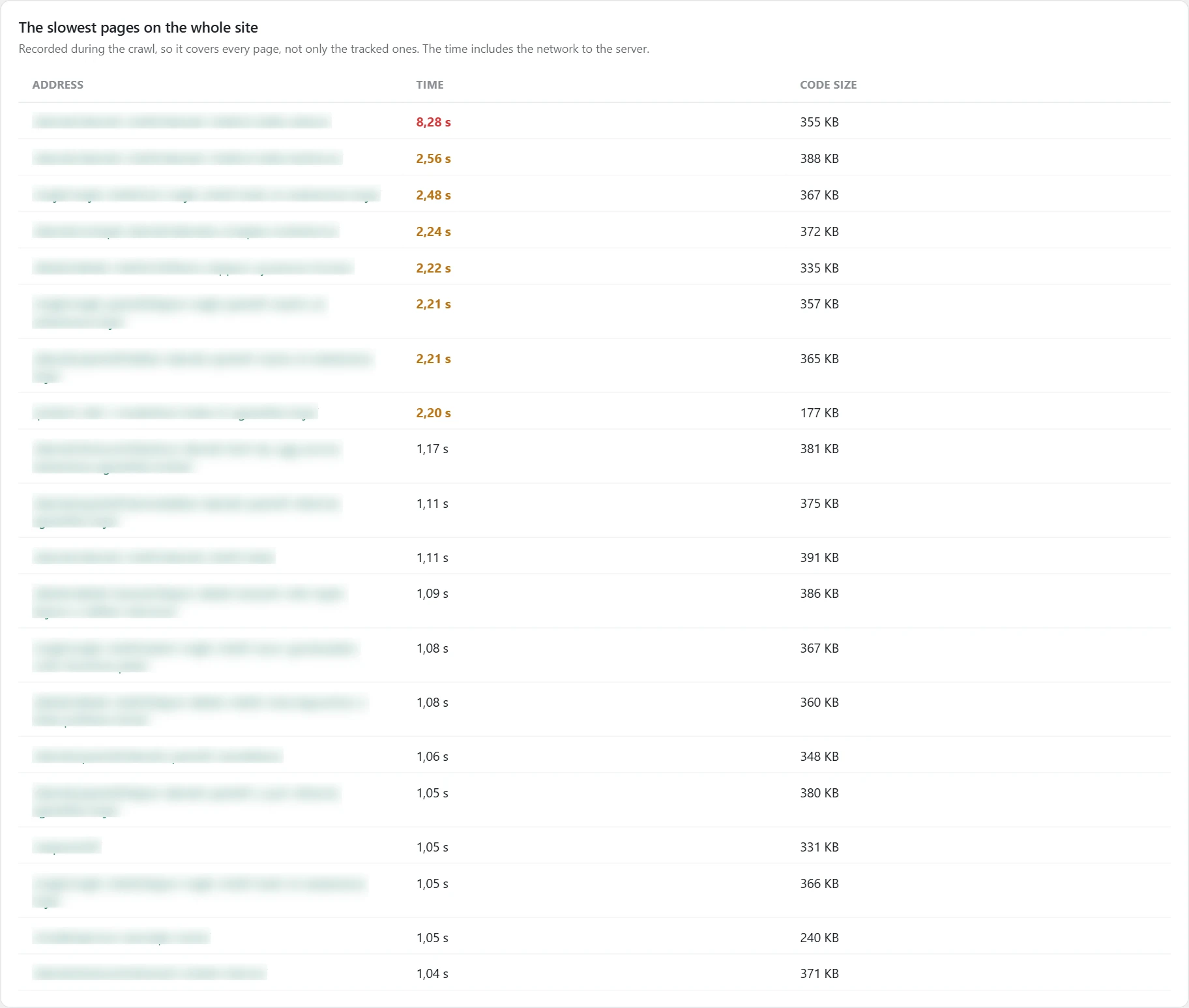
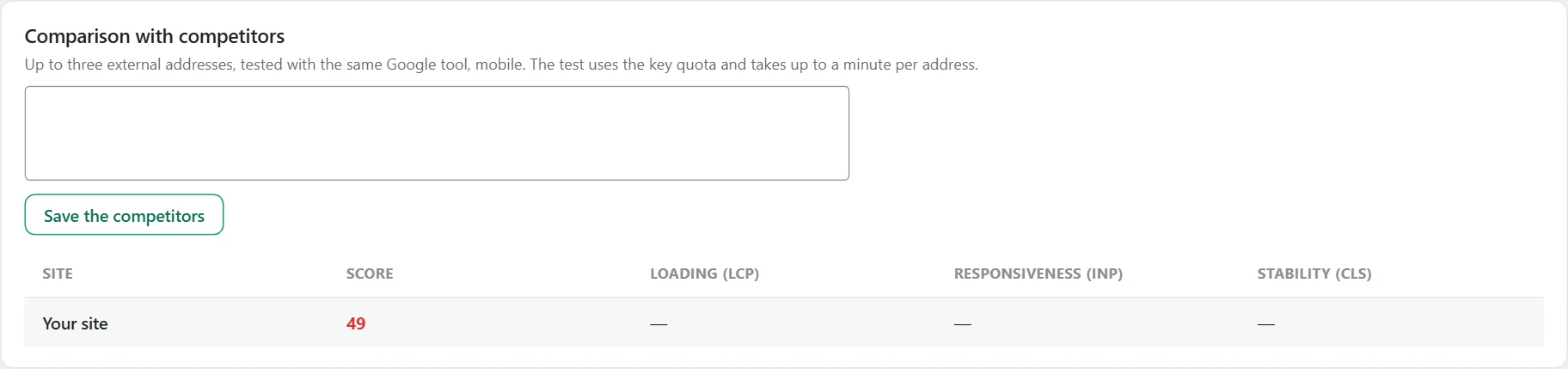
„Monthly change“ is from the monthly test of the tracked pages. „The slowest pages on the whole site“ is from the site crawl. „Comparison with competitors“ is from Google’s test.
How it works
- „Monthly change“ tracks five pages of each type. The time is for building the page on the server. So it is comparable between months.
- „Which pages are tracked“ shows the list. You should not change the pages often.
- „Monthly speed email“ sends a short email once a month. It is off by default.
- „Optimization log“ records every rule change with the numbers before and after it. You can also add your own note.
- „The slowest pages on the whole site“ covers all pages, not only the tracked ones. The time includes the network.
- „Before and after“ compares two speed snapshots without waiting for a new month.
- „Comparison with competitors“ tests up to three other sites’ URLs on mobile.
How to use it
Before a fix, press „Save as ‘before'“. After the fix, press „Check the pages now“ and then „Save as ‘after'“.
Images
What it is
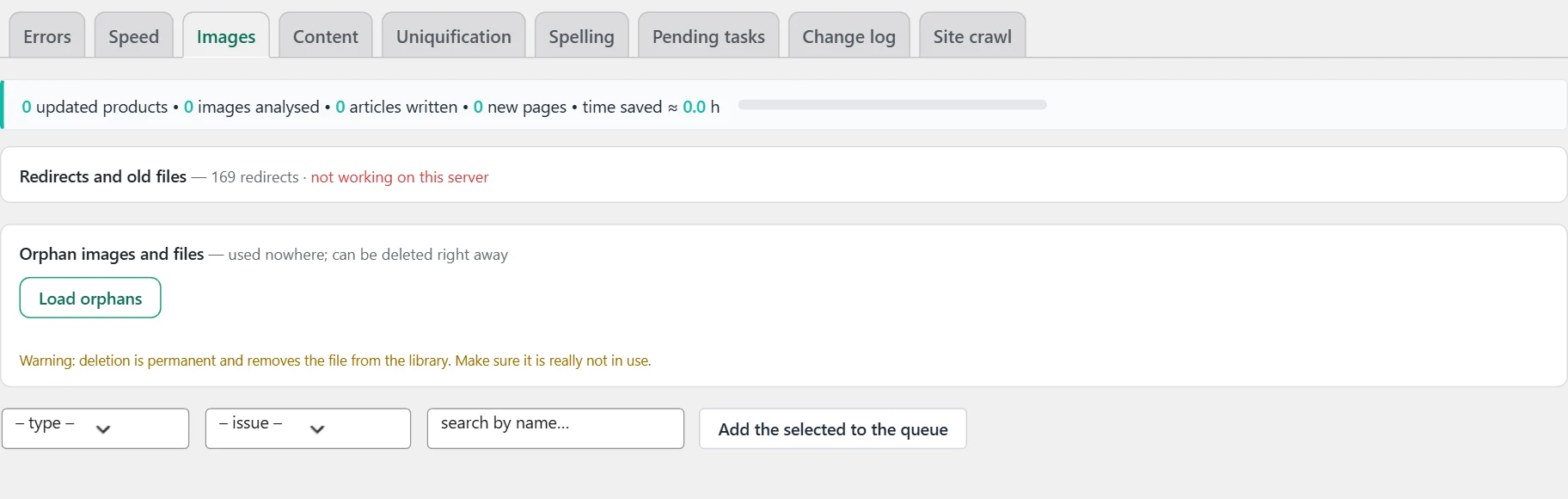
Here you fix the names, alt texts and descriptions of the images. Here are also the old files and the unused images.
Where the data comes from
From the media library and the site’s content. Some rows are checked against the live page during the crawl.
How it works
- You can filter the list by type: products, pages, articles or product categories. You can also filter by subcategory and by issue.
- The issues are „without alt text“, „no image description“ and „name ≠ product“. The last one means the file name does not match the product.
- The numbers in the columns are the number of images with that issue.
- When you open a row, you see all images of the item. Each has a field for a new file name, alt text and description.
- The ticks next to „Save:“ choose which fields to write.
- An image used in several places is marked. Text for one product will be wrong for the others.
- The buttons for AI suggestions are in the paid version.
How to use it
Choose a type, open the item and fill in the fields. Press „Save“ for one image or „Save all filled“ for all. In the paid version, you can tick rows and send them to „Pending tasks“.
Redirects and old files
A renamed image gets a new URL. This panel keeps the old URL alive.
Where the data comes from
From a server check and from the rename log.
How it works
- At the top you see whether the redirect works on the server.
- If it works, the old file is moved aside at once. The old URL leads to the new one the same day.
- If it does not work, the old files stay in place for 30 days. After that the old URL will return an error.
- „Catching up on earlier renames“ adds redirects for images renamed earlier. Nothing is deleted.
- „Files scheduled for deletion“ shows the old files and how many days they have left.
- „Pending renames“ appears when a rename has been waiting a long time. It usually means the site’s internal clock is not working.
How to use it
If the redirect does not work, ask your host whether missing files can be passed to WordPress. For pending renames, press „Rename now“.
Orphan images and files
How it works
These are files that are not used anywhere on the site.
How to use it
Press „Load orphans“, tick the unneeded ones and press „Delete selected“. Deletion is permanent, so check the file first.
Content
What it is
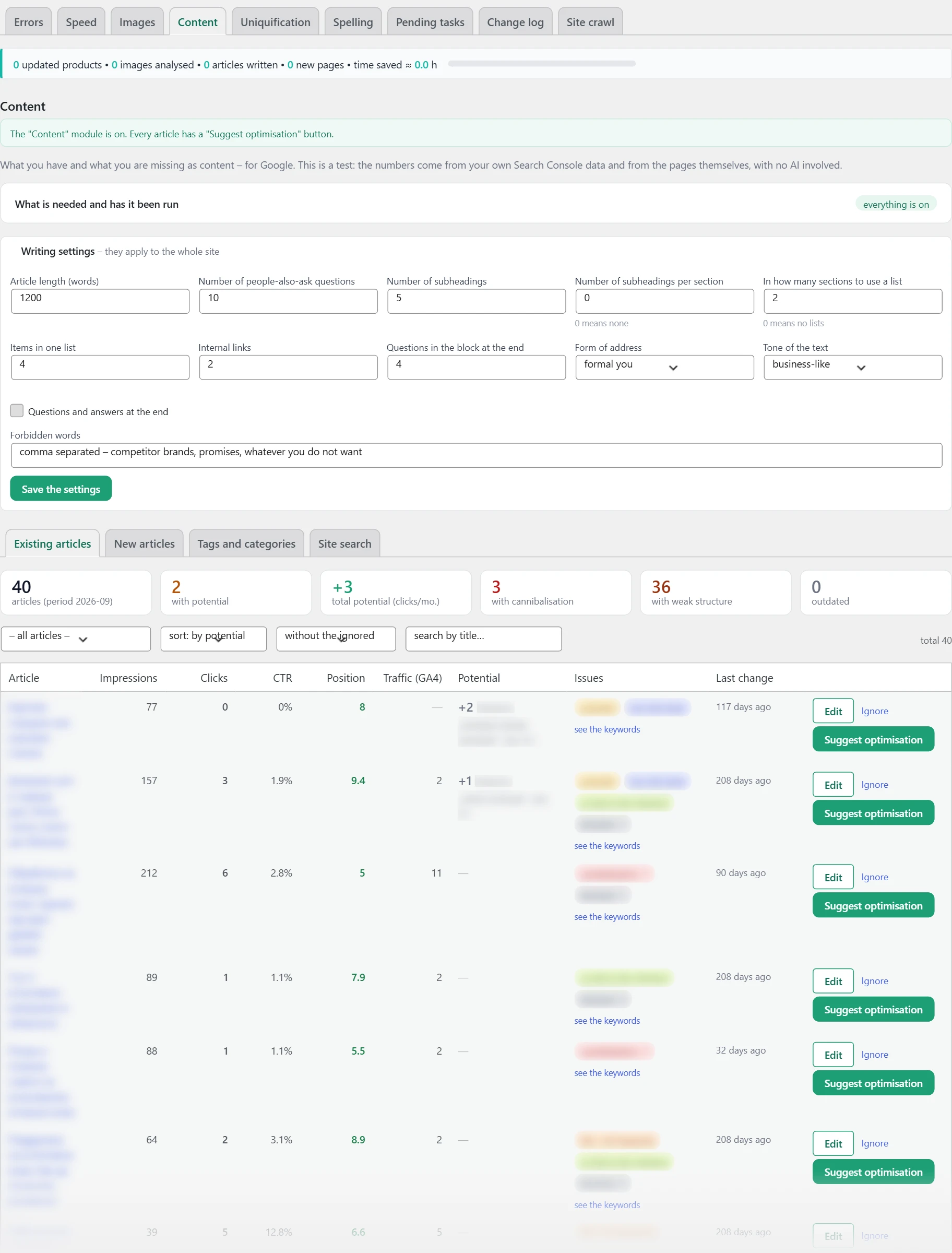
Here you see what content the site has and what it lacks. There are four lists: „Existing articles“, „New articles“, „Tags and categories“ and „Site search“.
Where the data comes from
From Google Search Console, the site structure and the pages themselves. „Site search“ is from Google Analytics for the last 90 days.
What is needed
How it works
The „What is needed and has it been run“ card shows four sources. These are „Google Search Console data“, „Site structure“, „Site crawl“ and „Theme tree“. While one is missing, some numbers stay at zero. This is not an error. An orange tick means older than a month.
How to use it
Run the missing one with the link next to it. Google data first, then the structure.
Writing settings
The settings apply to the whole site paid.
How it works
Here you set the article length and the number of questions, subheadings, lists and internal links. You also choose the form of address, the tone of the text and the banned words.
How to use it
Set them once and press „Save the settings“. All suggestions and drafts follow them.
Existing articles
How it works
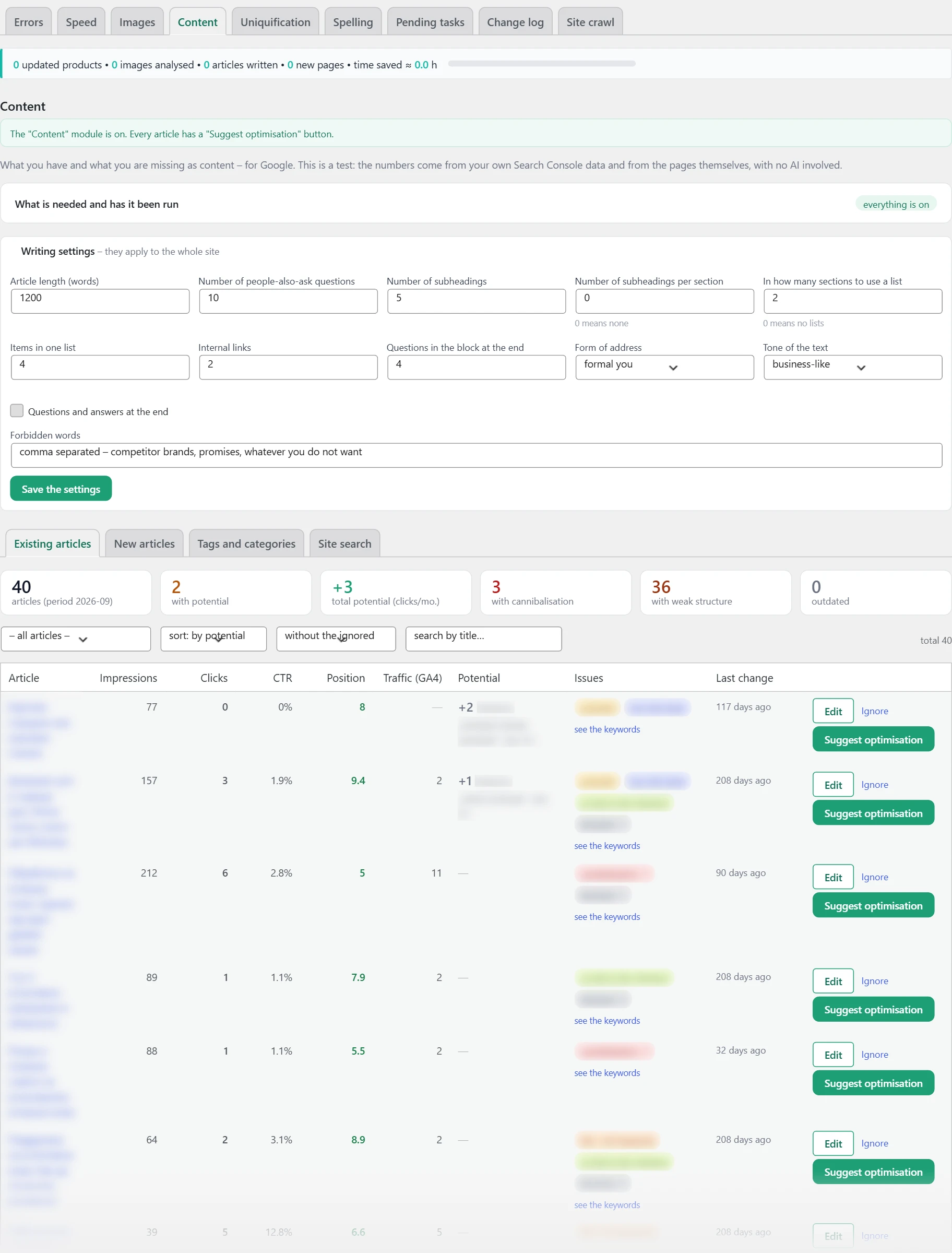
- Each article has impressions, clicks, click share, position, traffic, potential, issues and last change.
- „Potential“ is roughly how many clicks per month the article gains if its keyword reaches seventh place.
- The filters show articles with potential, with cannibalization, with little text, without a subheading, without a link to a product, or outdated.
- Cannibalization means several pages compete for one keyword. „first priority for merging“ are the articles that clash both by text and by search.
- „see the keywords“ opens the keywords the article ranks for.
- „Ignore“ hides an article from the list.
How to use it
Sort by potential and start from the top. In the paid version, the „Suggest optimisation“ button suggests what to change and why.
New articles
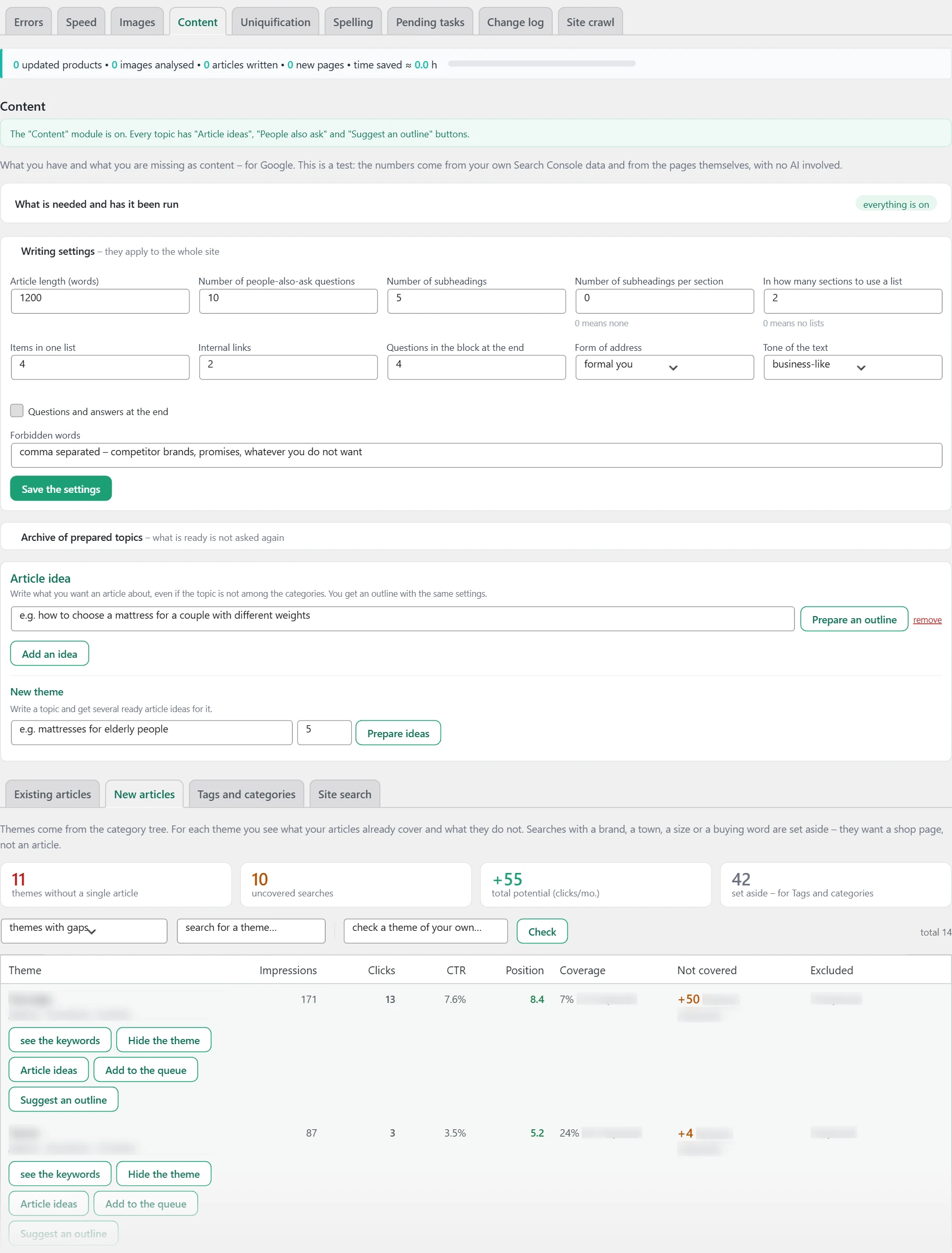
How it works
- The themes come from the category tree. For each, you see what the articles already cover and what they do not.
- „Coverage“ says how many articles already cover the theme. „not a single article“ means the theme is empty.
- „Not covered“ is the number of searches on the theme with no article.
- Searches with a brand, city, size or buying word are „Excluded“. They need a shop page, not an article.
- „check a theme of your own…“ checks a theme that is not in the list.
How to use it
Choose a theme without an article. In the paid version, „People also ask“ and „Suggest an outline“ give a plan, and „Start an article“ writes a draft. The draft is not published on its own.
Tags and categories

How it works
- „missing terms“ are searches with no category or tag. They are suggested only if at least three products match the words.
- „empty terms“ are categories and tags with very little or no content.
How to use it
Create the missing term or fill the empty one. If an empty term has no visits, delete it. In the paid version, „Develop“ gives a name, a text and matching products for a new page.
Site search
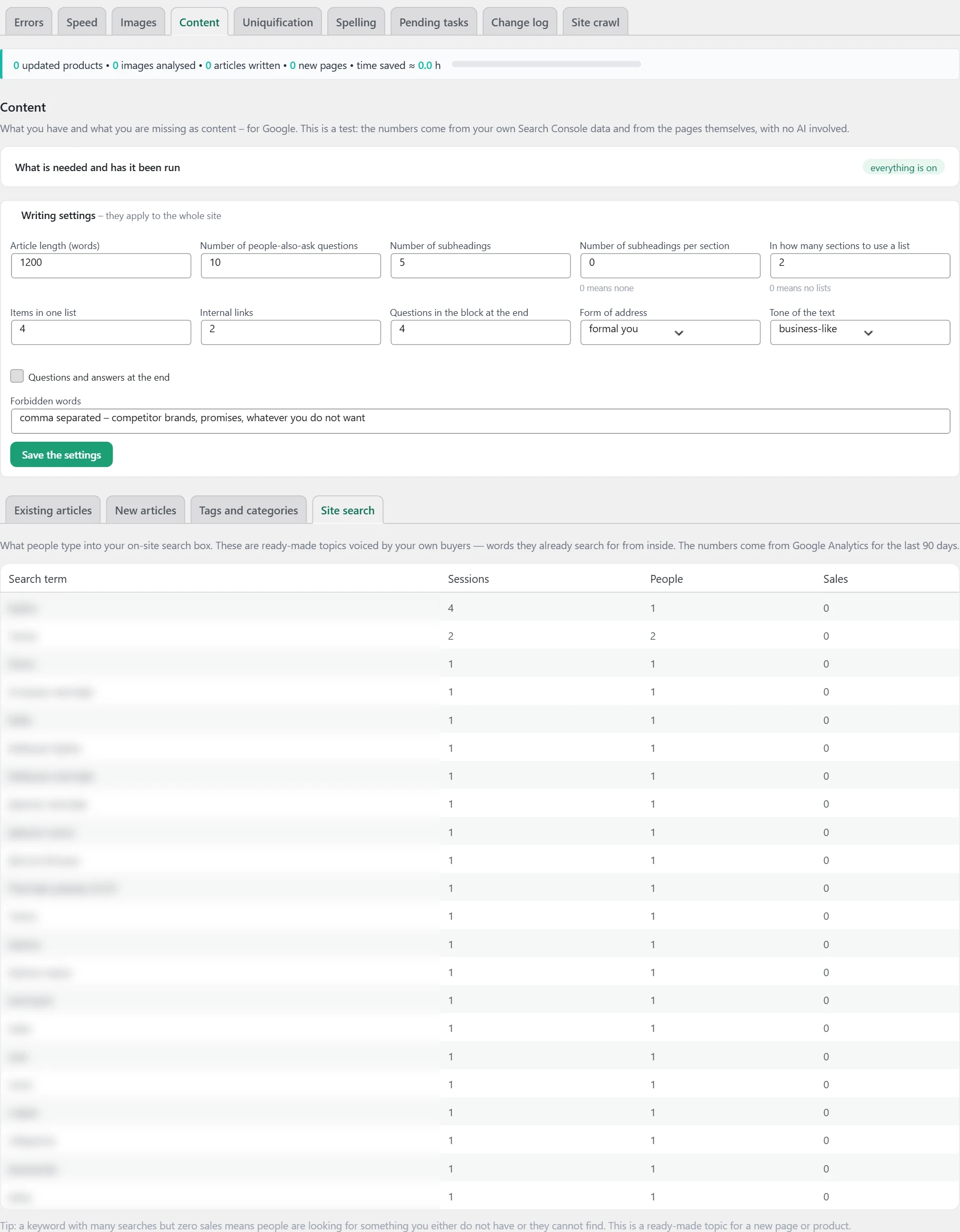
How it works
These are the words from the site’s search box, with the number of sessions, people and sales. A word with many searches and zero sales means people look for something that is missing or cannot be found.
How to use it
Use such a word as the topic for a new page or product. If the list is empty, check in Google Analytics whether site search is tracked.
Uniquification
What it is
Pages with the same or very similar text take rankings from each other. Here you see which ones overlap.
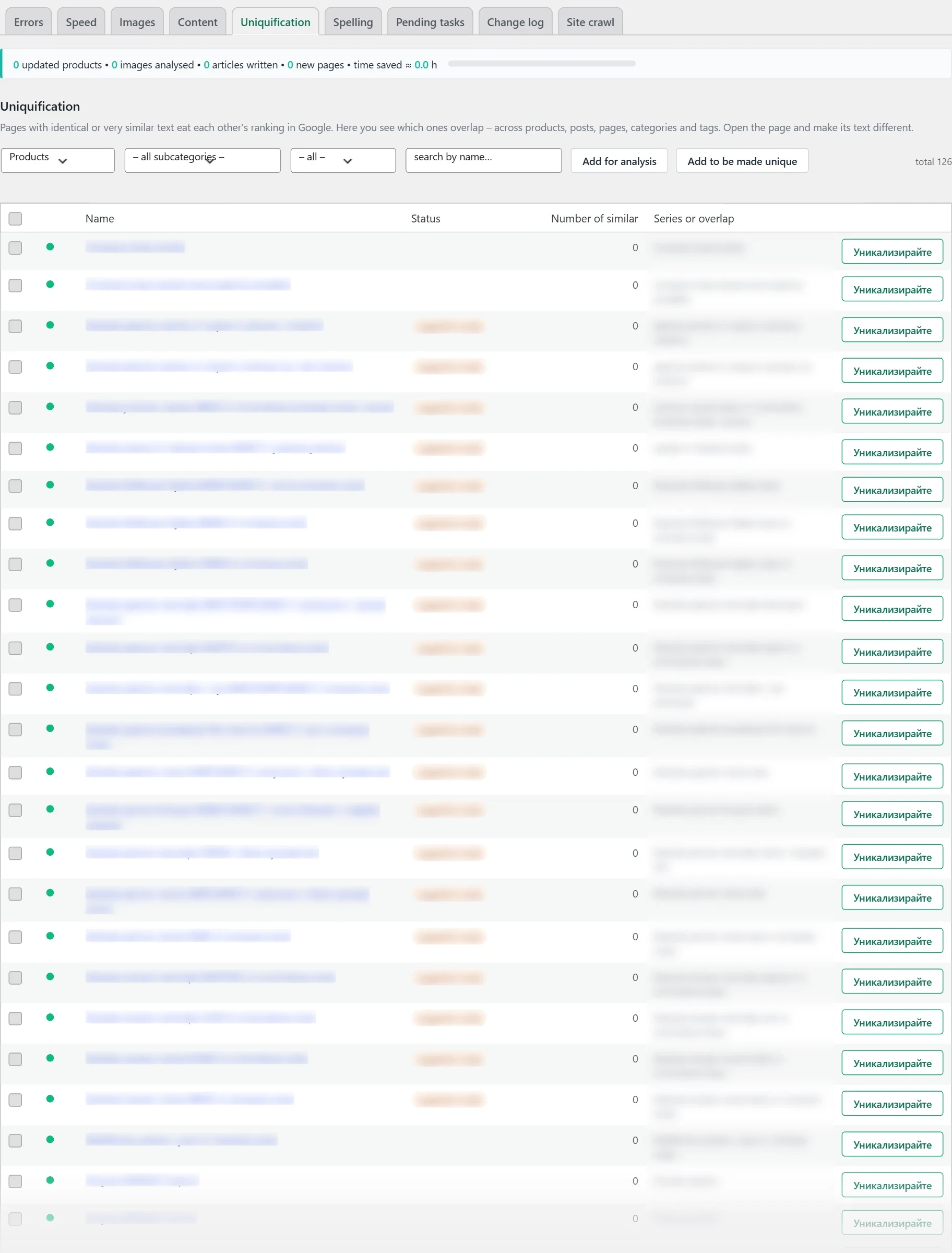
Where the data comes from
From comparing the texts on the site.
How it works
- The list is by articles, pages, products, article categories, article tags and product categories.
- The dot is green when the text is unique. It is orange with one or two similar pages. It is red with three or more.
- „Number of similar“ says with how many other pages the text overlaps.
- „Series or overlap“ shows the group the product belongs to.
- „Status“ says whether there is an analysis, a ready suggestion or saved text.
- The filter shows all, only overlapping or only unique items.
How to use it
Open the page with „Edit“ and make its text different. In the paid version, tick the products and press „Add for analysis“, then „Add to be made unique“. Rewriting a whole product series is also in the paid version.
Spelling
What it is
Here all text on the site is checked for spelling and expressions paid.
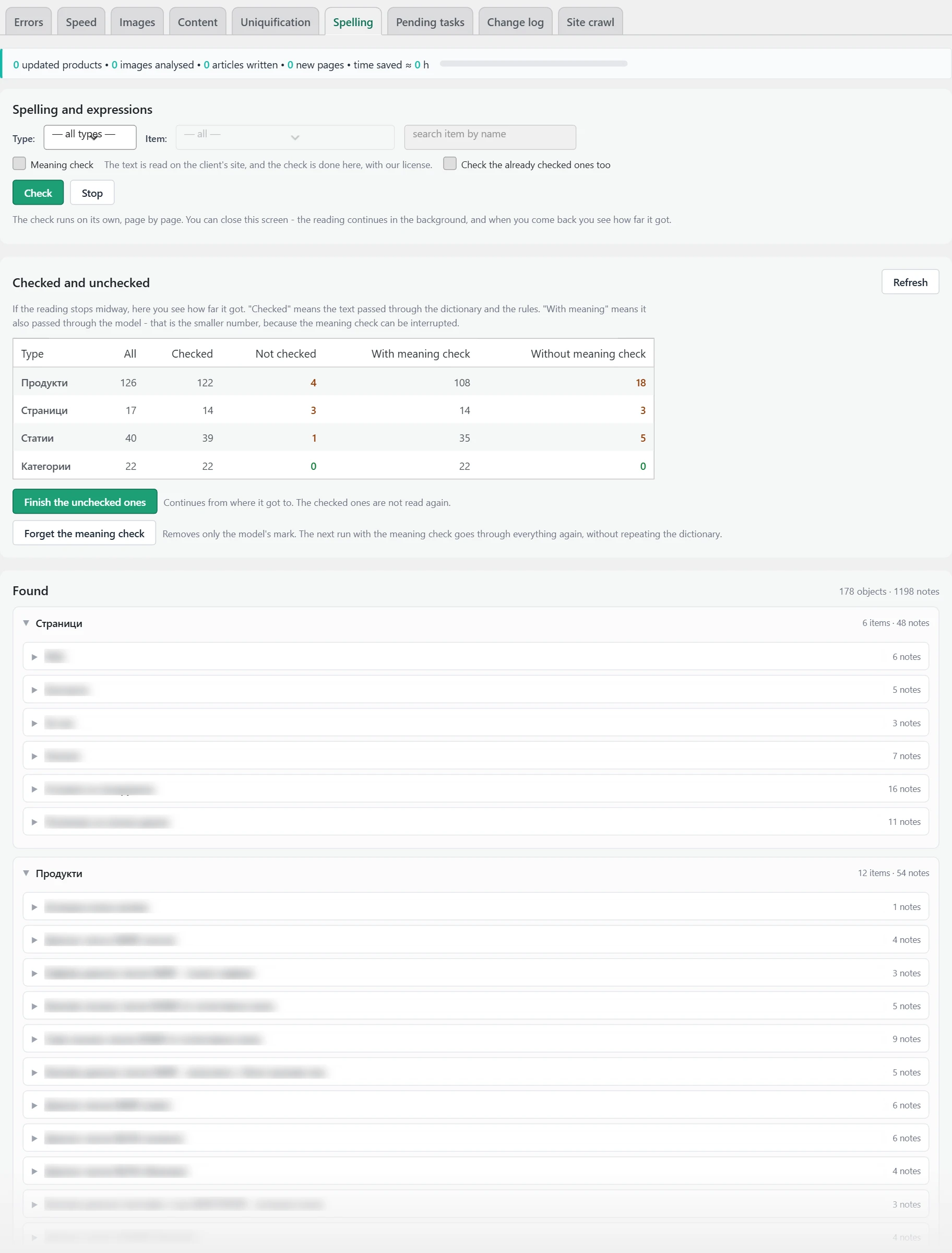
Where the data comes from
The texts are from the products, pages, articles and categories. The dictionary is in the Inside SEO hub. The meaning check goes through AI.
How it works
- „Spelling and expressions“ runs the check by type and item. The check runs on its own, page by page. You can close the screen.
- Each text is read once. It is read again only if it has changed. The „Check the already checked ones too“ tick reads everything from the start.
- „Checked and unchecked“ shows how far the check has got by content type. „With meaning check“ means the text has also passed the meaning check.
- „Found“ lists the notes by type: spelling, grammar, punctuation, meaning and style.
- Nothing is fixed automatically. Every fix waits for you.
- „My dictionary“ keeps the words for which you said „Not an error“. The check skips them forever.
- Words from the titles of products, categories and tags are skipped automatically.
How to use it
Press „Check“. For each note, choose „Fix“ or „Not an error“. If the check stops, press „Finish the unchecked ones“.
Pending tasks
What it is
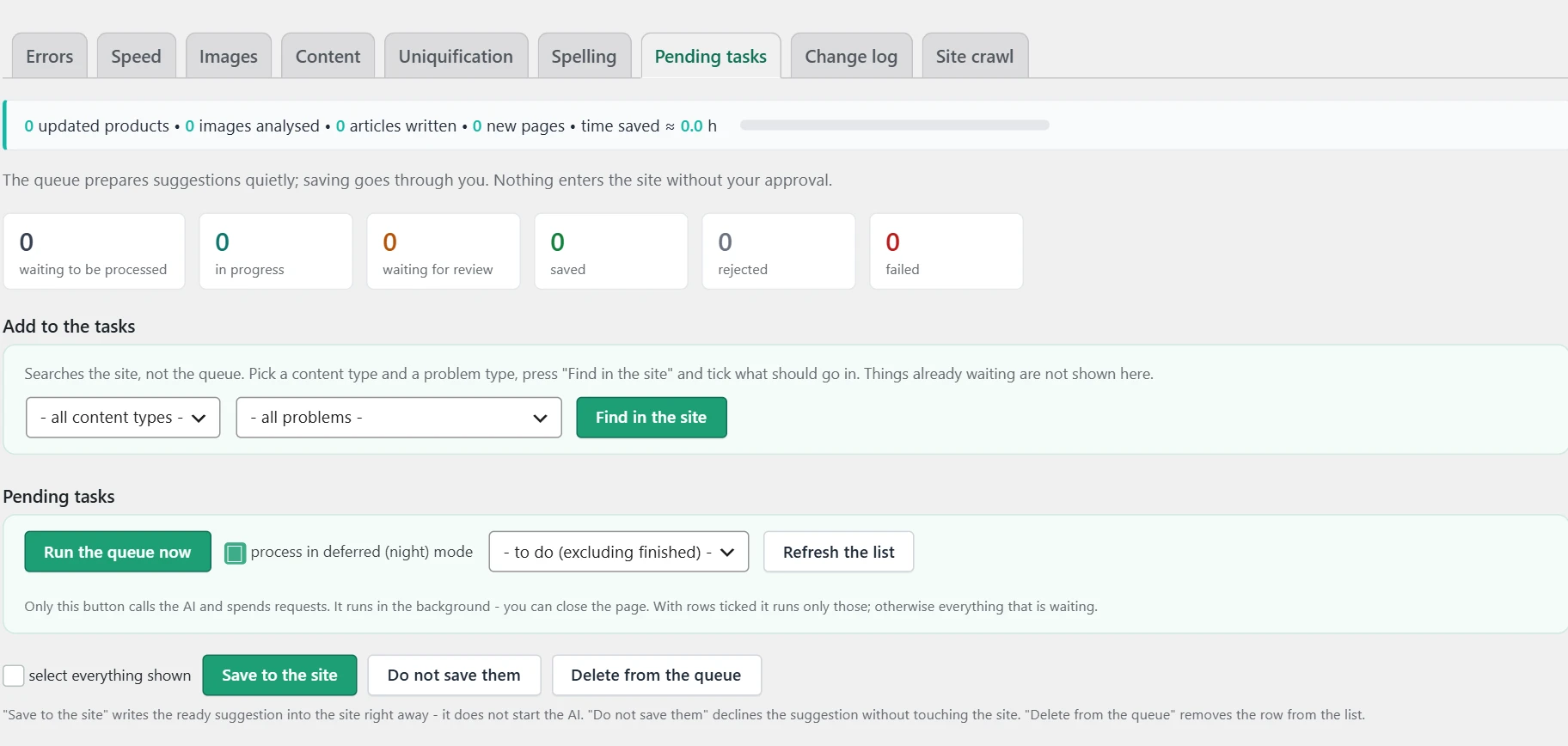
Here the AI tasks and the ready suggestions are gathered paid. Nothing goes onto the site without your approval.
Where the data comes from
Tasks are added from „Errors“, „Images“, „Uniquification“ and „Content“. You can also add them with „Add to the tasks“ on the same screen.
How it works
- The statuses are „waiting to be processed“, „in progress“, „waiting for review“, „saved“, „rejected“ and „failed“.
- By default, only what still needs work is shown.
- „Run the queue now“ is the only button that calls the AI and spends requests. It works in the background.
- The night mode tick runs the tasks on their own in the quiet hours.
- Each suggestion shows the current and the new version.
How to use it
Run the tasks. Review the ready ones. Press „Save to the site“ to apply the suggestion, or reject it to leave the site untouched. „Delete from the queue“ removes the row from the list.
Change log
What it is
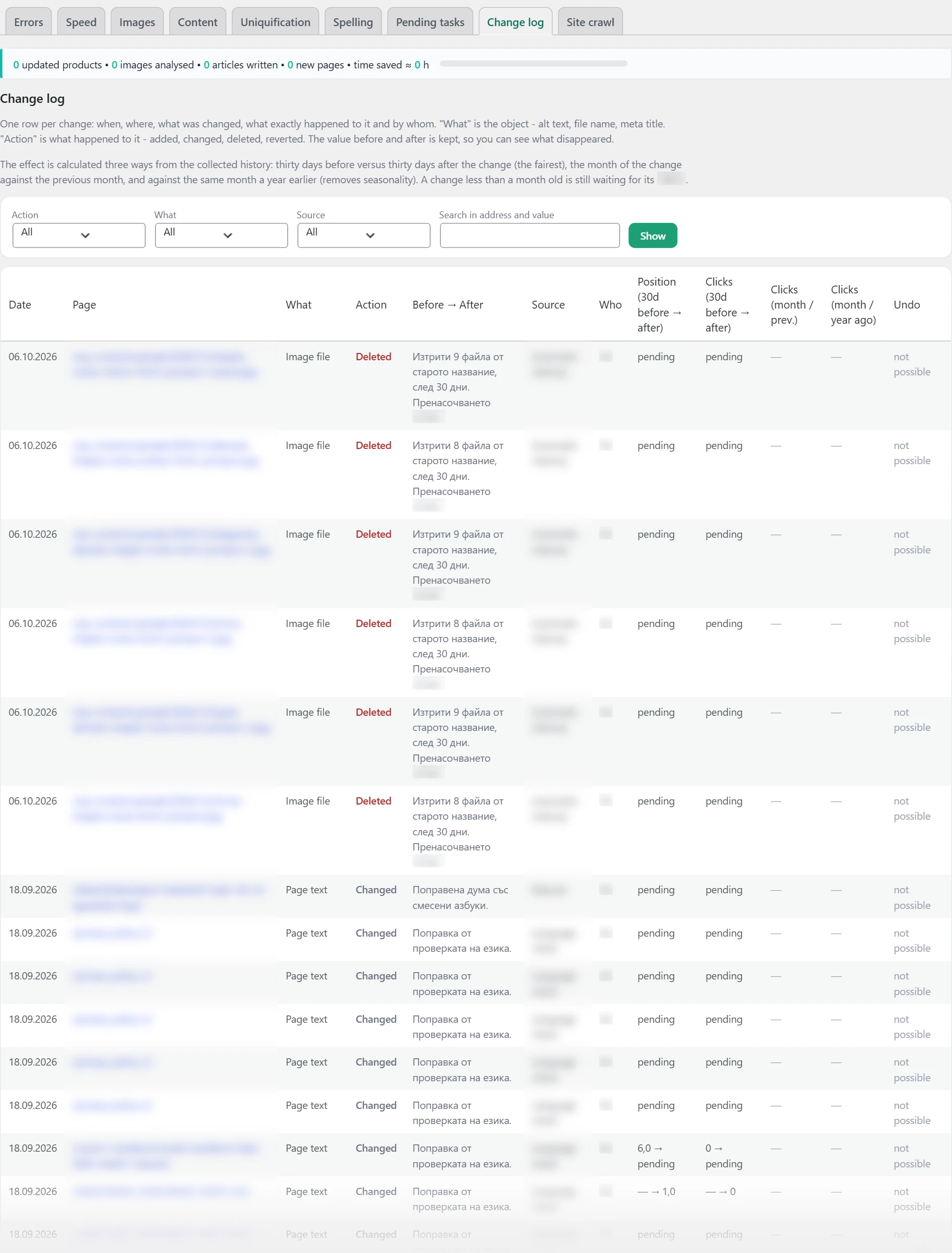
Here every change on the site is recorded, with the effect it had. The screen heading is „Change log“.

Where the data comes from
The plugin records every change made through it. The effect comes from the stored Google Search Console history.
How it works
- One row is one change: when, on which page, what, what happened, the value before and after, the source and who did it.
- „What“ is the subject, for example alt text, file name or meta title.
- „Action“ is what happened, for example added, changed, deleted or reverted.
- „Source“ says how the change was made, for example manually, with AI or from the pending tasks.
- The effect is calculated in three ways. Thirty days before against thirty days after. The month of the change against the previous month. The same month against last year.
- „pending“ means less than a month has passed since the change.
- The filters are „Action“, „What“, „Source“ and search in URL and value.
How to use it
If a change did harm, press „Undo“. For page text, the „Revisions“ button leads to the revisions in WordPress. If a revert is not possible, the row says „not possible“ and the reason.
Site crawl
What it is
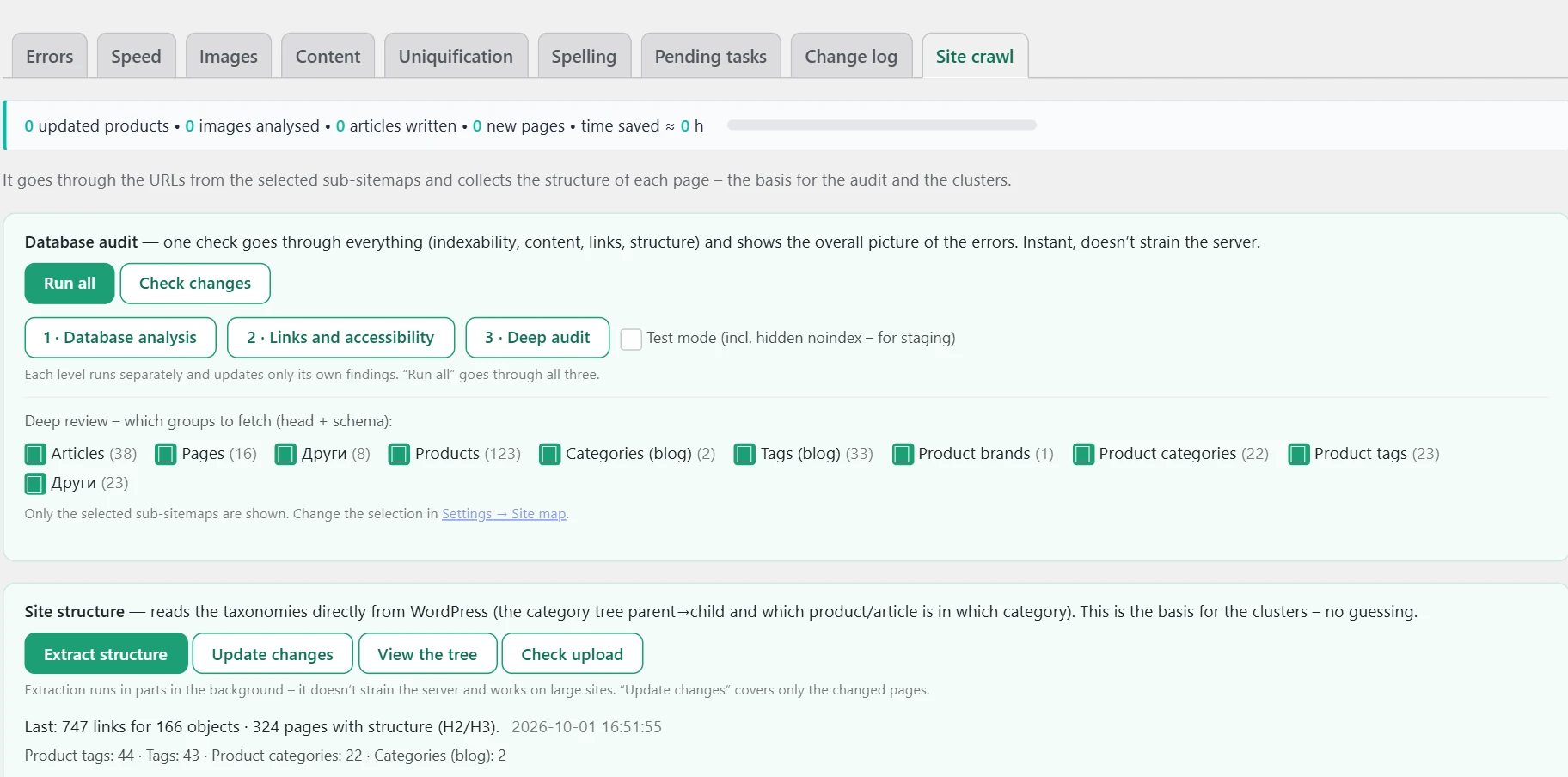
From here you run the audit that „Errors“ and „Content“ rely on. Here you also extract the site structure.
Where the data comes from
From the site database, the sitemap and the pages themselves.
Database audit
How it works
- „Run all“ runs all three levels.
- „1 · Database analysis“ checks content, links and indexing. It is instant and does not load the server.
- „2 · Links and accessibility“ checks broken links, redirects and security. It makes light outside checks.
- „3 · Deep audit“ loads the pages and looks at their code. It is slower.
- Each level updates only its own findings.
- The ticks below choose which page groups to load in the deep audit. The list comes from „Settings → Site map“.
- Test mode also checks a hidden site.
- At the end you see a short summary. The full list is in „Errors“.
How to use it
Press „Run all“ the first time you use it. After that, run „Check changes“ after fixes.
Site structure
How it works
The structure reads the category tree from WordPress and which product or article is in which category. Under the buttons you see how many links and objects were extracted.
How to use it
Press „Extract structure“ once. After that, use „Update changes“, which covers only the changed pages. „View the tree“ shows the result.
In the paid version, under the structure there is a table „What has been done this month“. It shows the AI’s work by type and where it was started from.
GEO/AEO free
Here you see whether AI search engines find your site. You also see whether the site gives them a reason to cite it. The bots are ChatGPT, Perplexity, Google and Gemini.
Where the data comes from
The plugin reads the site’s robots.txt and llms.txt files. It records the visits of AI bots. It also uses the shop orders, Google Analytics and the site crawl.
How it works
- At the top there is a „Refresh“ button and a „Last check“ date.
- The bot and schema check is kept for one hour. The button runs it again.
- „Results period“ is 7, 30 or 90 days. It applies to visits, sales and Google Analytics data.
- Below there are four subtabs: „Results“, „Readiness“, „Schema & FAQ“ and „GEO suggestions“.
How to use it
Start with „Results“. There you see whether AI already brings you people and money.
Results
What it is
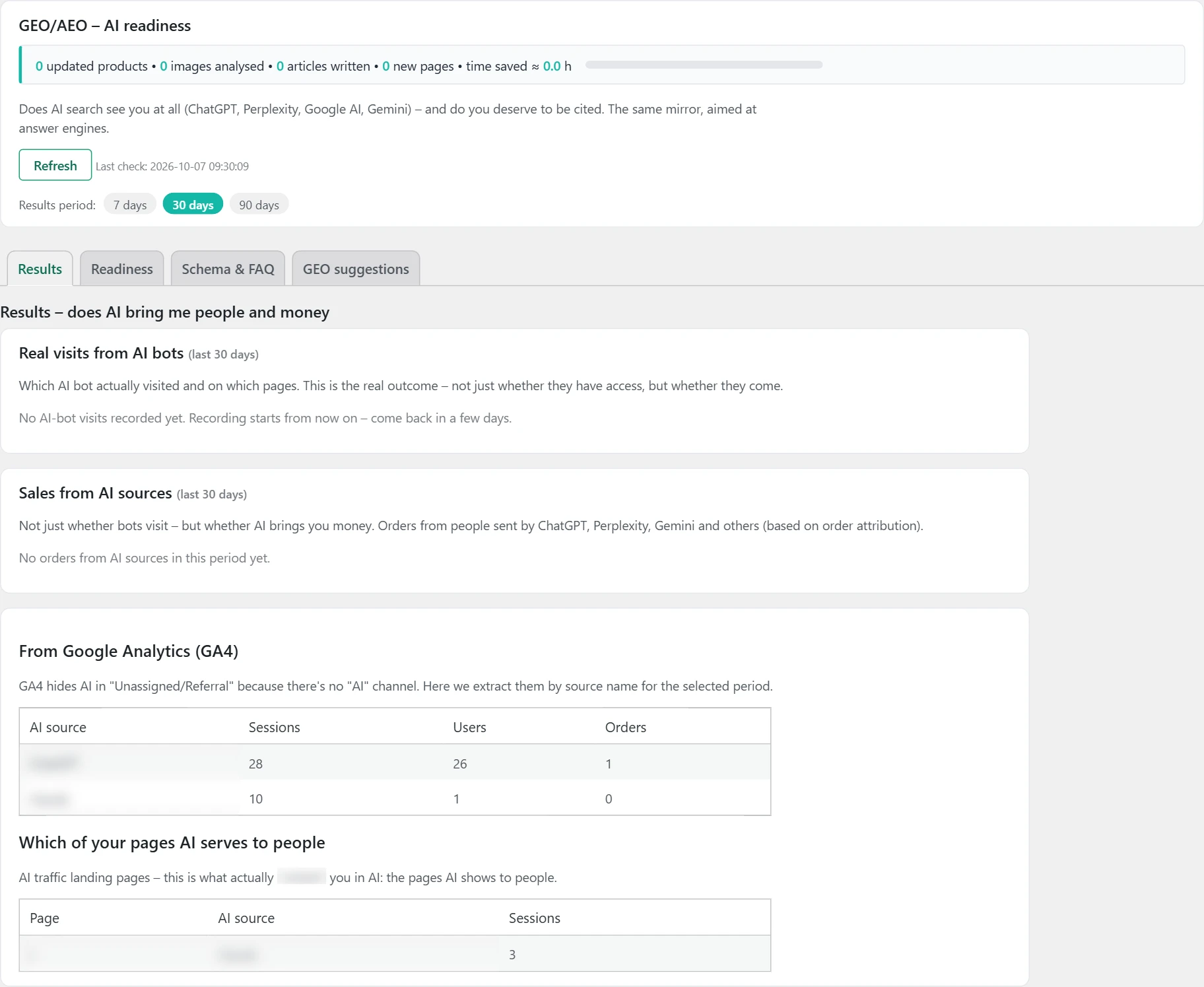
The subtab answers the question whether AI brings you people and money. The screen heading is „Results, does AI bring me people and money“.
Where the data comes from
Bot visits are recorded by the plugin itself when a bot opens a page. Sales are from the shop orders. The last part is from Google Analytics.
How it works
- „Real visits from AI bots“ shows which bot came and how many times. The „Type“ column says whether the bot is for „extraction“ or for „training“.
- An extraction bot reads the page to answer a person right now. A training bot collects text for the model.
- „Most visited pages by AI“ shows which pages the bots read most often.
- „Sales from AI sources“ is shown only for a shop. These are orders from people sent by ChatGPT, Perplexity, Gemini and others. You see the number of orders and the turnover by source.
- „From Google Analytics (GA4)“ is shown only if Google Analytics is connected. It has sessions, users and orders by AI source.
- „Which of your pages AI serves to people“ shows the landing pages of this traffic. These are the pages AI recommends.
- If it says „No AI-bot visits recorded yet“, recording is just starting. Come back in a few days.
How to use it
If bots come but there are no orders, look at the landing pages. Strengthen them in „GEO suggestions“. If there is no Google Analytics data, connect it from „Settings“.
Readiness
What it is
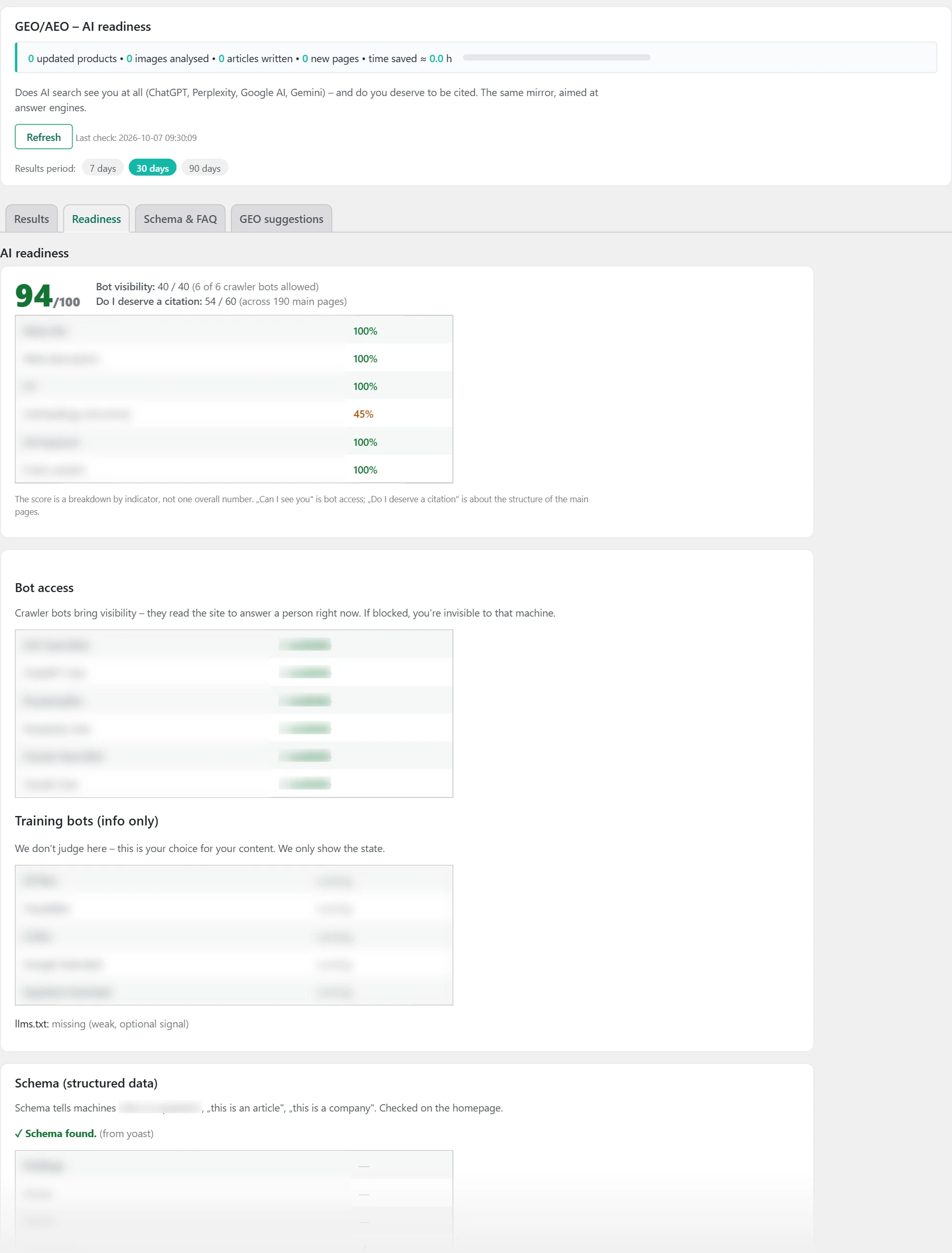
The subtab gives an „AI readiness“ score from 0 to 100. It tells you how visible the site is and how ready it is to be cited.
Where the data comes from
Bot access is from the site’s robots.txt file. Quality is from the crawl of the main pages: products, categories and articles. Schema is checked on the home page.
How it works
- The score has two parts. „Bot visibility“ gives up to 40 points. „Do I deserve a citation“ gives up to 60 points.
- Green is 70 and above. Yellow is 40 to 69. Red is below 40.
- The first part counts how many extraction bots are not blocked.
- The second part is the average of six metrics: „Meta title“, „Meta description“, „H1“, „Subheadings (structure)“, „Set keyword“ and „Fresh content“. Each shows the percent of pages that have it.
- „Bot access“ shows each extraction bot as „available“ or „blocked“.
- „Training bots (info only)“ shows „running“ or „stopped“. This is your choice and does not affect the score.
- „llms.txt“ shows whether the file is „found“ or missing. This is a weak signal.
- „Schema (structured data)“ says whether the home page has schema, which plugin it comes from and which types it has.
How to use it
If an extraction bot is „blocked“, remove its block in robots.txt. If a metric is below 70%, fill in what is missing on the main pages.
Schema & FAQ
What it is
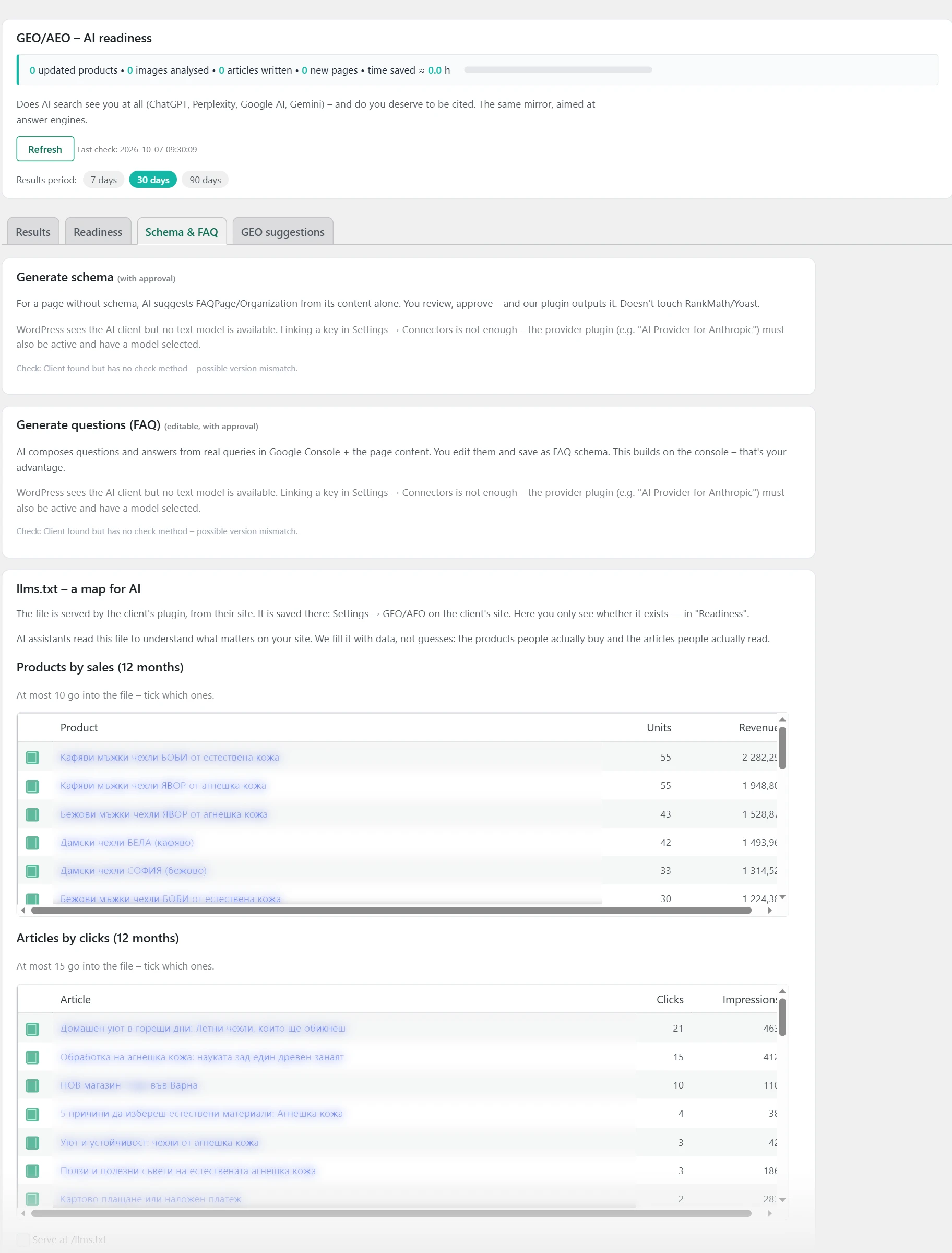
The subtab gathers the actions that improve citations. Here are „Generate schema“, „Generate questions (FAQ)“, „llms.txt, a map for AI“, „Citability by pages“ and „Content freshness“.
Where the data comes from
AI builds the schema and the questions from the page content. The questions also use real searches from Google Search Console. The list for llms.txt comes from sales and clicks for 12 months.
How it works
- „Generate schema“ works with approval. Tick pages without schema and press „Suggest schema for selected“. ✓ means the page already has schema.
- AI goes through the pages one by one. The suggestions appear in „Pending approval“ as code.
- You can fix the code. Then press „Approve“, „Cancel“ or „Approve all“. Inside SEO outputs the approved schema. The Rank Math and Yoast plugins are not touched.
- „Generate questions (FAQ)“ works the same way. You can edit the questions and answers before saving. Saving adds a visible block to the page and a questions schema.
- „llms.txt, a map for AI“ first needs „Load the lists (sales + clicks)“. Then tick products and articles, turn on „Serve at /llms.txt“ and press „Save“.
- If there is a manual llms.txt file in the site root, the server serves that file. Then the plugin shows a warning.
- „Citability by pages“ checks deeper signals: schema, an answer at the start, concrete facts, question and answer, authorship. Choose page types and press „Scan selected“. The page must stay open.
- „Content freshness“ counts updated and outdated pages. You set the thresholds in days, separately for articles and for products.
- If AI is not connected, the plugin shows a note. Generation needs WordPress 7.0 with configured connectors.
How to use it
Start with the pages that „Results“ shows as landing pages. Give them schema and questions. Then load and turn on llms.txt.
GEO suggestions
What it is
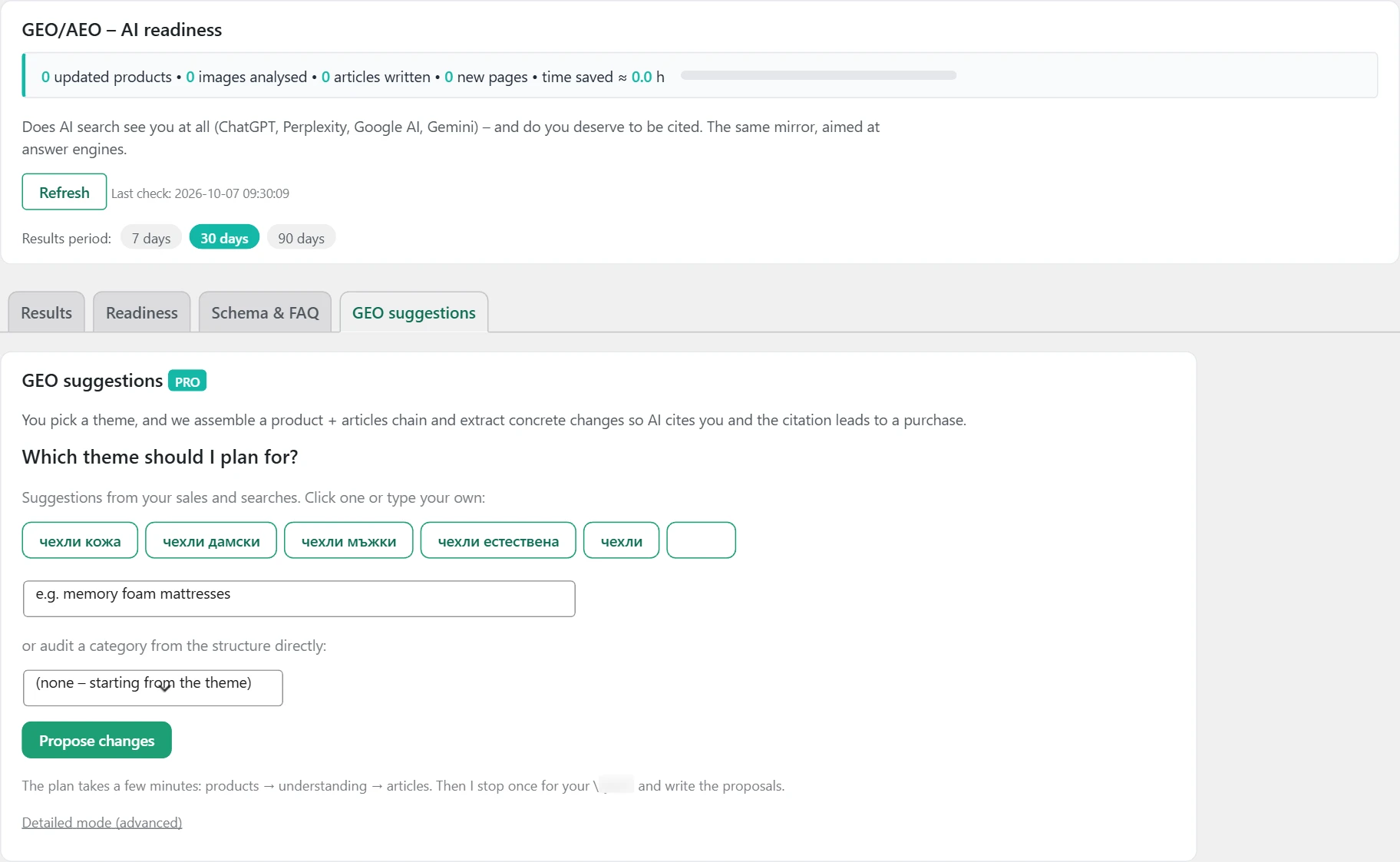
paid Here you choose a theme and get concrete changes for products and articles. The goal is for AI to cite you and for the citation to lead to a purchase.
Where the data comes from
Products are sorted by sales for 12 months. Rankings for the theme are from Google Search Console for 12 months. Understanding of the theme and the suggestions come from AI.
How it works
- The question is „Which theme should I plan for?“. The plugin suggests themes from sales and searches. You can type your own or choose a category from the structure.
- After „Propose changes“, the plan runs on its own through products, theme understanding and articles. This takes a few minutes. The page refreshes on its own.
- The plan stops once for your „yes“. It shows the selected products and articles with ticks. „cl.“ is closeness to the theme from 1 to 5.
- After you confirm, the plugin writes the suggestions. Each has „Where“, the current text, the new text and why.
- „Check the numbers (real search)“ looks up each number in 2 to 3 independent sources. Anything not confirmed is skipped.
- The suggested questions are saved with „Apply as page FAQ“. Repeated questions are skipped.
- „Download Word document“ gives a ready file for the client. It contains the URLs, the changes, the sources and a check after 30 days.
- „Past themes“ keeps the earlier plans. „Detailed mode (advanced)“ shows all steps one by one.
How to use it
Choose a theme that already sells. Review the ticks before you confirm. Apply the changes and check the result after 30 days.
Tabs – paid plugin
Customer journey paid
paid Here you see where people come from, which pages they go through and where they stop at checkout.
Where the data comes from
The plugin adds a small counter to the site’s pages. Orders and missing pages are recorded by the server. The data stays on your site.
How it works
- „Site type“ says what is tracked. For a shop, it is products, cart, checkout and orders. For services, it is enquiries, calls, emails and bookings.
- „Data collection“ shows whether the counter works. The „Stop collection“ button stops it.
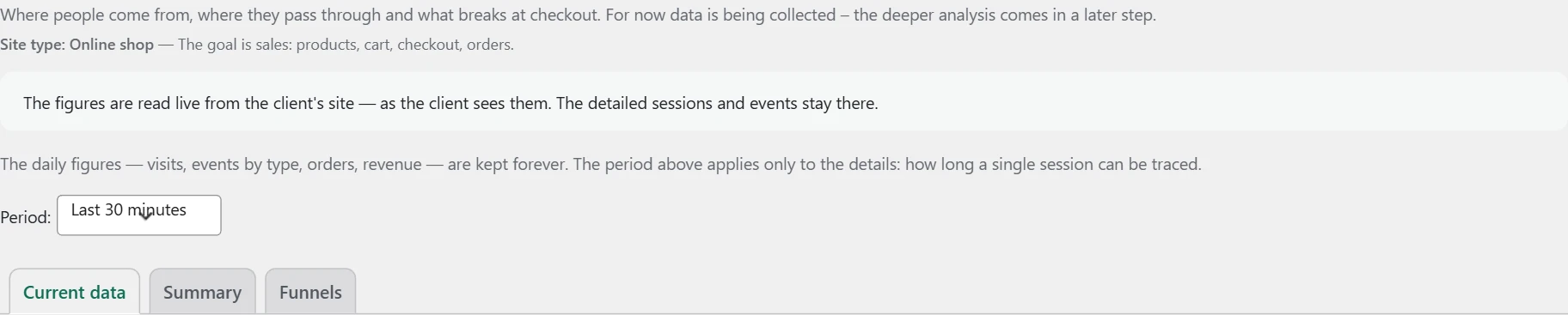
- „Keep details for“ sets how many days single visits are kept, from 14 to 365. Daily numbers are kept forever.
- „Period“ goes from „Last 30 minutes“ to „This year“. For the last 30 minutes, the page refreshes every 30 seconds.
- „Personal data“ has a „Delete all data“ button. The deletion cannot be undone.
How to use it
If there is no data, open the site in another browser without being logged in. Browse a few pages and come back.
Current data
What it is
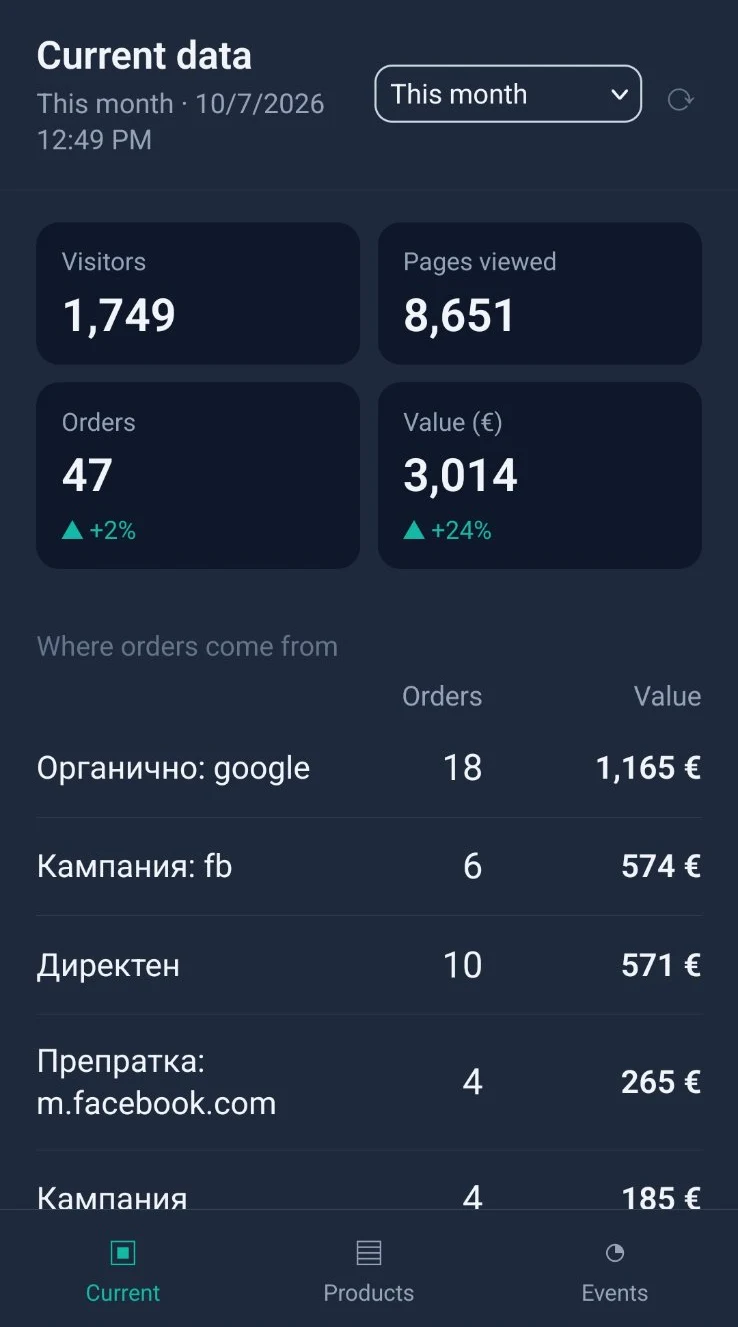
paid The subtab shows the live numbers for the selected period.


Where the data comes from
From the Customer journey counter and from the shop orders.
How it works
- „Visitors“, „Orders“, „Value“ and „Abandoned carts“ are at the top.
- „Visitors by channel“ shows where people come from. Channels are for example „Google search“, „Direct entry“, „Another site“ and „From the site itself“. Ads are recognized by the tags in the URL, for example „Google Ads“ and „Meta ads“.
- The number of orders from each channel is next to it.
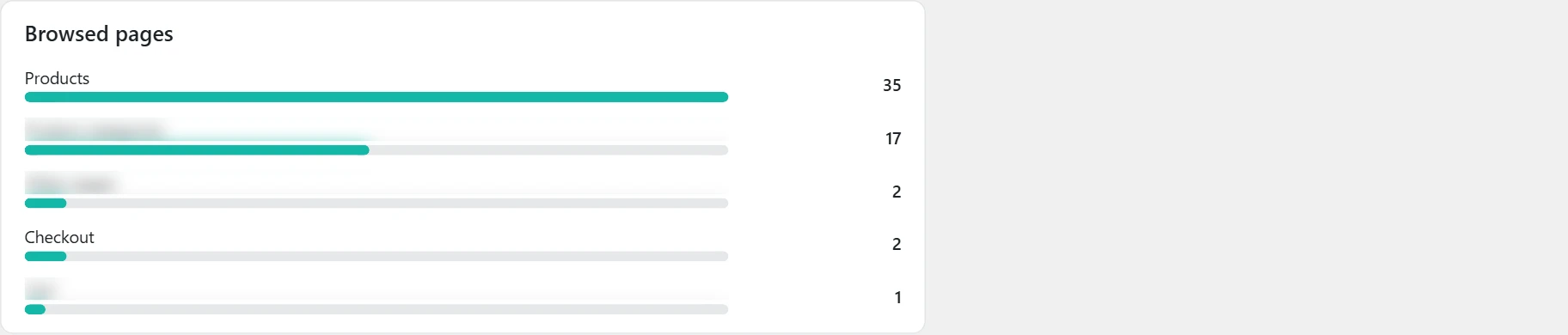
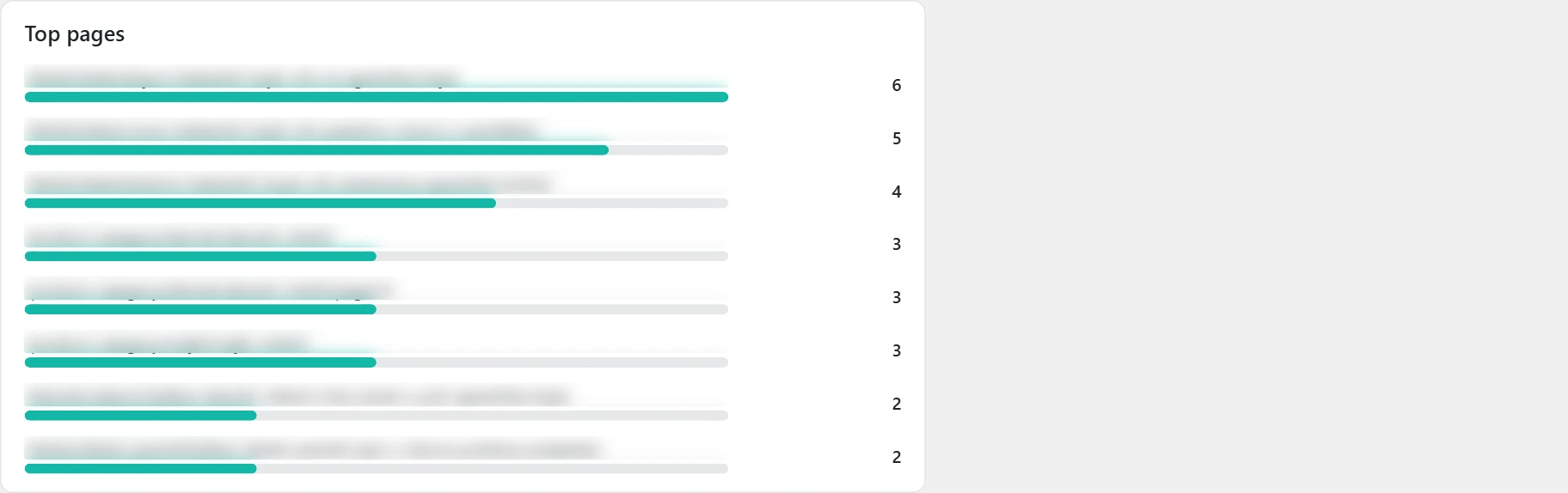
- „Pages viewed“ splits the views by page type: home, products, categories, articles, cart, checkout.
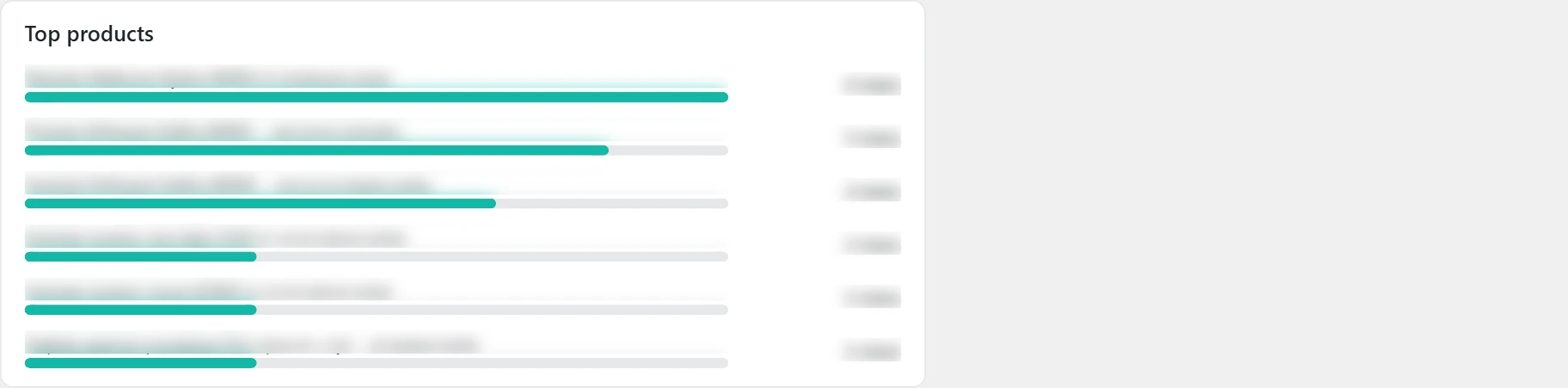
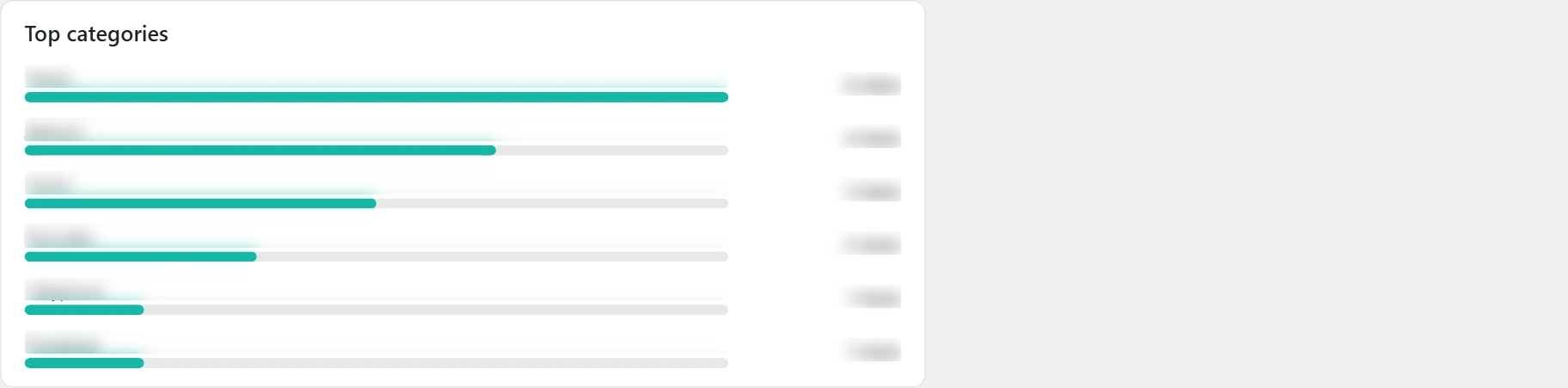
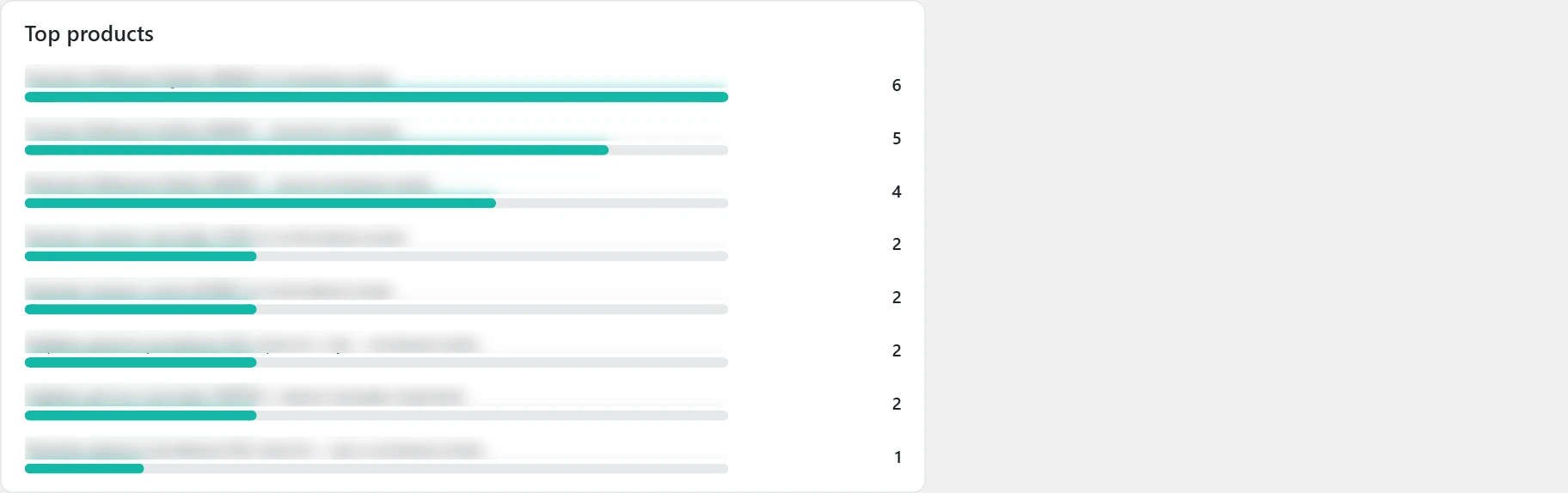
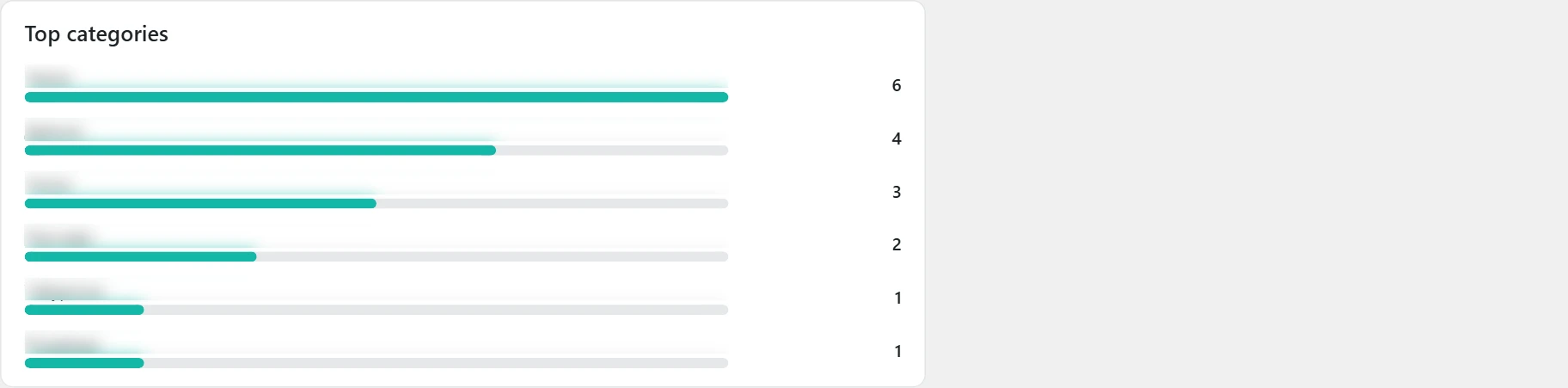
- „Top products“ and „Top categories“ are the most viewed. The price is next to the product.
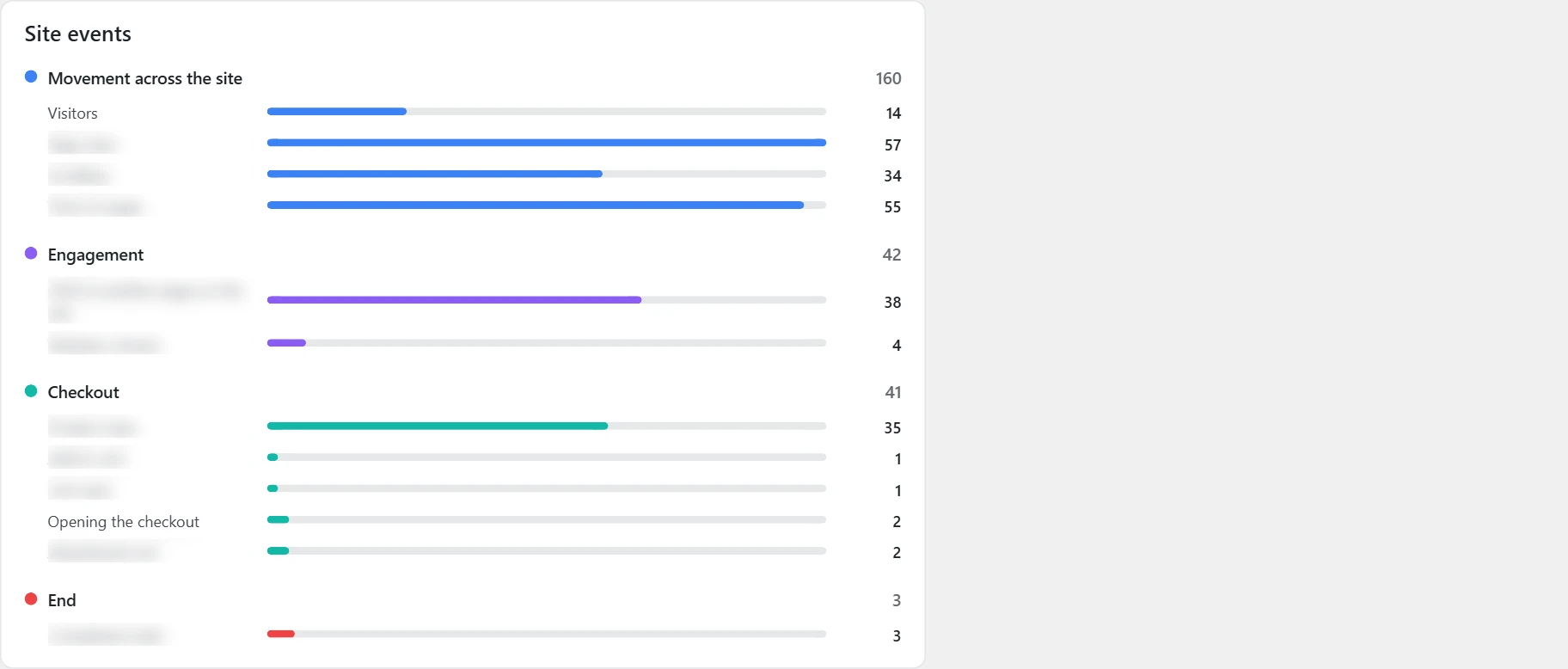
- „On-site events“ groups actions by color: site navigation, engagement, goals, checkout, promo code and end.
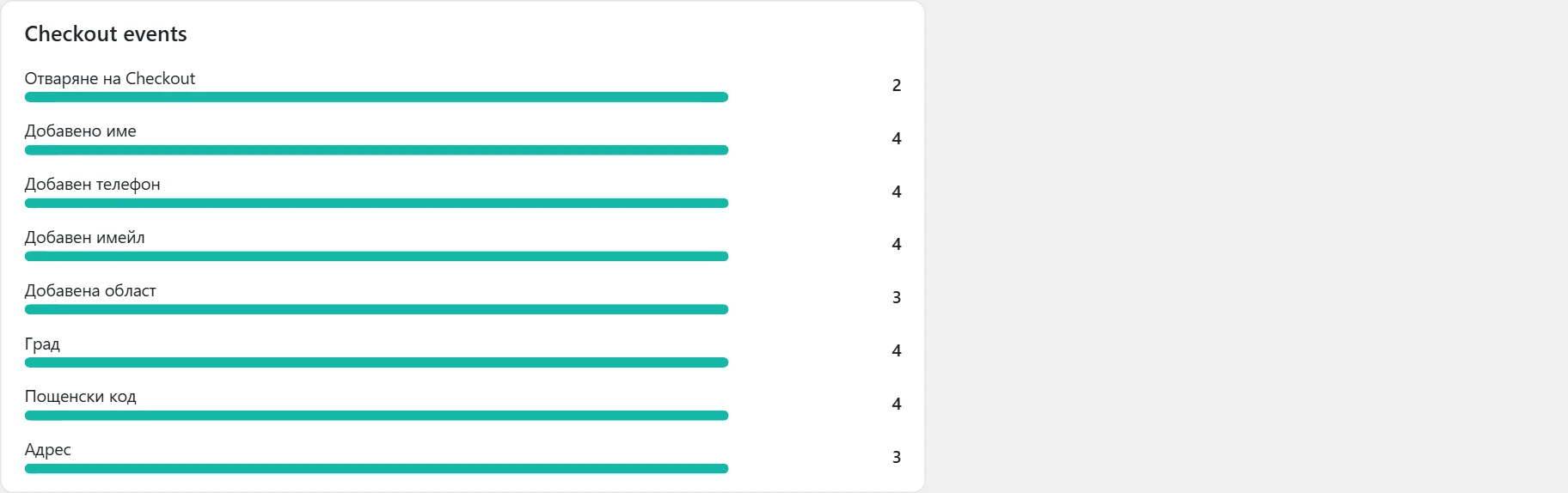
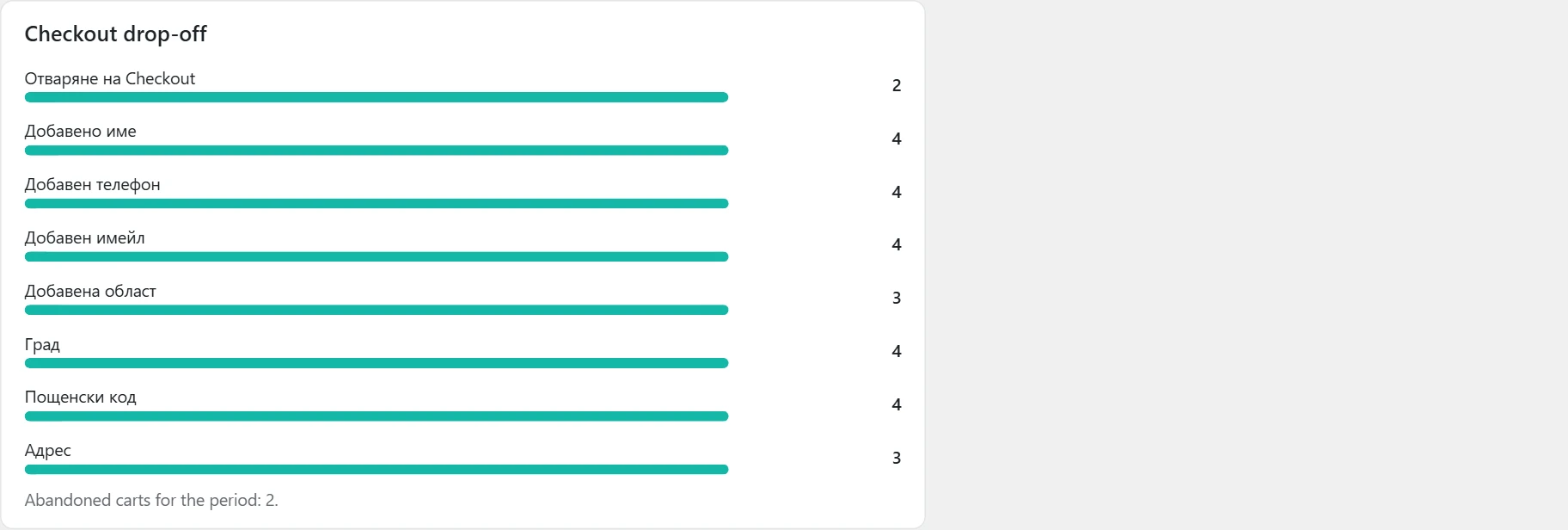
- „Checkout events“ shows the checkout steps. First the opening, then each filled field.
- The ⚑ sign is next to the field that is most often left empty. That is where people stop.
- „Fields left empty“ counts the empty fields in abandoned carts.
How to use it
If a checkout field is often left empty, check whether it is needed. Remove it or make it clearer.
Summary
What it is
paid The subtab is a report with charts for the selected period.


Where the data comes from
From the Customer journey counter and from the shop orders.
How it works
- Visitors are at the top. For a shop, there are also orders, value and abandoned carts. For a services site, there are total conversions and the two most common types.
- „Top products“ shows views and price. It is shown only for a shop.
- „Top pages“ shows the most viewed URLs.
- „Top categories“ is shown only for a shop.
- „When they come, by hour of day“ and „When they come, by day of week“ show when there are the most visits.
- „Cart abandonment“ shows how many people reach each checkout field. ⚑ marks the most common obstacle.
- For a services site, there is „Conversions by type“ instead of the checkout.
How to use it
Run ads and new posts in the hours and days with the most visits.
Funnels
What it is
paid The subtab shows how many people go through each step and where they are lost.
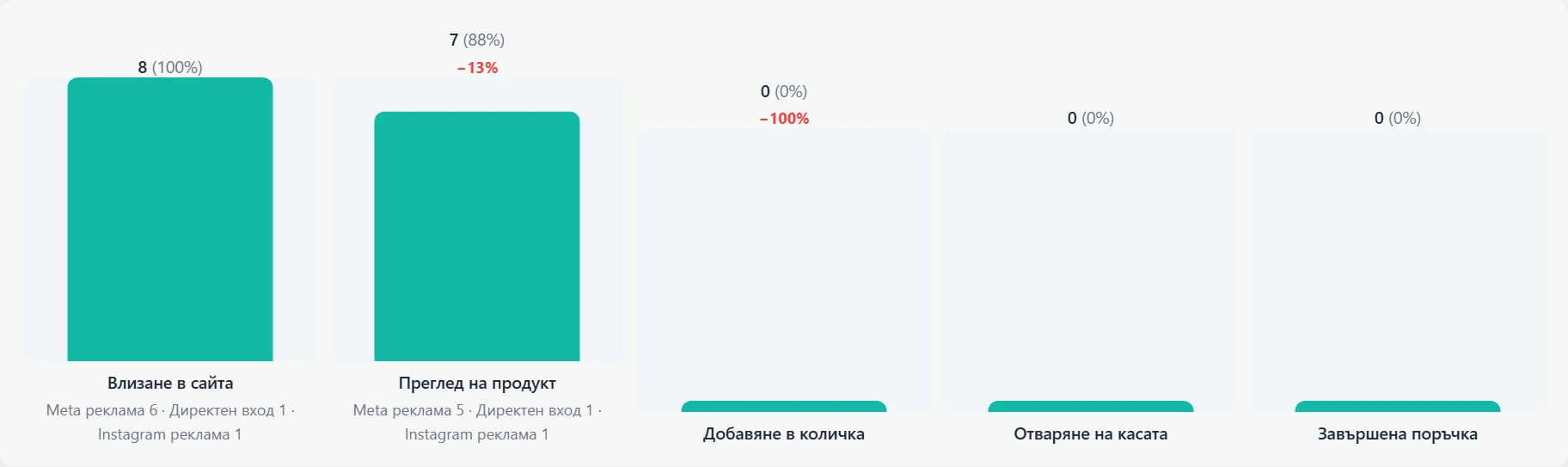

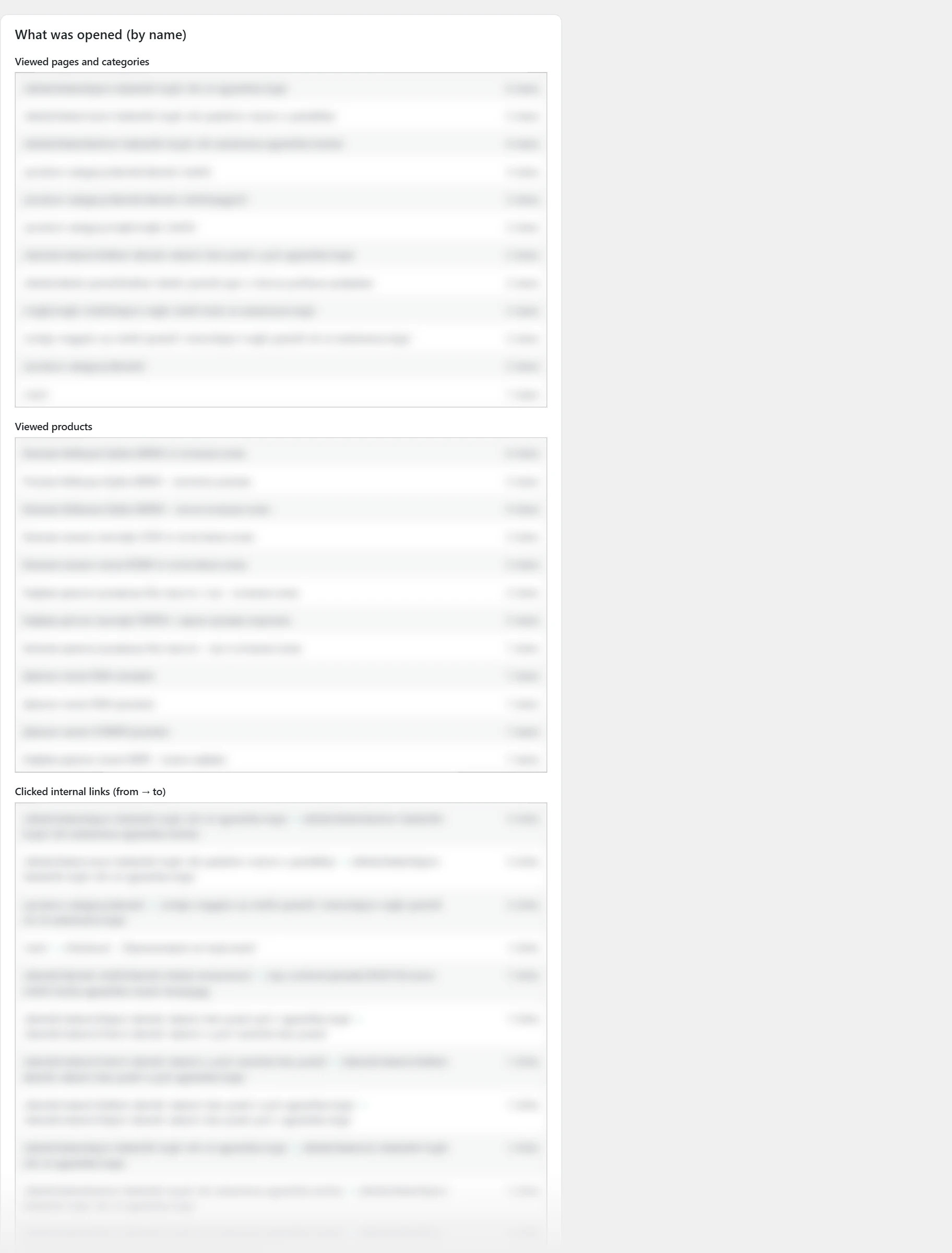
Where the data comes from
From the Customer journey counter. Single visits are counted.
How it works
- „Funnel“ has two options. „Full path (entry → order)“ is entry, product view, cart, checkout and order. „Checkout“ is opening the checkout, no error and completed order.
- „Channel“ limits the funnel to one source. „Type“ is vertical or horizontal.
- The percent next to each step is against the first step.
- The red number with a minus is the drop-off against the previous step.
- Under each step is a breakdown by channel.
- „Conclusions“ says where the biggest drop-off is, how many get from entry to order and which channel brings the most orders.
- „What was opened (by name)“ shows viewed pages and categories, viewed products and clicked internal links. For links, you see where the click came from and where it went.
How to use it
Work first on the step with the biggest drop-off. Compare the channels to see which one brings buyers.
Audits paid
Audit
What it is
paid Here is the monthly site audit. You can download it as a document or send it by email.

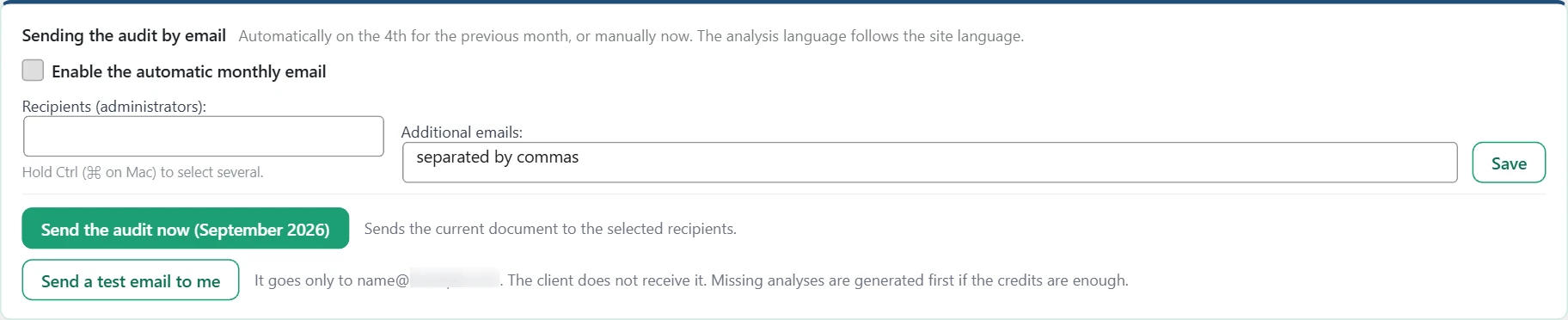
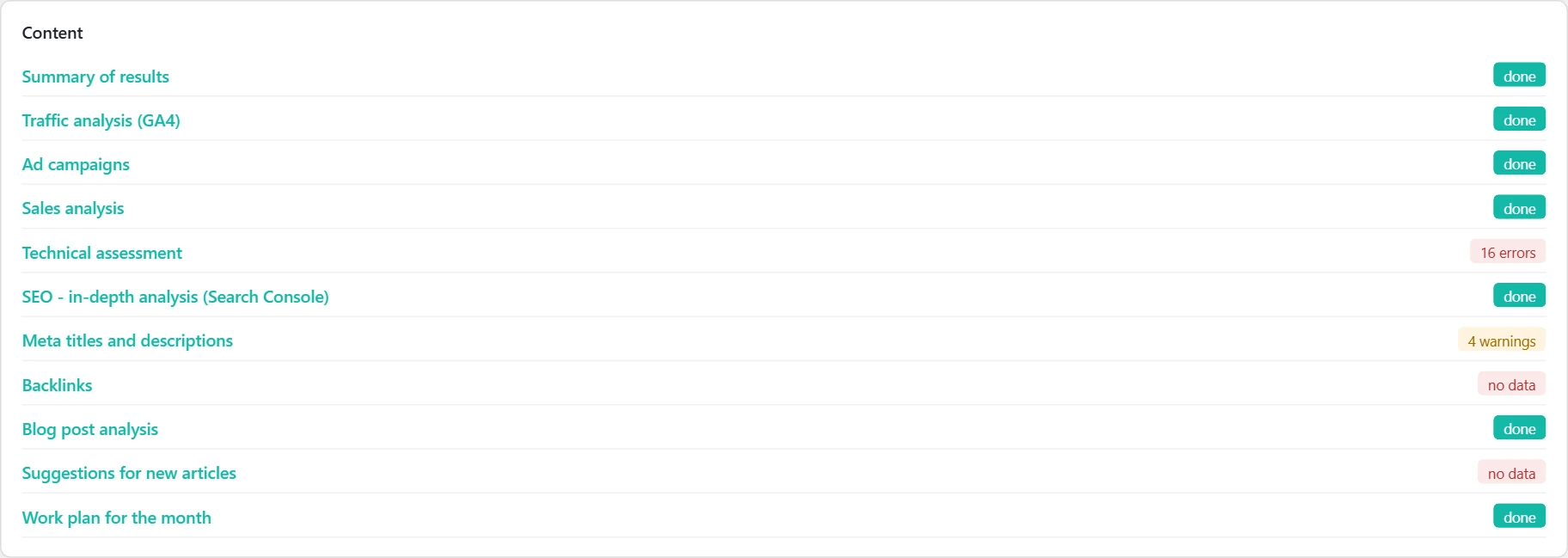
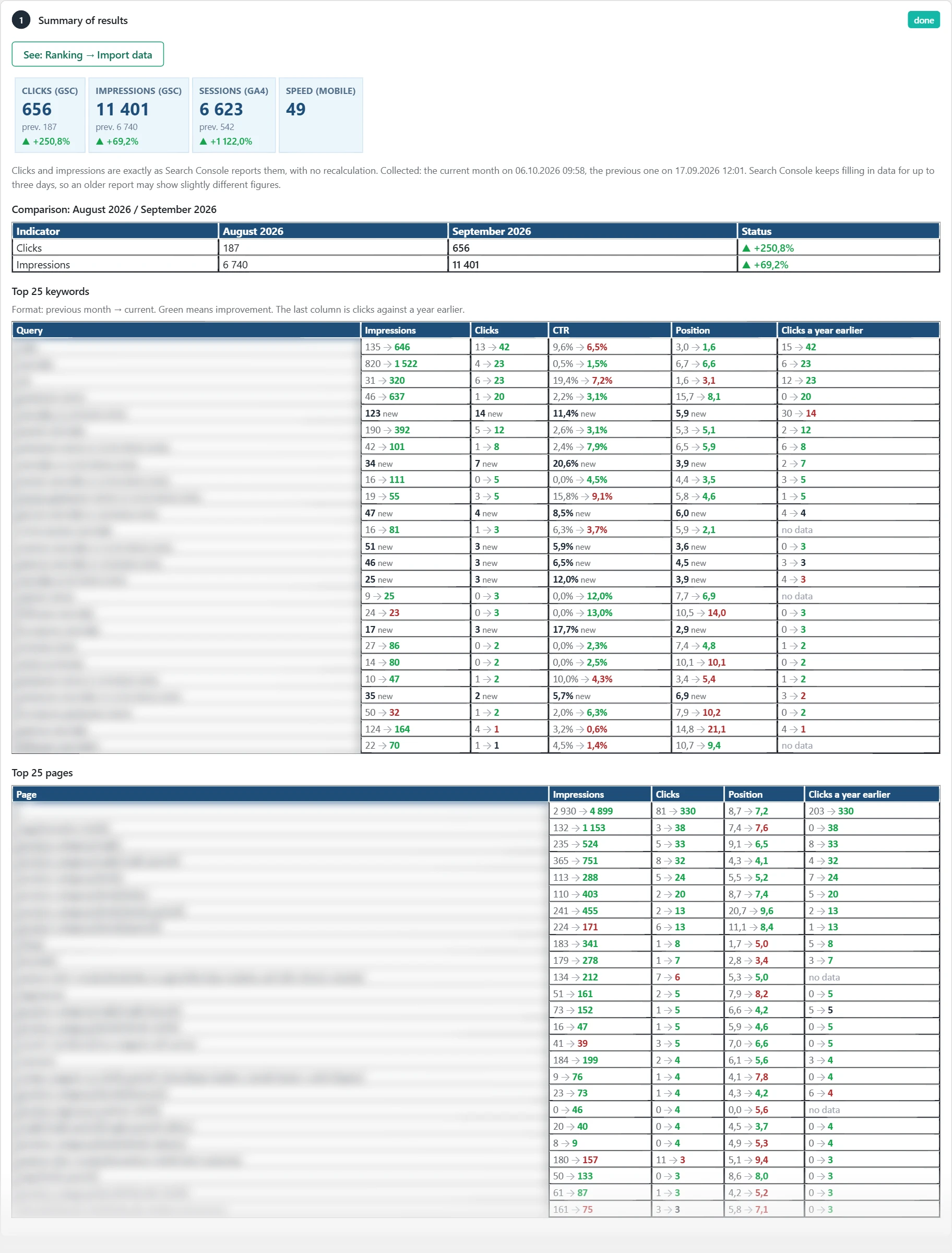
Where the data comes from
From Google Search Console, Google Analytics, the shop, the site crawl and the content section. AI writes the analyses for each section, and they use the license credits.
How it works
- „Monthly audit“ is always for the previous full month. You choose another month from „Month“. „• with analysis“ means the month has saved analyses.
- „What the audit covers“ shows the site type. The sections adapt to it. For an information site, „Ad campaigns“ is hidden. „Sales analysis“ is shown only for a shop.
- „Download as Word“ downloads the document.
- „Generate the analyses“ writes an analysis for each section that has data but no analysis. It also writes one for a section with new data.
- „Rewrite the analyses“ deletes the old analyses for the month and writes them again.
- „Check before sending“ has four rows: „1. Search Console data“, „2. Sections“, „3. Credits for the analyses“ and „4. Analyses“. ✔ is fine. ! is a warning. ✘ stops the sending.
- Search Console data for the month is downloaded automatically on the 4th. Until then, the audit waits.
- „Sending the audit by email“ sends the audit automatically on the 4th. The recipients are selected administrators and extra emails.
- „Send the audit now“ sends it at once. „Send a test email to me“ sends it only to you, not to the client.
- „Content“ is the list of sections. Each has „critical“, „warning“, „done“ or „no data“ next to it.
- The sections are „Summary of results“, „Traffic analysis (GA4)“, „Ad campaigns“, „Sales analysis“, „Technical assessment“, „SEO – in-depth analysis (Search Console)“, „Meta titles and descriptions“, „Backlinks“, „Blog post analysis“, „Suggestions for new articles“ and „Work plan for the month“.
- Each section has a „See:“ button to the tab its data comes from. „Backlinks“ is still empty.
How to use it
Before the 4th, look at „Check before sending“. Fill in the missing data using the links in it. Send a test email to yourself.
Tasks
What it is
paid The „Service“ screen says who is responsible for what. When there is a problem, the notification goes to the right person.
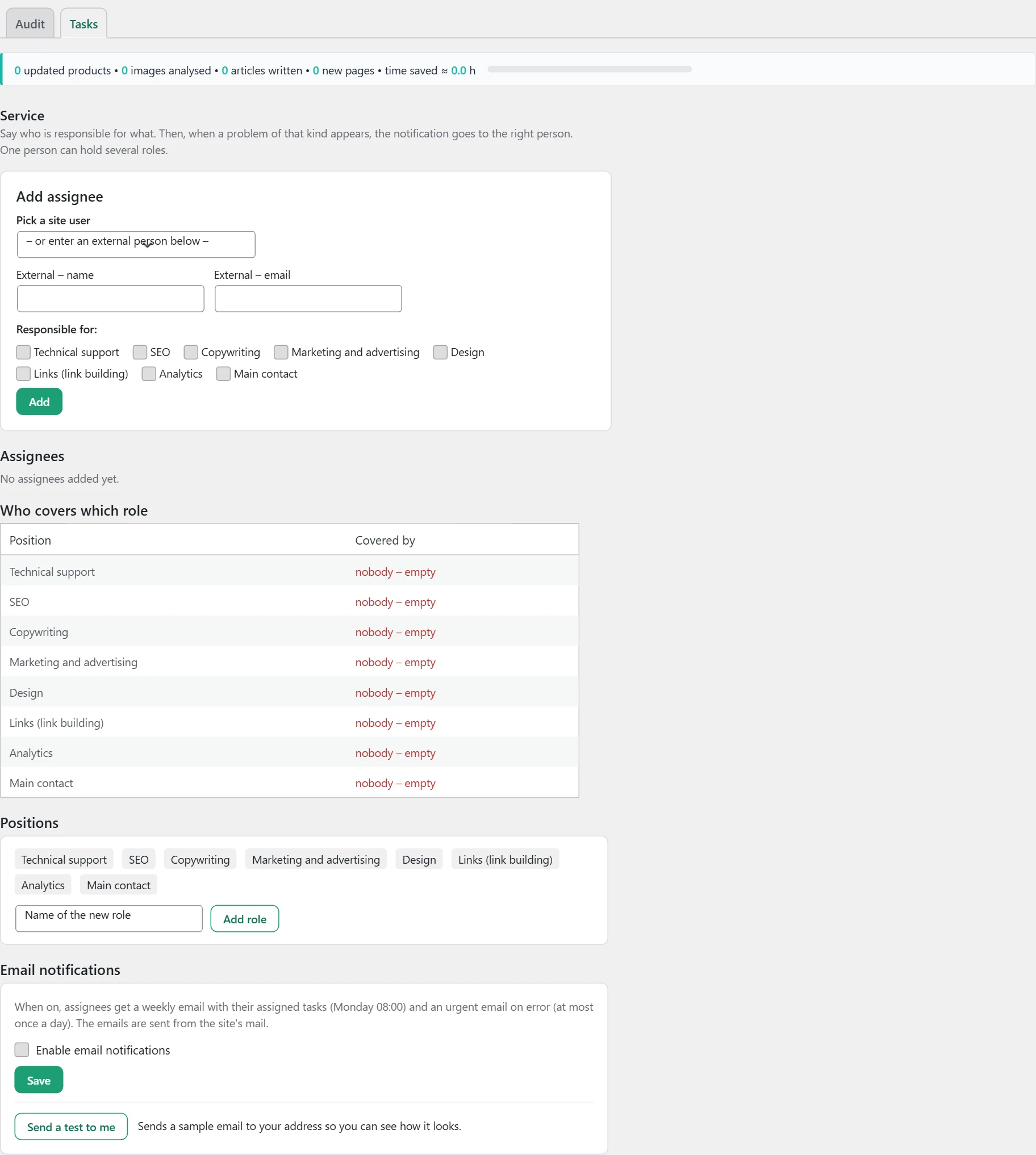
Where the data comes from
You enter the assignees and the roles. The tasks come from the audit findings. The emails are sent from the site’s mail.
How it works
- „Add assignee“ accepts a site user or an outside person with a name and an email.
- „Responsible for:“ sets the person’s roles. One person can hold several roles.
- „Assignees“ is the list. There you change the roles and save them with „Save positions“.
- „Who covers which role“ shows empty roles in red as „nobody, empty“.
- „Positions“ has built-in roles, for example „Technical support“, „SEO“, „Copywriting“ and „Main contact“. You can add your own role. Only your own roles can be deleted.
- „Email notifications“ is off at the start. When it is on, each assignee gets a weekly email on Monday at 08:00. If there is an error, they also get an urgent email, at most once a day.
- „Send a test to me“ shows what the email looks like.
How to use it
Cover all roles. Send a test email. Then turn on the notifications.
Link building paid
paid Here you track domain authority and backlinks. Here you also order articles on media sites.

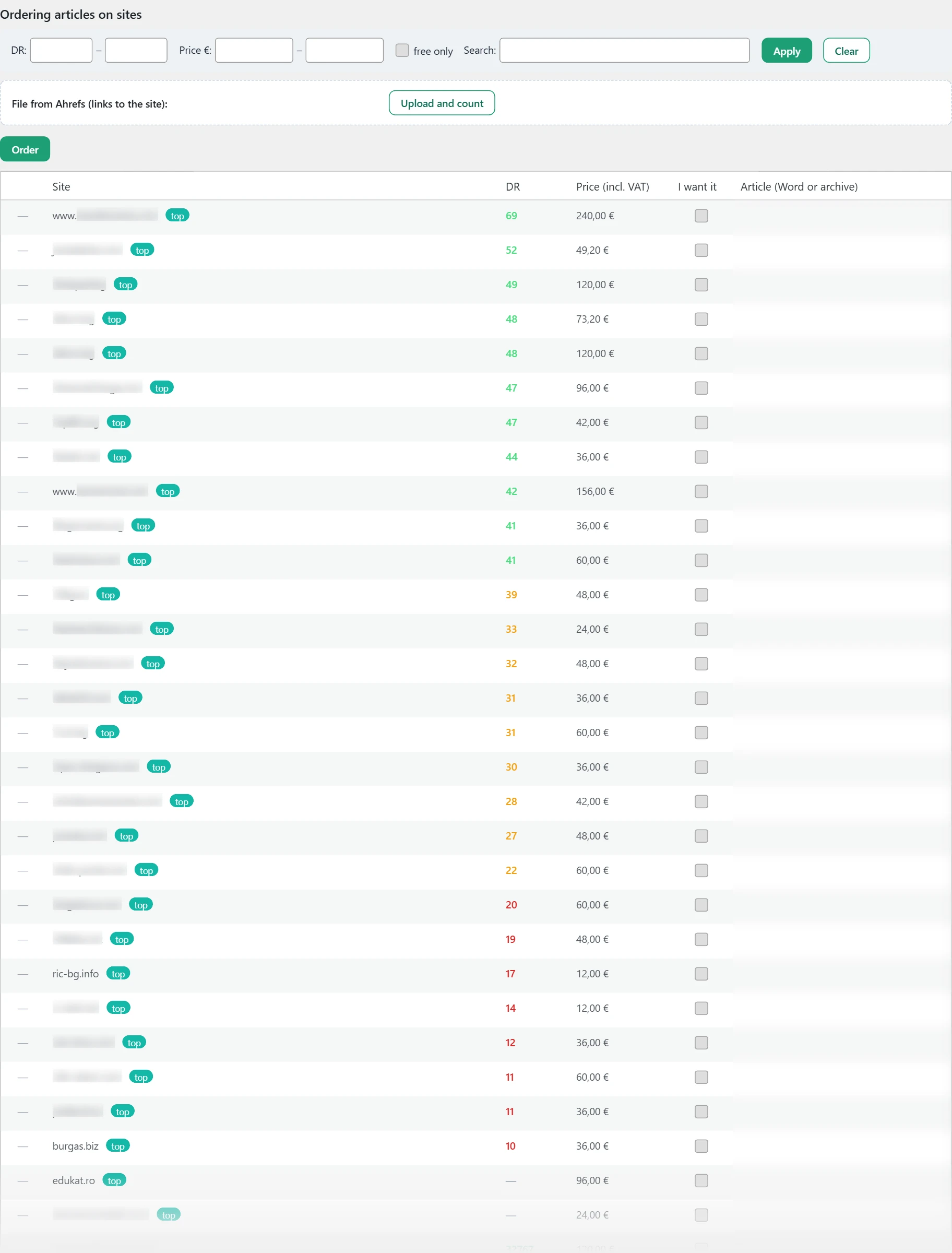
Where the data comes from
„Domain authority (DR)“ is checked once a month by the Inside SEO hub through Open PageRank. Backlinks are from a file downloaded from Ahrefs. The list of media sites and prices comes from the Inside SEO hub.
How it works
- „Domain authority (DR)“ is a number from 0 to 100. Red is up to 20, orange up to 40, light green up to 70 and green above 70.
- „Backlinks“ is the total number of links from the latest file. „TOP“ counts the links from media sites marked as „top“.
- Next to each DR group is the change against the previous file, for example (+3) or (−2).
- „File from Ahrefs (links to the site):“ accepts a .csv file. It must have a „Referring page URL“ column. The button is „Upload and count“.
- „Ordering articles on sites“ is a table with media sites, DR and „Price (incl. VAT)“.
- In the first column, ✓ means you already have a link from the site. ✗ means you do not have one yet. A dash means no Ahrefs file is uploaded.
- You can filter by DR, price and text. „free only“ hides the sites you already have a link from.
How to use it
Upload an Ahrefs file every month. Tick the sites in „I want it“, attach one article for each and press „Order“. This is only a request. There is no payment here, and the agency will contact you.
Mobile access paid
paid Here you install the „Quick Look“ app on a phone. It shows sales, channels and products on one screen.
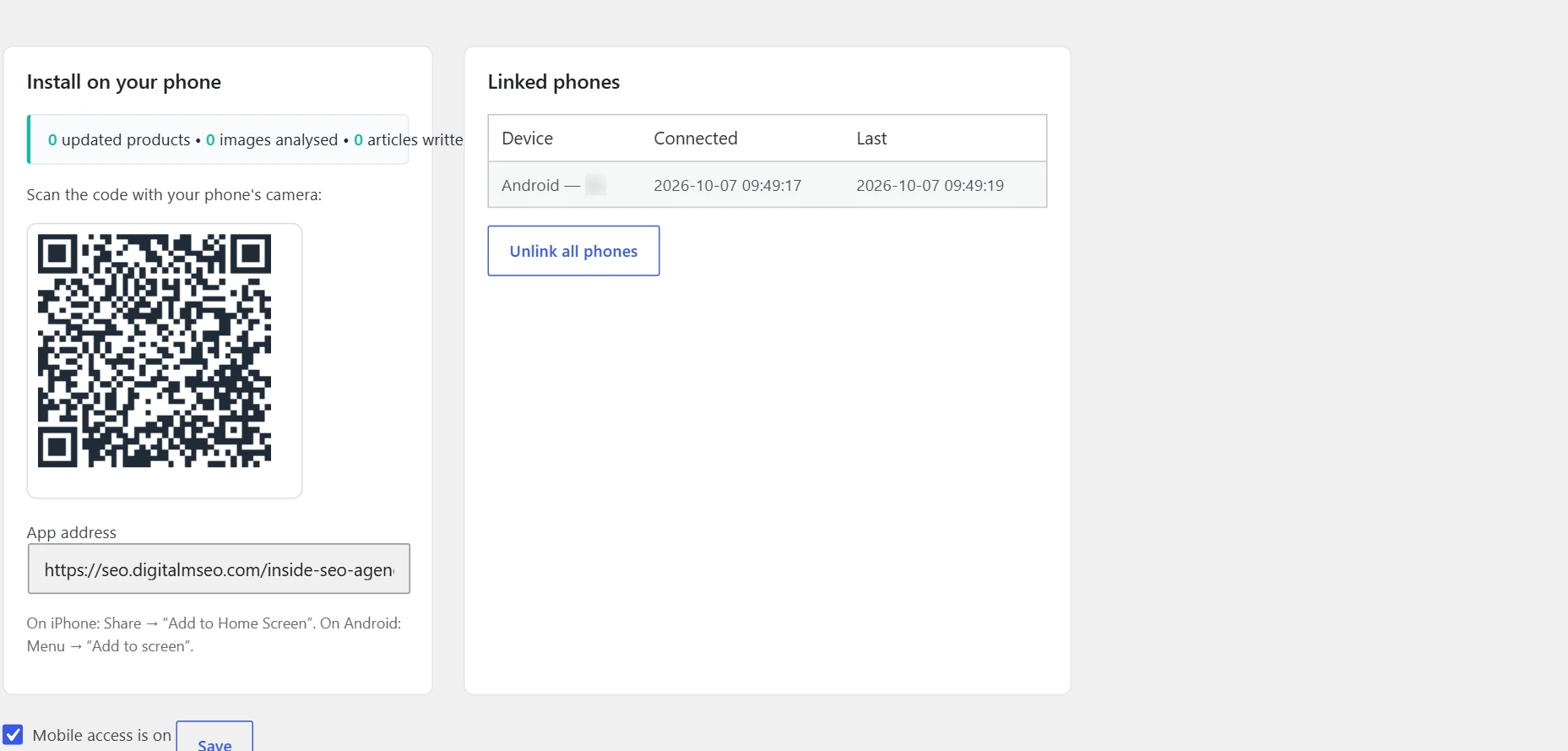
Where the data comes from
The app reads the data from your site. It only reads and shows no personal data.
How it works
- „Install on your phone“ has a code to scan with the camera and the „App address“.
- On iPhone, you add it from „Share“ and „Add to Home Screen“. On Android, you add it from the menu.
- You log in with a code sent by email. Only administrators and shop managers can log in.
- The site must use a secure connection (https). Otherwise login is blocked.
- „Linked phones“ shows the device, when it was linked and when it was last used.
- „Unlink all phones“ requires everyone to log in again.
- „Mobile access is on“ turns access on and off.
How to use it
Scan the code with the owner’s phone. If a phone is lost, press „Unlink all phones“.
License paid
paid Here you enter the license key. It unlocks the paid modules.
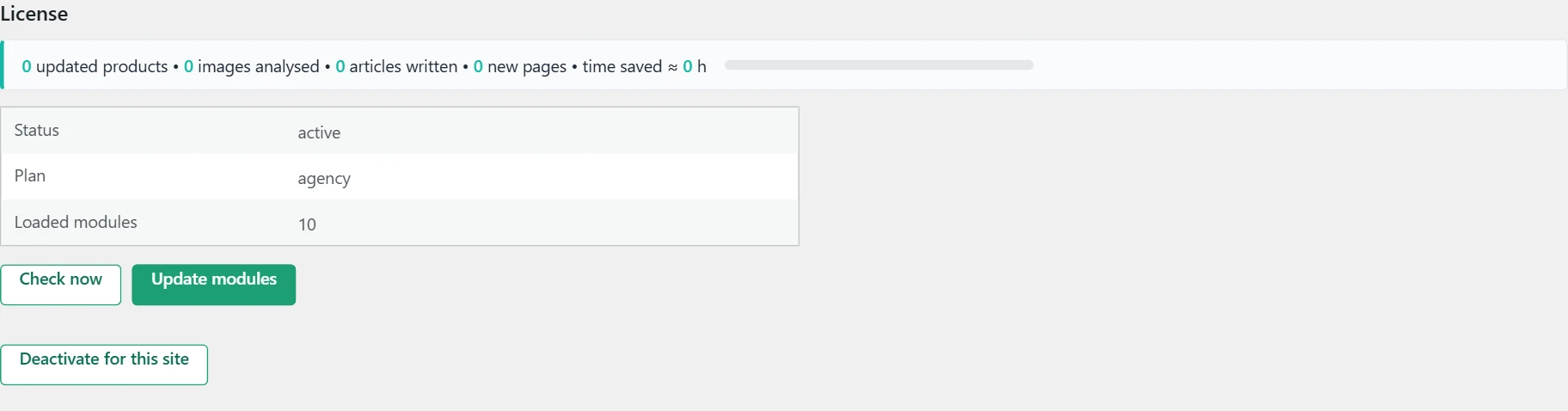
Where the data comes from
The license status and the modules come from the Inside SEO hub.
How it works
- Without a key, there is a field and an „Activate“ button. The plugin works in its free form.
- With a key, there is a table. „Status“ is „active“, „in grace period“, „disabled (expired)“ or „unknown“.
- There are also „Plan“ and „Loaded modules“. In the grace period, you also see how many days are left.
- „Check now“ asks the hub at once. The answer says what is wrong, for example that the hub does not respond or that the license has expired.
- „Update modules“ downloads the latest modules from the hub.
- „Deactivate for this site“ stops the paid modules here.
How to use it
If a paid tab is missing, press „Check now“ and then „Update modules“.
Agency
The agency agency
Choosing a client
What it is
The agency plugin shows the client sites one at a time. At the top of the header there is a dropdown with the clients.

Where the data comes from
Everything on the screens is from the data pulled from the selected client’s site. You manage the pulling from „Settings“.
How it works
- The menu shows the client name or the site address.
- When you change the client, you stay on the same screen and the same subtab.
- If it says „No connected clients“, there is no approved connection yet.
How to use it
Choose the client before you read any tab.
Settings
What it is
Here the agency connects to the Inside SEO hub, sees its slots, invites clients and tracks data pulls.
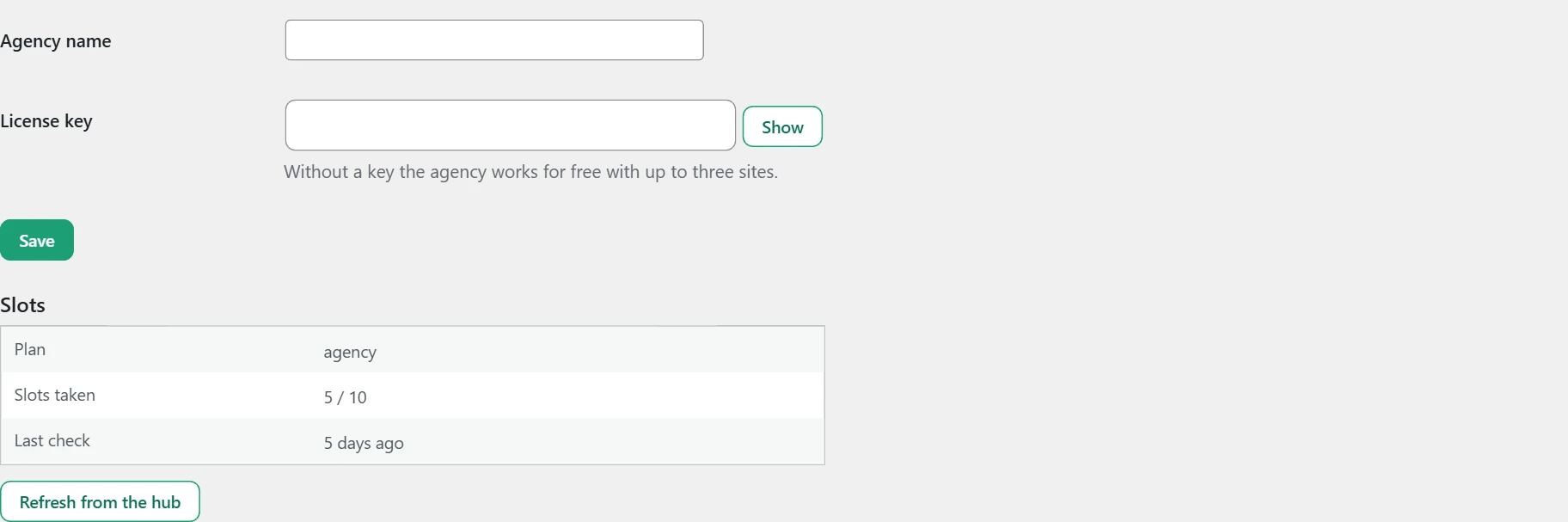
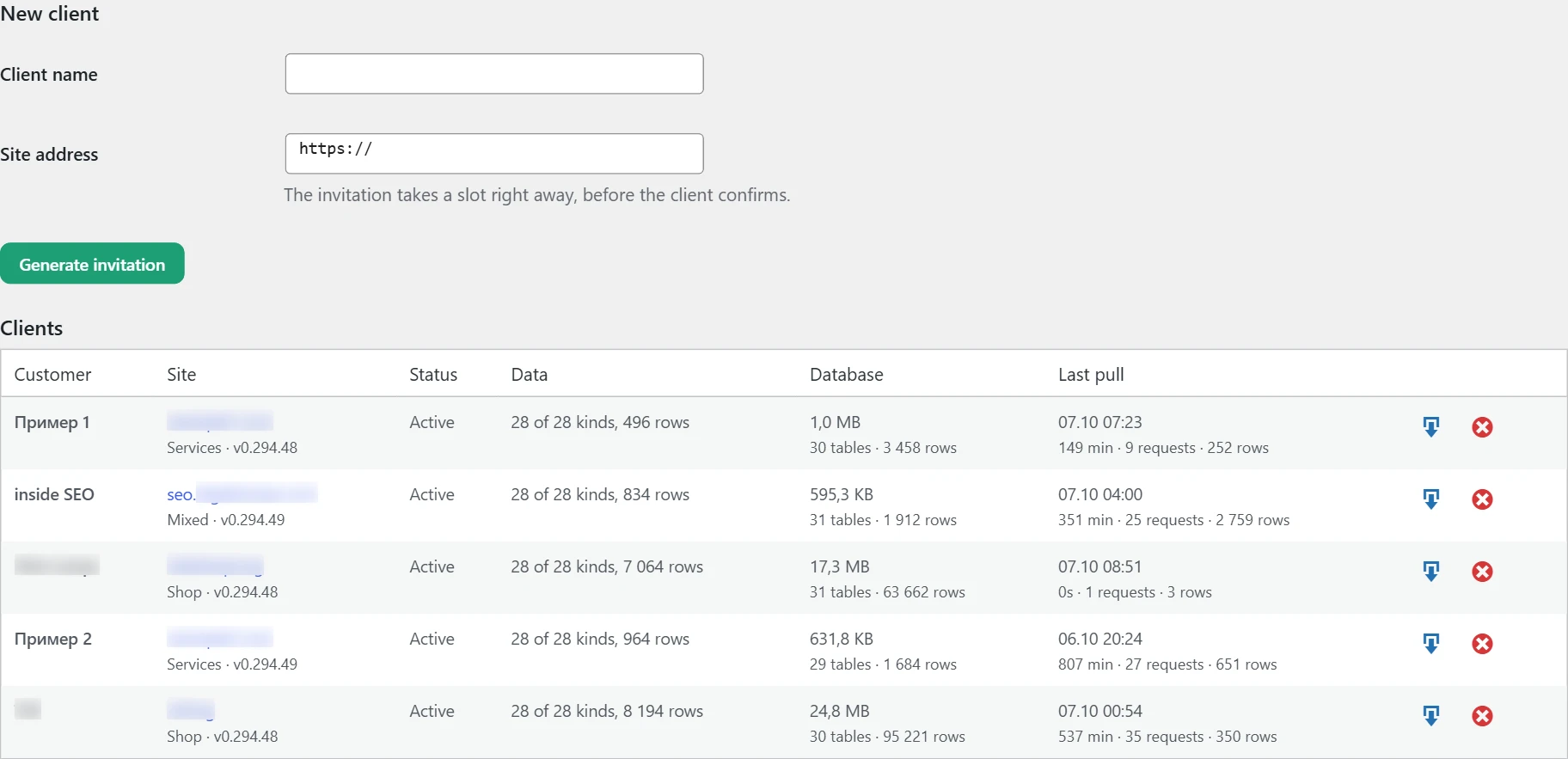

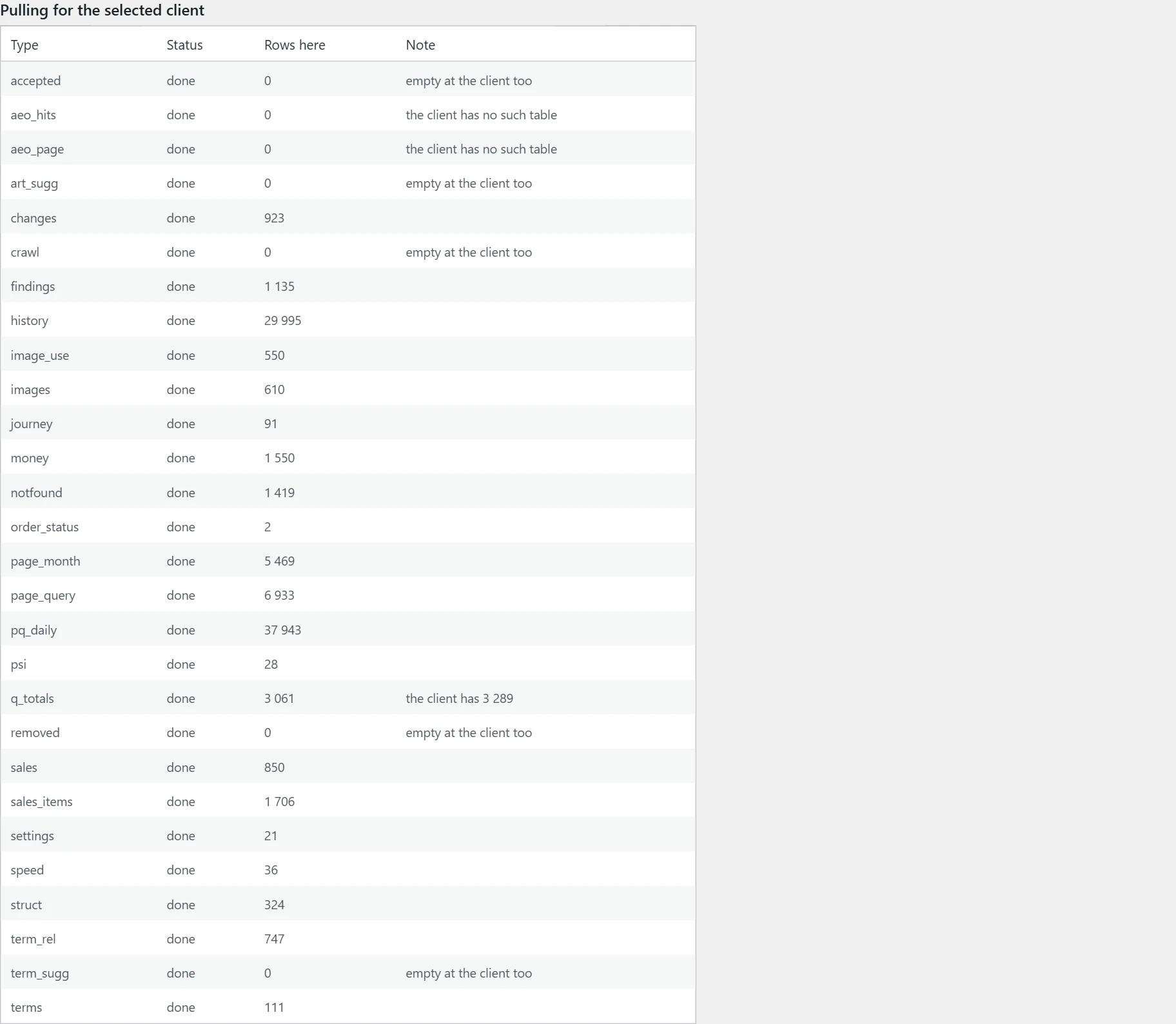
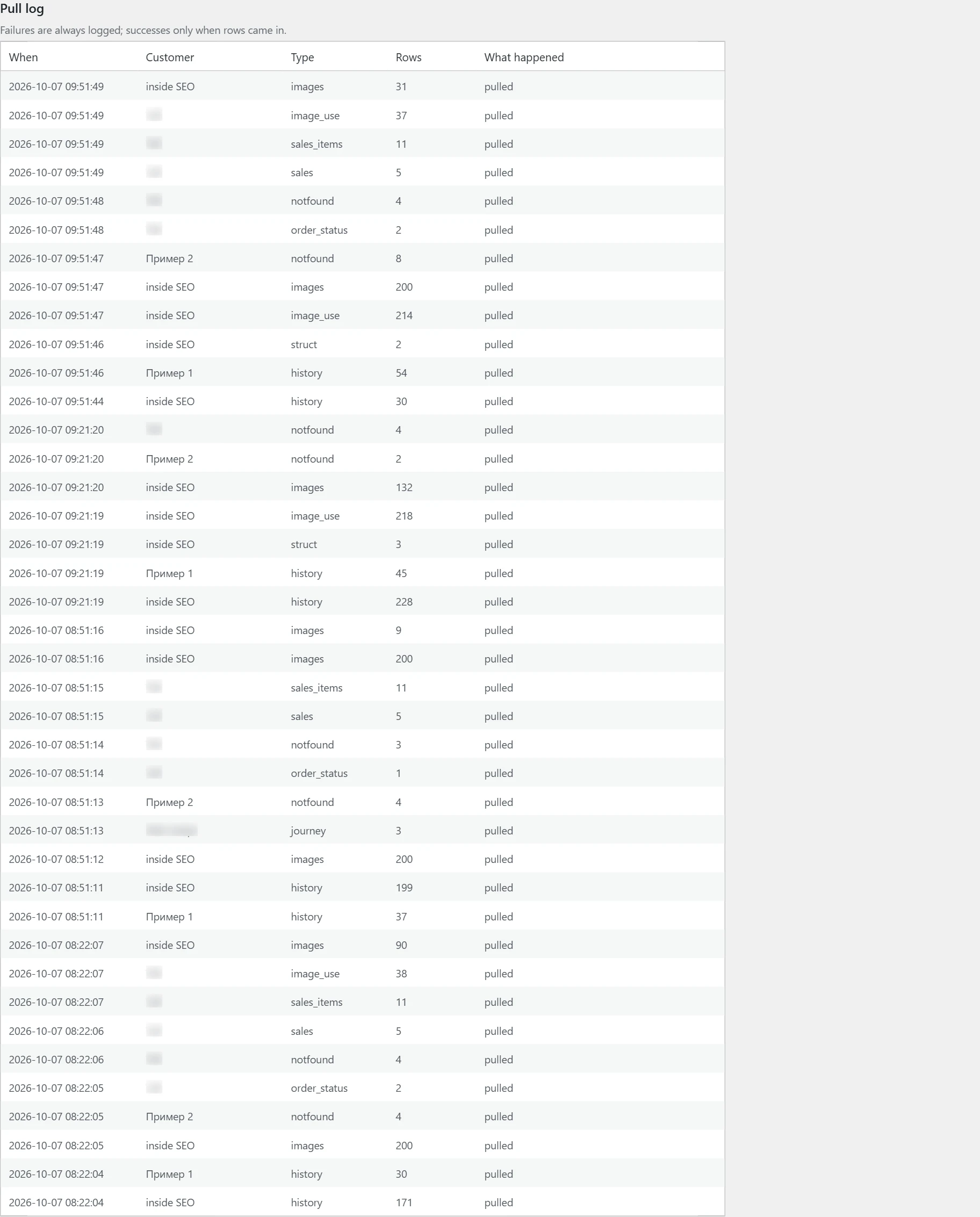
Where the data comes from
The plan and slots come from the Inside SEO hub. The client status and the log are from the pulls on this site.
How it works
- „Agency name“ is the name the client sees.
- „License key“ unlocks more slots. Without a key, the agency works for free with up to three sites.
- „Slots“ shows „Plan“, „Slots taken“ and „Last check“. The „Refresh from the hub“ button checks again.
- „New client“ asks for „Client name“ and „Site address“. The invitation takes a slot at once, before the client confirms.
- „Clients“ is a table. For each client there is the site, the type and the plugin version. „Status“ is „Invited“, „Waiting for your approval“, „Active“, „Rejected“, „Ended“ or „Expired“.
- The „Data“ column says how many data groups have been pulled. „Database“ shows the size and number of rows. „Last pull“ shows when, how long and how many requests.
- With „Waiting for your approval“ there are buttons to approve and reject. With an active connection there is a „Pull the data now“ button. Ending a connection frees the slot after a few days.
- „Pull queue“ counts the waiting, running, finished and failed pulls. It also shows when the next one is.
- „Update what is missing or changed“ asks each client what has changed and pulls only that. The same happens every day at 4:00.
- „Update all clients in full“ pulls everything again. This takes long and loads the client sites.
- „Pulling for the selected client“ shows each data group with its status, number of rows and a note.
- „Pull log“ records all errors and the successful pulls with data.
How to use it
If the 4:00 pull does not start, the reason is that the WordPress scheduler waits for a visit. Ask your host for a server task that runs the scheduler every 5 minutes.
How to add a client
What it is
The connection needs both sides. The agency invites, the client confirms, the agency approves.
Where the data comes from
The Inside SEO hub creates the invitation code. The confirmation is done on the client’s site.
How it works
- In „New client“, enter the name and site address and press the invite button.
- „Client code“ and „Or a direct link“ appear. They are shown only once. Copy them.
- On their own site, the client opens Inside SEO, then „Settings“, then „Agency“. They enter the code and press „Continue“.
- The direct link leads to the same place. The client must be logged in to their site.
- A „Connect to an agency“ page opens. It lists what changes, what data the agency gets and what it does not get.
- The client ticks the two consent boxes and presses „Confirm the connection“.
- On the agency side, the client becomes „Waiting for your approval“. The agency approves the connection.
- The client sees the change in „Agency“. The site checks every hour. There is also a „Check now“ button.
How to use it
Send the client the code, not only the direct link. The code is the more reliable way. After approval, pull the data with „Pull the data now“.
Reference
System info free
The screen shows what the plugin has found on the site. It only reads and makes no outside requests.
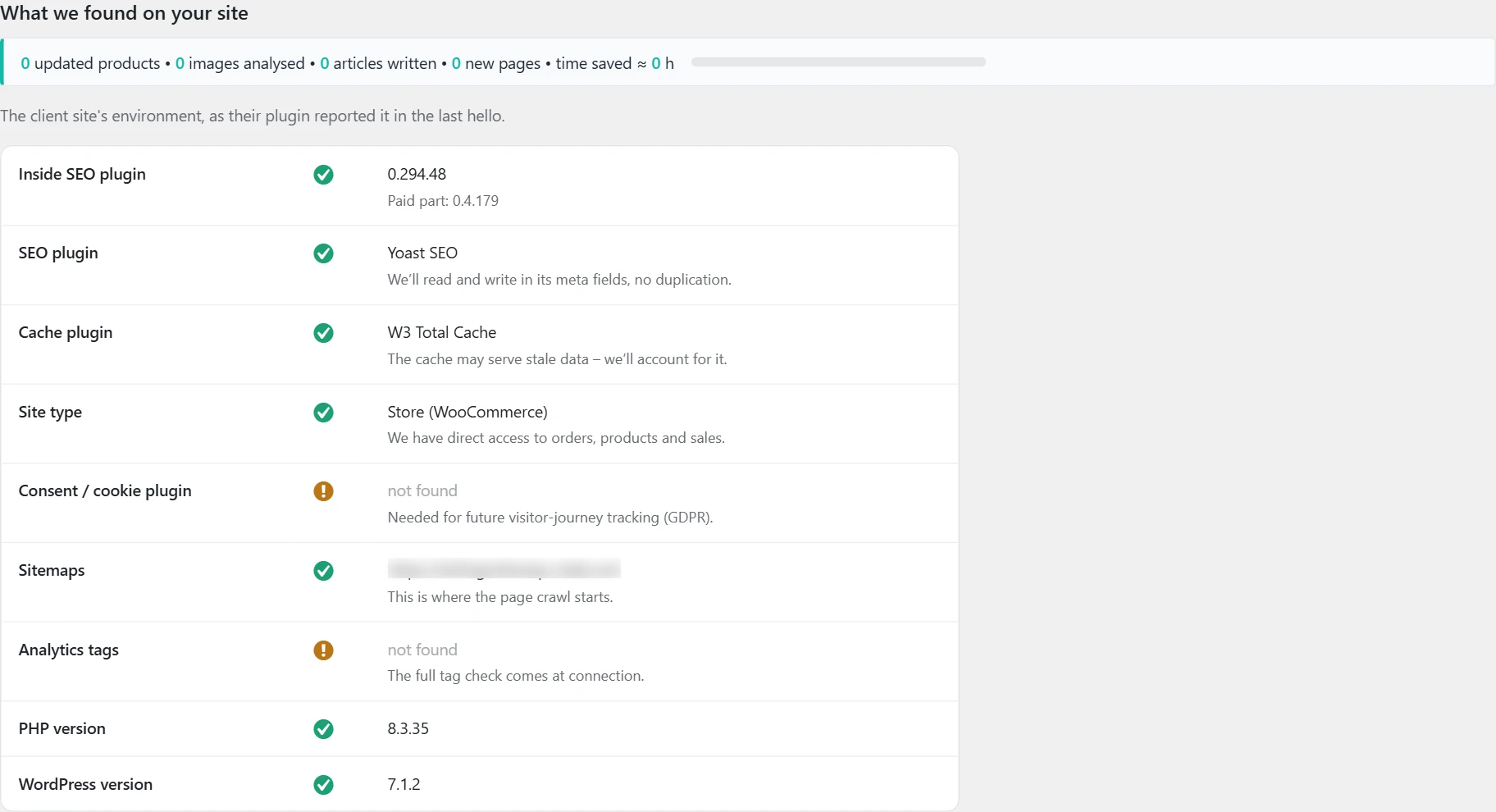
Where the data comes from
From WordPress itself and the active plugins.
How it works
- The rows are „SEO plugin“, „Cache plugin“, „Site type“, „Consent / cookie plugin“, „Sitemaps“, „Analytics tags“, „PHP version“ and „WordPress version“.
- A green tick means it was found.
- A yellow warning means something important is missing.
- A grey dash means the missing item is not a problem.
- Under each row is a short explanation of why it matters.
How to use it
If no SEO plugin is found, the plugin has nowhere to save titles and descriptions. If there is no sitemap, add one.
Guide free
The Guide shows where things are done in the plugin. It does not analyze or fix anything. It only points the way.
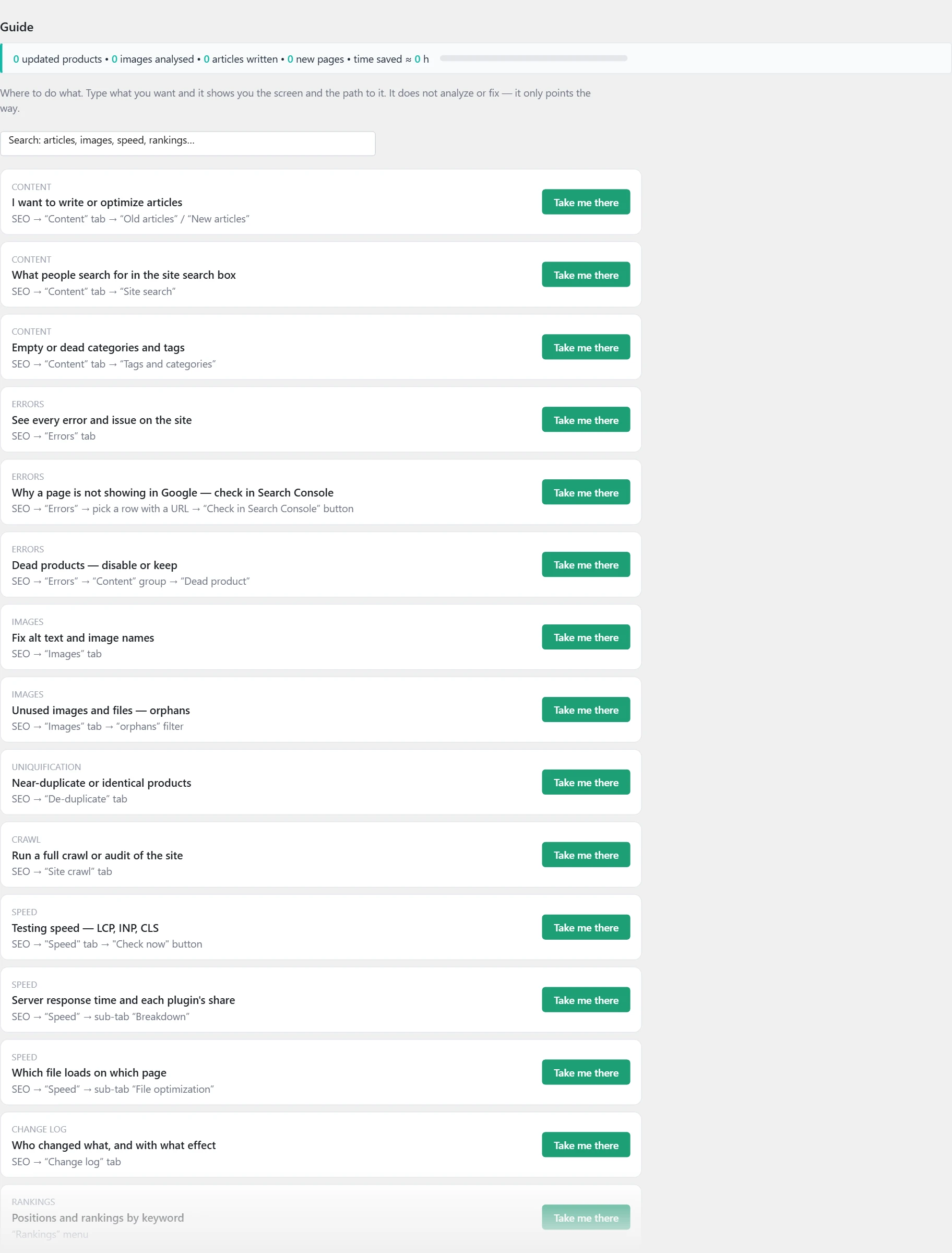
Where the data comes from
From a built-in list of screens. The search runs locally, with no AI and no cost.
How it works
- The „Where to do…“ search box is at the top of every screen. The same search is also on the page.
- Each row has a section, a question and the path to the screen. The „Take me there“ button opens the screen.
- If there is no match, try another word.
- „Something not working?“ is a form for a message to us. Describe what happened.
- The email is optional. To get a reply, tick the consent box.
- The message includes the versions of the plugin, WordPress, PHP, the SEO plugin and the site address. None of your data is sent.
- „Questions log“ shows the most opened rows and the searches with no answer. It is kept on the site for up to 12 months.
How to use it
Write in words what you want to do. If nothing comes up, send a message through the form.
About Inside SEO free
The screen shows the plugin version and how to contact us.
Where the data comes from
From the plugin itself and the site.
How it works
- At the top are „Version:“, „Developer:“ and „License:“. The developer is Дигитал М СЕО ЕООД (Digital M SEO EOOD).
- „Useful links“ leads to the documentation, the privacy policy and the terms of use.
- „Support“ gives the email contact@digitalmseo.com for questions and payments.
- „System info“ at the bottom shows the versions of WordPress, PHP, the database, the plugin and the active theme.
How to use it
When you write about a problem, also copy the versions from this screen.